Ultimate Guide to AI Image Generation for Beginners 2025
Complete beginner's guide to AI image generation. Everything you need to know about prompting, models, tools, and creating your first AI images.
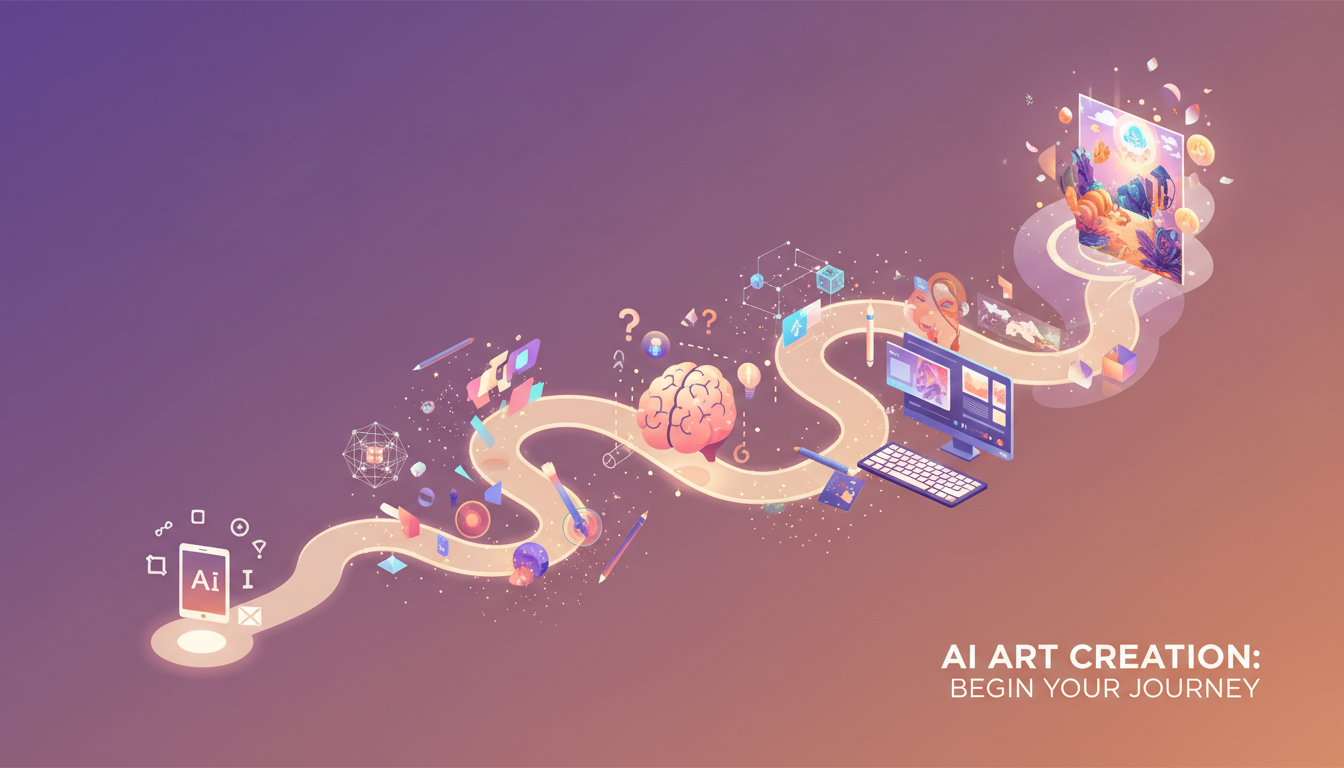
AI image generation can feel overwhelming. Thousands of models, endless settings, confusing terminology. This guide cuts through the noise and gives you everything you need to start creating impressive AI images today.
Quick Answer: Start with a free cloud tool like Bing Image Creator or Leonardo AI to learn prompting basics. Once comfortable, move to ComfyUI or AUTOMATIC1111 for local generation with more control. Focus on learning good prompting first, as it matters more than which tool you use. Master the basics before exploring advanced techniques like LoRAs and ControlNet.
- How AI image generation actually works
- Which tools to start with (and why)
- How to write effective prompts
- Essential settings and what they do
- Common mistakes and how to avoid them
- Your path from beginner to advanced
How AI Image Generation Works
The Basic Concept
AI image generators don't "draw" images. They start with random noise (like TV static) and progressively remove noise while being guided by your text prompt. Through many steps, coherent images emerge from the chaos.
This process is called "diffusion" and it happens in "latent space" rather than pixel space. You don't need to understand the math, but knowing this helps understand why certain things work.
The Key Players
The Model: The "brain" trained on millions of images. Different models produce different styles and qualities. Popular ones include SDXL, Flux, and Midjourney.
The Prompt: Your text description telling the model what to create.
The Sampler: The algorithm that removes noise step by step.
The Seed: A random number that determines the specific noise pattern. Same seed + same settings = same image.
Why Results Vary
Two identical prompts can produce different images because:
- Random seed changes the starting noise
- Model interprets prompts probabilistically
- Small setting changes compound across steps
This isn't a bug. It's what makes AI generation creative and explorable.
Choosing Your First Tool
Cloud Options (Easiest Start)
Bing Image Creator
- Free with Microsoft account
- DALL-E 3 quality
- No setup required
- Best for: Complete beginners
Leonardo AI
- 150 free tokens daily
- Multiple model options
- Good interface
- Best for: Learning with variety
Midjourney
- $10/month minimum
- Highest quality defaults
- Discord interface
- Best for: Those willing to pay for quality
Local Options (More Control)
ComfyUI
- Node-based workflow
- Maximum flexibility
- Steeper learning curve
- Best for: Those who want control
AUTOMATIC1111
- Traditional interface
- Good for beginners going local
- Extensive features
- Best for: Intermediate users
My Recommendation
Start with: Bing Image Creator (free, good quality, zero setup)
Graduate to: Leonardo AI (more options while still cloud-based)
Eventually try: ComfyUI (when you want full control)
Don't start with local tools. Cloud options let you focus on learning prompting without technical distractions.
Writing Effective Prompts
Prompt Anatomy
A good prompt typically includes:
- Subject: What/who is in the image
- Action: What they're doing
- Setting: Where it takes place
- Style: How it should look
- Quality modifiers: Technical improvements
Example breakdown:
"A young woman reading a book in a cozy library, warm afternoon light through windows, oil painting style, detailed, high quality"
- Subject: young woman
- Action: reading a book
- Setting: cozy library, warm afternoon light
- Style: oil painting
- Quality: detailed, high quality
Prompting Principles
Be specific:
- Bad: "a dog"
- Better: "a golden retriever puppy sitting in grass"
- Best: "a fluffy golden retriever puppy sitting in tall green grass, summer day, soft focus background"
Include style:
- "photograph" vs "oil painting" vs "anime" vs "3D render"
- Style words dramatically change output
Use quality modifiers:
- "high quality," "detailed," "professional"
- "4K," "sharp focus," "intricate details"
Describe lighting:
- "golden hour," "studio lighting," "dramatic shadows"
- Lighting transforms mood and quality
Common Prompting Mistakes
Too vague:
- "cool picture" tells the AI nothing
- Be specific about what you want
Too long:
- After ~75 words, models start ignoring
- Prioritize most important elements early
Contradictions:
- "realistic anime" confuses models
- Choose compatible styles
Forgetting style:
- No style = random default style
- Always specify your intended aesthetic
Negative Prompts
Negative prompts tell the AI what to avoid.
Common negative prompt: "blurry, low quality, deformed, ugly, bad anatomy, extra limbs"
Use negative prompts to fix recurring issues in your generations.
Essential Settings Explained
Steps (15-50)
How many noise-removal iterations. More steps = more refinement but slower generation.
- 15-20: Fast, good for testing
- 25-30: Good balance
- 40-50: Maximum quality (diminishing returns)
CFG Scale (3-15)
How strictly the AI follows your prompt.
- 3-5: Creative, loose interpretation
- 7-8: Balanced (recommended start)
- 10-15: Strict, can cause artifacts
For detailed look, see our CFG Scale guide.
Sampler
Algorithm for noise removal. For beginners:
- DPM++ 2M Karras: Best default choice
- Euler: Simple, reliable
- DDIM: Deterministic (same seed = exact same image)
See our Samplers guide for details.
Resolution
Image dimensions. Common options:
- 512x512: SD 1.5 native
- 1024x1024: SDXL/Flux native
- Custom ratios: 16:9 for landscapes, 9:16 for portraits
Stay close to model's native resolution for best results.
Seed
Random number determining starting noise.
- Random: Different image each time
- Fixed: Reproducible results
- Copy from good generation: Create variations
Your First Week: Day-by-Day Guide
Day 1: Basic Prompting
Goal: Generate 20 images, learn how prompts affect results
- Open Bing Image Creator
- Try simple prompts: "a cat," "a forest," "a castle"
- Notice how vague prompts give varied results
- Add details: "a fluffy orange cat sleeping on a couch"
- Compare detailed vs vague results
Day 2: Style Exploration
Goal: Understand how style words change output
- Pick one subject (e.g., "a medieval knight")
- Generate with different styles:
- "photograph of..."
- "oil painting of..."
- "anime style..."
- "3D render of..."
- Save favorites, note which styles you prefer
Day 3: Quality Improvement
Goal: Learn quality modifiers
- Take your best prompt from Day 2
- Add quality words: "detailed," "high quality," "professional"
- Add lighting: "dramatic lighting," "soft light," "golden hour"
- Compare before/after
- Build your personal list of effective modifiers
Day 4: Negative Prompts
Goal: Fix common issues
- Generate portraits (faces often have issues)
- Note problems: blurry, deformed, extra fingers
- Add negative prompts to fix issues
- Develop your standard negative prompt
Day 5: Settings Experimentation
Goal: Understand how settings affect output
- Try different step counts (15, 25, 40)
- Try different CFG values (5, 7, 12)
- Note quality and prompt-following changes
- Find your preferred defaults
Day 6-7: Creative Projects
Goal: Apply everything learned
- Pick a creative project (character, scene, series)
- Iterate and refine prompts
- Save your best prompts for reuse
- Celebrate your progress!
Common Beginner Issues
"My images look nothing like my prompt"
Solutions:
- Be more specific in prompt
- Increase CFG scale slightly
- Check you're using prompt correctly (some tools have specific formats)
- Try different model
"Faces look weird/deformed"
Solutions:
- Add "detailed face, beautiful face" to prompt
- Add "deformed face, ugly" to negative prompt
- Use face-fixing tools (FaceDetailer in ComfyUI)
- Generate at higher resolution
"Hands have wrong number of fingers"
Solutions:
- Add "correct hands, five fingers" to prompt
- Add "extra fingers, deformed hands" to negative
- Hide hands in composition
- Use inpainting to fix later
"Images are blurry"
Solutions:
- Increase steps
- Add "sharp, detailed, high resolution" to prompt
- Check resolution settings
- Use upscaling after generation
"Results are too random"
Solutions:
- Fix seed for consistency
- Be more specific in prompt
- Increase CFG for stricter following
- Use reference images (ControlNet/IPAdapter)
Moving to Advanced Techniques
When You're Ready
After you can consistently:
- Write effective prompts
- Get results close to your vision
- Understand basic settings
- Fix common issues
You're ready for advanced techniques.
Next Steps to Learn
LoRAs: Small add-ons that teach models new characters, styles, or concepts. See: What is LoRA?
ControlNet: Guide generation with poses, edges, depth maps. See: What is ControlNet?
img2img: Transform existing images instead of generating from scratch. See: What is img2img?
IPAdapter: Use reference images for style and character consistency. See: IPAdapter workflows
Building Your AI Art Toolkit
Essential Resources
Model Sources:
- Civitai - Largest LoRA/model library
- Hugging Face - Official model releases
Learning:
- Our AI learning resources guide
- YouTube tutorials
- Reddit r/StableDiffusion
Generation:
- Apatero.com - Easy AI generation
- Local: ComfyUI + SDXL/Flux models
Recommended Workflow Evolution
Month 1: Cloud tools, focus on prompting
Month 2: Try local setup, explore LoRAs
Month 3: Learn ControlNet and img2img
Month 4+: Advanced workflows, specialization
Frequently Asked Questions
Do I need expensive hardware?
For cloud tools: No, any device works. For local: GPU with 8GB+ VRAM recommended.
Is AI art "real" art?
This debate continues. You're creating, curating, and making creative decisions. Whether it's "art" depends on your definition.
Can I sell AI-generated images?
Generally yes, but check:
- Platform terms of service
- Model licenses
- Local laws
Will AI replace artists?
AI is a tool. It changes what's possible but doesn't eliminate human creativity. Adaptation is key.
How do I develop my own style?
- Experiment extensively
- Save prompts that work
- Create consistent aesthetics
- Train custom LoRAs (eventually)
What hardware should I buy for local?
Start with cloud tools. When ready for local:
- Minimum: RTX 3060 12GB
- Recommended: RTX 4070/4080
- Optimal: RTX 4090
How long until I get good?
With daily practice:
- 1 week: Basic competency
- 1 month: Consistent good results
- 3 months: Advanced techniques
- 6+ months: Personal style development
Wrapping Up
AI image generation is a skill that improves with practice. The tools will change, but understanding prompting, settings, and creative vision remains valuable.
Key takeaways:
- Start simple (cloud tools) before going complex
- Focus on prompting. It's the most important skill
- Learn settings gradually, don't overwhelm yourself
- Practice daily for rapid improvement
- Graduate to advanced techniques when basics are solid
Your journey starts with one prompt. Open your tool of choice and create something. Your first images won't be perfect, and that's okay. Every expert started exactly where you are now.
For hands-on practice, try Apatero.com for easy generation. For local setup when you're ready, follow our ComfyUI beginner guide.
Quick Reference: Beginner Checklist
- Create first 10 images with basic prompts
- Experiment with style modifiers
- Learn your tool's settings
- Develop standard negative prompt
- Generate 100+ images for practice
- Start saving successful prompts
- Try at least 3 different tools
- Create first intentional project
- Learn one advanced technique (LoRA/ControlNet)
- Join a community (Discord/Reddit)
Welcome to AI image generation. The creative possibilities are endless.
Make AI images and video in your browser
Characters, video, photo packs. No GPU, no setup. Check your welcome allowance and the displayed cost before generating.
Related Articles
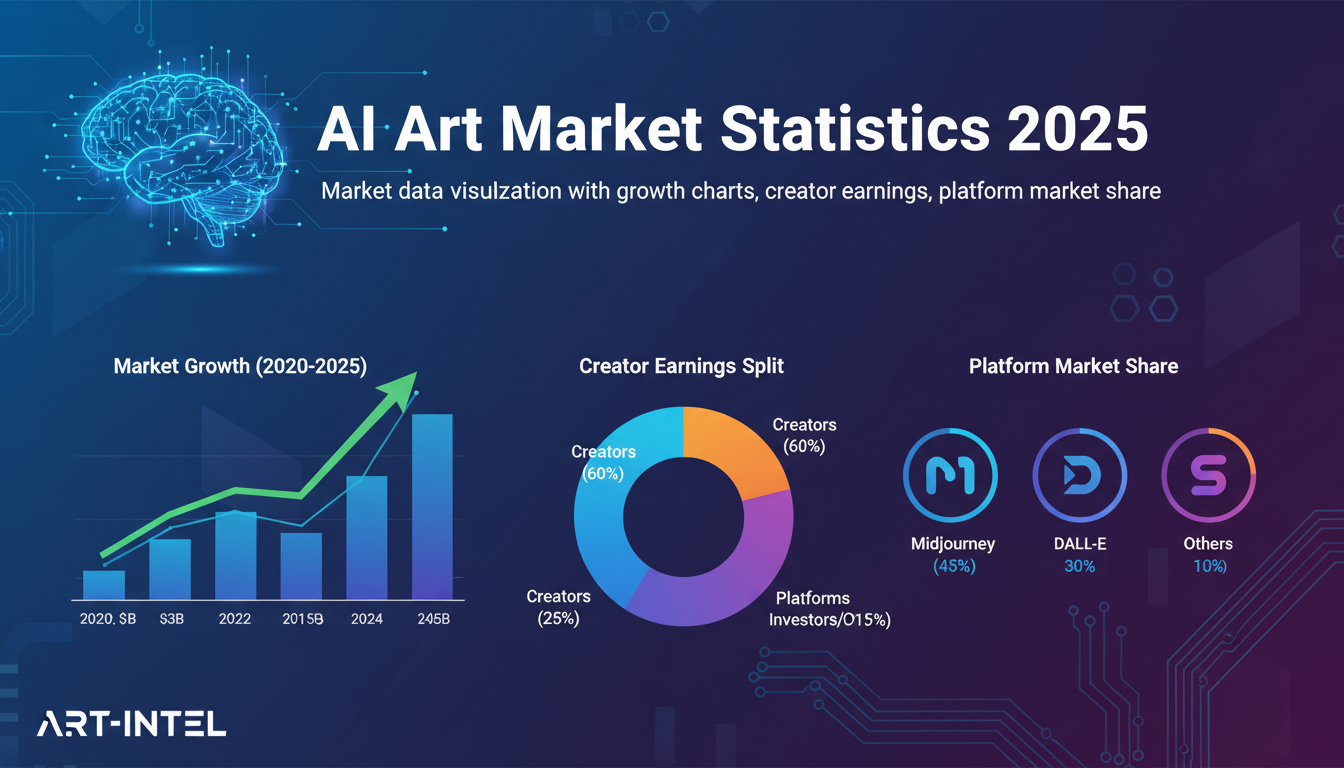
AI Art Market Statistics 2025: Industry Size, Trends, and Growth Projections
Comprehensive AI art market statistics including market size, creator earnings, platform data, and growth projections with 75+ data points.
AI Automation Tools: Transform Your Business Workflows in 2025
Discover the best AI automation tools to transform your business workflows. Learn how to automate repetitive tasks, improve efficiency, and scale operations with AI.
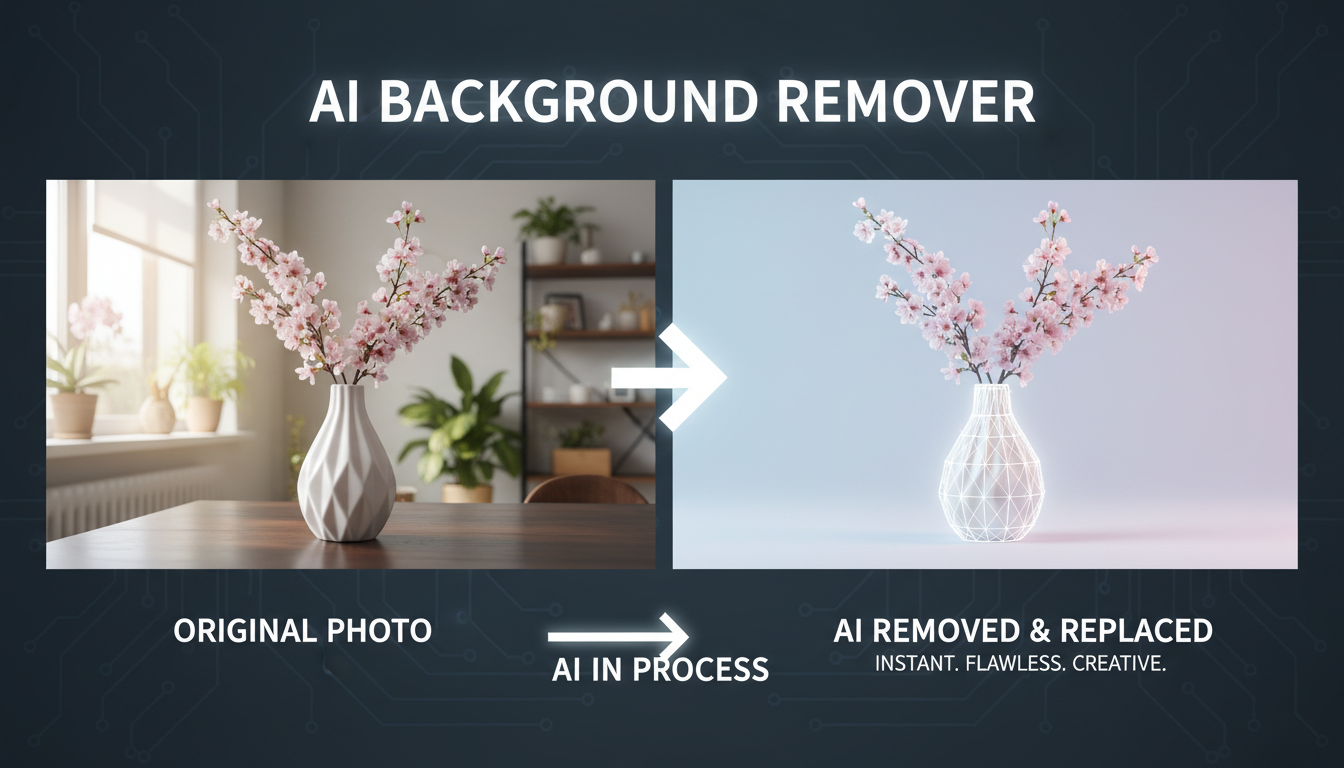
AI Background Remover and Generator: The Complete Guide to Replacing, Creating, and Perfecting Image Backgrounds
Master AI background removal, replacement, and generation. Compare the best tools, learn proven techniques, and transform your product photos and portraits.