CFG Scale Explained: What It Does and How to Use It Properly
Complete guide to CFG scale in Stable Diffusion and AI image generation. Learn what CFG does, optimal values for different use cases, and common mistakes to avoid.
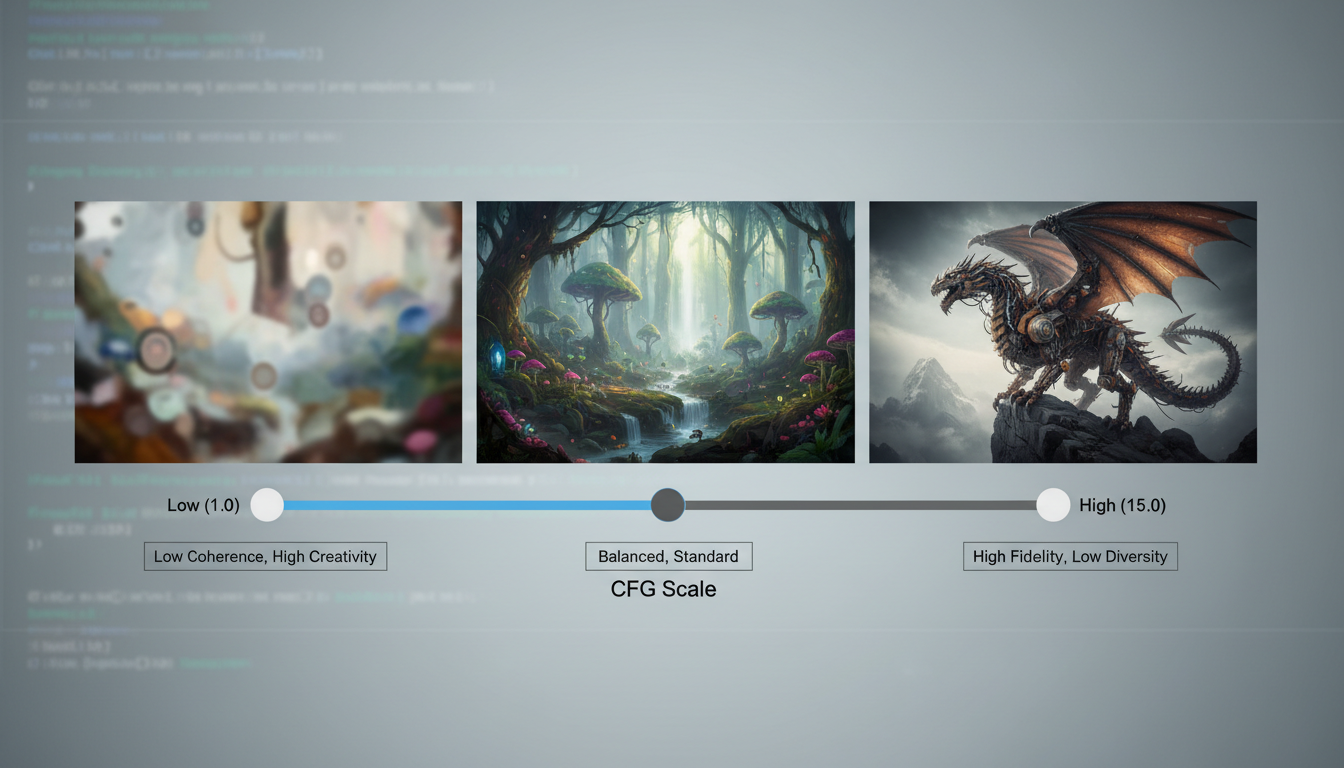
CFG scale is one of the most important yet misunderstood parameters in AI image generation. Get it wrong and your images look either muddy or burnt. Get it right and you access the full potential of your prompts. Here's everything you need to know.
Quick Answer: CFG (Classifier-Free Guidance) scale controls how closely the AI follows your prompt versus generating freely. Low CFG (1-5) gives creative, soft results. Medium CFG (6-9) balances prompt adherence with natural images. High CFG (10-15+) forces strict prompt following but can cause artifacts. Most users should start at CFG 7 for SDXL and CFG 4-5 for Flux.
- CFG stands for Classifier-Free Guidance
- Higher CFG = more prompt adherence but potential artifacts
- Lower CFG = more creative freedom but may ignore prompt details
- Optimal CFG varies by model (SDXL vs Flux vs SD 1.5)
- Finding your ideal CFG requires experimentation
What Does CFG Actually Mean?
CFG stands for Classifier-Free Guidance. It's a technique from the original Stable Diffusion paper that controls the balance between:
- Unconditional generation - The AI generating whatever it wants
- Conditional generation - The AI following your specific prompt
When you set CFG to 1, the model generates almost freely with minimal prompt influence. When you set CFG to 20+, the model desperately tries to match your prompt, sometimes to its detriment.
The Technical Explanation
During generation, the model actually runs twice per step:
- Once with your prompt (conditional)
- Once without any prompt (unconditional)
CFG determines how much to push toward the conditional result:
output = unconditional + CFG × (conditional - unconditional)
Higher CFG amplifies the difference between conditioned and unconditioned outputs, forcing stronger prompt adherence.
The Practical Explanation
Think of CFG as a "prompt following intensity" slider:
- CFG 1-3: "I'll vaguely consider your prompt"
- CFG 4-7: "I'll follow your prompt while staying natural"
- CFG 8-12: "I'll really try to include everything you asked for"
- CFG 13+: "I'll force your prompt even if it looks weird"
Visual Examples at Different CFG Values
To understand CFG, you need to see it. Here's what happens as CFG increases:
Low CFG (1-4)
- Soft, dreamy images
- May miss specific prompt details
- Natural color distribution
- Good for artistic, abstract work
- Can feel "muddy" or underexposed
Medium CFG (5-8)
- Balanced results
- Good prompt adherence
- Natural-looking images
- Suitable for most use cases
- Sweet spot for photorealistic content
High CFG (9-14)
- Strong prompt adherence
- Increased contrast and saturation
- More defined details
- Risk of "cooked" or harsh look
- Good for specific requirements
Very High CFG (15+)
- Extreme prompt forcing
- Often produces artifacts
- Unnatural color banding
- Rarely useful
- Can cause complete image breakdown
Optimal CFG by Model
Different models have different optimal CFG ranges. Using SD 1.5 settings on Flux will give poor results.
Stable Diffusion 1.5
Optimal range: 7-9 Sweet spot: 7.5
SD 1.5 was trained with CFG in mind and works well at traditional values. Going above 10-11 typically introduces artifacts.
SDXL
Optimal range: 5-8 Sweet spot: 7
SDXL handles CFG similarly to SD 1.5 but tends to work slightly better at lower values. Many users find 6-7 ideal.
Flux
Optimal range: 2-5 Sweet spot: 3.5-4
Flux models use a different architecture and require significantly lower CFG. Using CFG 7+ on Flux produces oversaturated, artificial results. Start at 3.5 and adjust.
SD3 / SD3.5
Optimal range: 4-7 Sweet spot: 5
SD3 variants work best at moderate CFG. Higher values cause color issues and artifacts more quickly than previous versions.
Video Models (LTX-2, Wan)
Optimal range: 4-7 Sweet spot: 6
Video models generally prefer moderate CFG. Too high causes flickering and consistency issues between frames.
CFG by Use Case
Different generation goals require different CFG settings.
Photorealistic Portraits
Recommended CFG: 5-7
Photorealism requires natural-looking results. High CFG makes skin look artificial and colors oversaturated. Keep it moderate.
Anime and Illustration
Recommended CFG: 6-9
Stylized content tolerates higher CFG better. The increased contrast and saturation can enhance anime aesthetics.
Abstract Art
Recommended CFG: 2-5
Lower CFG allows more creative interpretation, producing more interesting abstract results.
Architecture and Products
Recommended CFG: 6-8
Product and architectural shots benefit from clear detail rendering, which moderate-high CFG provides without artifacts.
Text in Images
Recommended CFG: 7-10
Text rendering improves at higher CFG as the model tries harder to match the specific characters requested.
AI Influencer Content
Recommended CFG: 5-7
Character consistency requires balanced CFG. Too high causes unnatural skin, too low loses prompt details.
Common CFG Mistakes
Mistake 1: Using One CFG for Everything
Different prompts benefit from different CFG values. A simple "portrait of a woman" might work at CFG 7, while a complex multi-element scene might need CFG 5 to avoid artifacts.
Fix: Experiment with each prompt type. Save successful settings.
Mistake 2: Copying Settings Between Models
Using SDXL settings (CFG 7) on Flux produces poor results. Always adjust CFG for your specific model.
Fix: Learn optimal ranges for each model you use. Start with recommended values.
Mistake 3: Raising CFG When Prompt Isn't Followed
If the model ignores parts of your prompt, raising CFG often isn't the solution. The issue is usually prompt structure or model limitations.
Fix: Improve prompt clarity first. CFG increase is the last resort.
Mistake 4: Thinking Higher is Always Better
High CFG doesn't mean better images. It means more aggressive prompt forcing, which often degrades quality.
Fix: Use the minimum CFG needed to achieve your goals.
Mistake 5: Ignoring CFG in Workflows
Many beginners never adjust CFG from defaults. Finding your optimal CFG can dramatically improve results.
Fix: Test CFG ranges for your common use cases. Document what works.
CFG and Other Parameters
CFG interacts with other generation settings. Understanding these relationships improves results.
CFG and Sampling Steps
Higher CFG often needs more steps to resolve properly. If you increase CFG, consider increasing steps slightly.
General guideline:
- CFG 5-7: 20-30 steps usually sufficient
- CFG 8-12: 30-40 steps may improve results
- CFG 15+: More steps won't fix fundamental issues
CFG and Samplers
Some samplers handle high CFG better than others:
Better with high CFG:
- Euler a
- DPM++ 2M Karras
Sensitive to high CFG:
- DDIM
- LMS
CFG and Negative Prompts
Strong negative prompts can compensate for lower CFG. Instead of raising CFG to avoid unwanted elements, strengthen your negative prompt.
Example: Instead of CFG 12 to avoid blur, try CFG 7 with "blurry, out of focus" in negative prompt.
CFG and ControlNet
When using ControlNet, you may need to reduce CFG slightly. ControlNet adds its own guidance, and combined high guidance can cause issues.
Recommendation: Reduce CFG by 1-2 points when using strong ControlNet guidance.
Advanced CFG Techniques
CFG Scheduling
Some interfaces (ComfyUI) allow CFG to change during generation:
- Start high, end low: Better initial composition, softer final details
- Start low, end high: More creative initial structure, refined final result
This technique can get the best of both worlds but requires experimentation.
Different CFG for Different Aspects
Advanced workflows can apply different CFG to:
- Base composition (lower CFG)
- Detail refinement (higher CFG)
- Upscaling passes (moderate CFG)
This granular control produces superior results.
CFG Rescale
Some implementations include CFG rescale, which dampens the most extreme effects of high CFG. If your interface has this option, it can help when you need high prompt adherence without artifacts.
Testing CFG: A Practical Approach
Here's how to find optimal CFG for any new model or use case:
Step 1: Generate a Baseline
Use the model's recommended CFG (usually documented) and generate 4-8 images.
Step 2: Test Range
Generate the same prompt at CFG 3, 5, 7, 9, and 11. Compare results side-by-side.
Step 3: Fine-Tune
Based on step 2, narrow down to a 2-point range. Test within that range with 0.5 increments.
Step 4: Document
Record optimal CFG for:
- This model
- This style/use case
- Your typical prompts
Step 5: Revisit
When prompts change significantly, repeat testing. Different prompt styles may need different CFG.
CFG in ComfyUI vs Other Interfaces
Different interfaces handle CFG similarly but may label it differently.
ComfyUI
Set in the KSampler node as "cfg" parameter. Direct control, often allows decimal values.
AUTOMATIC1111
"CFG Scale" slider in main interface. Standard implementation.
Midjourney
Uses --stylize parameter instead of direct CFG. Lower stylize ≈ higher CFG adherence.
DALL-E
No direct CFG control. The system manages guidance internally.
Apatero
CFG control available in advanced settings. Defaults are optimized per model.
Frequently Asked Questions
What CFG should I use for realistic photos?
Start at CFG 5-7 for SDXL/SD1.5, CFG 3-4 for Flux. Avoid going above 8 for photorealism.
Why do my images look "fried" or oversaturated?
CFG is probably too high. Reduce by 2-3 points and regenerate.
Does CFG affect generation speed?
No. CFG doesn't change how long generation takes.
What's the difference between CFG and steps?
CFG controls prompt adherence. Steps control how refined the image becomes. Both affect quality differently.
Can CFG be too low?
Yes. Below CFG 2-3, the model barely considers your prompt. Images become random.
Why does Flux need lower CFG?
Different architecture and training. Flux's guidance mechanism is more efficient, so it needs less amplification.
Should I adjust CFG when using LoRAs?
Sometimes. Strong style LoRAs may work better at slightly lower CFG. Test with your specific LoRAs.
What's CFG rescale?
A technique to dampen extreme CFG effects. Helps maintain quality at higher CFG values.
Does CFG work the same for video generation?
Similar principle but per-frame. Video models often prefer moderate CFG (5-7) for consistency.
Is there a "perfect" CFG setting?
No. Optimal CFG depends on model, prompt, and desired style. There's only the best CFG for your specific use case.
Wrapping Up
CFG scale is fundamental to AI image generation quality. Understanding it separates struggling beginners from competent creators.
Key principles:
- CFG controls prompt adherence intensity
- Different models need different CFG ranges
- Higher isn't better, optimal is better
- Always test CFG for new models and use cases
- CFG interacts with other parameters
Start with recommended values for your model:
- SD 1.5: CFG 7-8
- SDXL: CFG 6-7
- Flux: CFG 3.5-4
- Video models: CFG 5-7
Then experiment to find your sweet spots.
Quick Reference Card
Keep this reference handy:
| Model | Low | Optimal | High | Max |
|---|---|---|---|---|
| SD 1.5 | 5 | 7-8 | 10 | 12 |
| SDXL | 4 | 6-7 | 9 | 11 |
| Flux | 2 | 3.5-4 | 5 | 7 |
| SD3 | 3 | 5 | 7 | 9 |
| Video | 4 | 6 | 8 | 10 |
When in doubt, start at the optimal value and adjust based on results.
For more AI generation fundamentals, see our open-source AI image generator guide. For hands-on practice without local setup, try Apatero.com.
Make AI images and video in your browser
Characters, video, photo packs. No GPU, no setup. Check your welcome allowance and the displayed cost before generating.
Related Articles

AI Art Market Statistics 2025: Industry Size, Trends, and Growth Projections
Comprehensive AI art market statistics including market size, creator earnings, platform data, and growth projections with 75+ data points.

AI Automation Tools: Transform Your Business Workflows in 2025
Discover the best AI automation tools to transform your business workflows. Learn how to automate repetitive tasks, improve efficiency, and scale operations with AI.
AI Background Remover and Generator: The Complete Guide to Replacing, Creating, and Perfecting Image Backgrounds
Master AI background removal, replacement, and generation. Compare the best tools, learn proven techniques, and transform your product photos and portraits.