What is ControlNet? Complete Guide to Controlled AI Image Generation
Learn what ControlNet is and how it gives you precise control over AI image generation. Poses, edges, depth maps, and more explained for beginners.
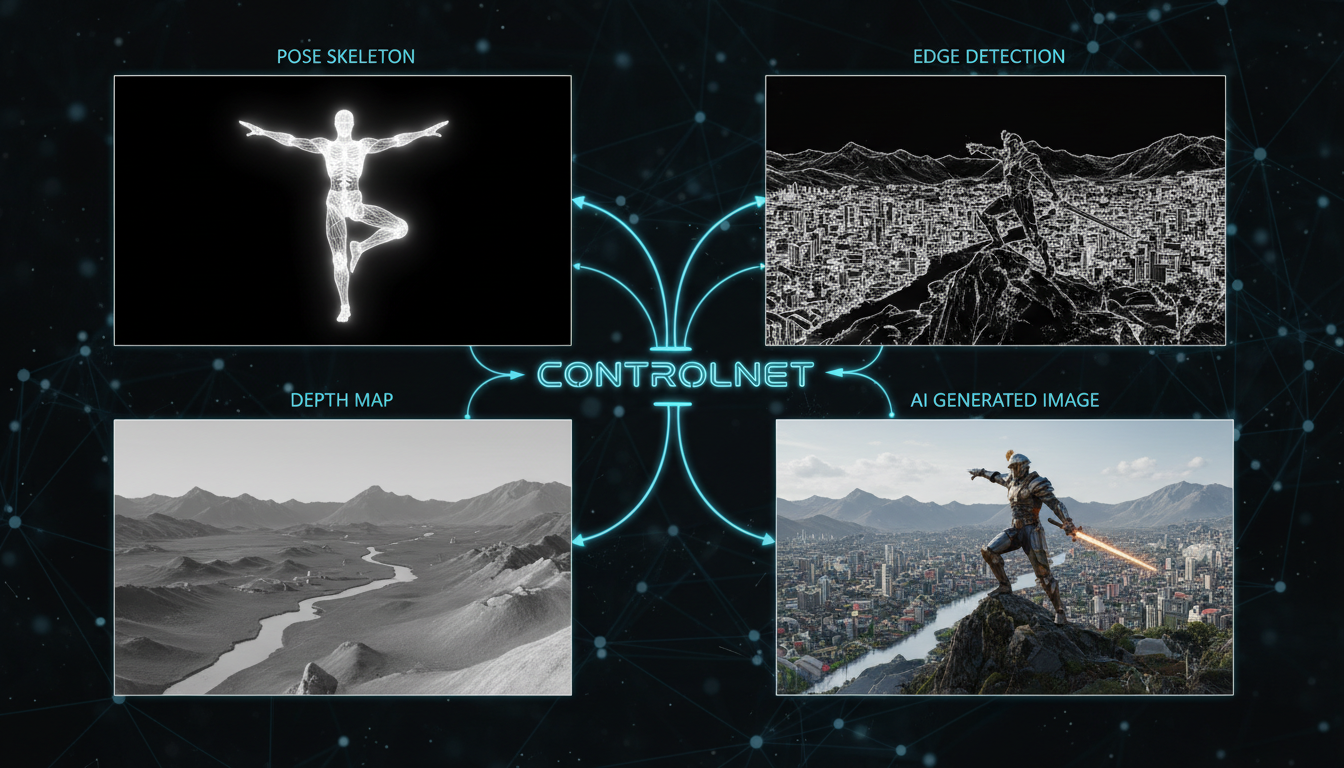
Standard AI image generation is a bit like giving directions to a taxi driver who doesn't speak your language. You describe what you want, hope for the best, and often end up somewhere unexpected. ControlNet is like handing the driver a GPS with your exact route. Here's everything you need to know.
Quick Answer: ControlNet is a neural network that adds precise spatial control to AI image generation. Instead of just describing what you want in text, you provide visual guides like poses, edges, depth maps, or reference images. The AI then generates images that follow these guides while still applying your text prompt for style and details.
- ControlNet adds visual guidance to text-to-image generation
- Common controls: pose, edge detection, depth, segmentation
- Works with SDXL, SD 1.5, and increasingly Flux
- Essential for consistent compositions and character poses
- Multiple ControlNets can be combined for complex control
The Problem ControlNet Solves
Text prompts have limitations. Try generating:
"A woman sitting on a chair with her left hand on her chin, right leg crossed over left, looking slightly to the right"
You'll get a woman. She might be sitting. But the specific pose? Random. The exact positioning you described? Ignored.
Now imagine you could show the AI a stick figure in exactly that pose and say "generate a woman like this." That's ControlNet.
How ControlNet Works
The Technical Version
ControlNet adds a trainable copy of the encoding layers from a diffusion model. This copy processes your control image (pose, edge map, etc.) and injects that spatial information into the generation process.
The key innovation: it preserves the original model's capabilities while adding new control dimensions.
The Practical Version
- You provide a control image (like a pose skeleton or edge outline)
- ControlNet extracts structural information from that image
- During generation, this structure guides where things appear
- Your text prompt still controls what things look like
The result: images that match both your structural requirements AND your text description.
Types of ControlNet
Different ControlNet models handle different types of guidance.
OpenPose (Body Pose)
What it does: Detects human body poses and uses them to guide generation.
Input: Image of a person (real or generated) Output: Stick figure skeleton showing pose Use case: Matching specific poses, action shots, consistent character positioning
How to use:
- Find or create an image with your desired pose
- Run through OpenPose preprocessor to extract skeleton
- Generate with ControlNet using skeleton as guide
- Result matches the pose but can be any person/style
Best for: Character poses, action scenes, dance choreography
Canny Edge
What it does: Detects edges in images and uses them as generation guide.
Input: Any image Output: Black and white edge map Use case: Maintaining composition while changing style
How to use:
- Take any image you want to use as composition reference
- Run through Canny edge detector
- Generate with new prompt/style
- Result follows the edges but renders differently
Best for: Style transfer, maintaining composition, architecture
Depth
What it does: Estimates depth from images to guide 3D structure.
Input: Any image Output: Grayscale depth map (closer = lighter) Use case: Maintaining spatial relationships and depth
How to use:
- Process reference image through depth estimator (MiDaS, Zoe)
- Use depth map as ControlNet input
- Generate with desired style
- Result maintains same depth relationships
Best for: Landscapes, interiors, scenes with clear foreground/background
Lineart
What it does: Uses line drawings to guide generation.
Input: Line drawing or image converted to lineart Output: Clean line extraction Use case: Colorizing sketches, anime-style generation
How to use:
- Create or extract lineart from image
- Use as ControlNet input
- Generate with coloring/style prompts
- Result follows the lines
Best for: Anime, illustration, coloring existing sketches
Segmentation
What it does: Uses semantic segmentation maps for region control.
Input: Colored segmentation map Output: Generation following segment regions Use case: Complex scene composition with specific elements
How to use:
- Create segmentation map (each color = different element)
- Use as ControlNet input
- Generate with prompts describing each segment
- Result places elements according to map
Best for: Complex scenes, specific layouts, interior design
Scribble
What it does: Uses rough scribbles as guidance.
Input: Simple hand-drawn scribbles Output: Generation interpreting scribble intent Use case: Quick sketching, rough layout specification
How to use:
- Draw rough shapes indicating composition
- Use as ControlNet input
- Generate with descriptive prompt
- Result interprets and refines your scribbles
Best for: Quick prototyping, rough concepts, accessibility
Normal Map
What it does: Uses surface normal information for lighting/shape control.
Input: Normal map (RGB encoding surface direction) Output: Generation with matching surface shapes Use case: Consistent lighting direction, surface detail control
Best for: Product shots, consistent lighting, 3D integration
Reference-Only
What it does: Uses reference image for style without preprocessing.
Input: Style reference image Output: Generation matching style/colors Use case: Style matching without structural copying
Best for: Style transfer, color scheme matching
Using ControlNet in ComfyUI
Basic Setup
- Install ControlNet models (via ComfyUI Manager)
- Install Auxiliary Preprocessors node pack
- Load preprocessor appropriate for your control type
- Connect: Image → Preprocessor → ControlNet Apply → Generation
Node Workflow
Load Image → Canny Preprocessor → Apply ControlNet → KSampler
                                        ↑
                              Load ControlNet Model
Key Parameters
Strength: How much ControlNet influences generation (0-1)
- 0.5-0.7: Moderate guidance, more creative freedom
- 0.8-1.0: Strong guidance, strict adherence
- 1.0+: Very strict, may cause artifacts
Start/End Percent: When ControlNet applies during generation
- Start 0, End 1: Full generation guidance
- Start 0, End 0.5: Early guidance only (looser results)
- Start 0.5, End 1: Late guidance (preserve early creativity)
Combining Multiple ControlNets
You can stack ControlNets for complex control:
Example: Pose + Depth
- OpenPose controls character pose
- Depth controls background placement
- Result: Correct pose with proper scene depth
Example: Canny + Reference
- Canny controls composition
- Reference controls style
- Result: Specific composition in desired style
Tips for stacking:
- Reduce individual strengths (0.5-0.7 each)
- Ensure controls don't conflict
- Test combinations before production use
ControlNet vs IPAdapter
People confuse these. Here's the difference:
ControlNet:
- Controls structure (pose, edges, depth)
- Uses preprocessed control images
- About where things go
IPAdapter:
- Controls content (face, style, subject)
- Uses reference images directly
- About what things look like
Together: Use ControlNet for pose, IPAdapter for face consistency = specific person in specific pose.
Common Use Cases
Character Consistency (Poses)
- Generate or find pose reference
- Extract pose with OpenPose
- Generate character with pose + prompt
- Same pose, different outfits/styles
Style Transfer
- Take photo you want to stylize
- Extract edges with Canny
- Generate with new style prompt
- Same composition, different aesthetic
Architecture Visualization
- Create or photograph space
- Extract depth map
- Generate with different design prompts
- Same space, different designs
AI Influencer Content
- Find reference pose (from stock photos, other generations)
- Extract pose
- Generate your character in that pose
- Consistent character, varied poses
For complete AI influencer workflows, see our ComfyUI workflow guide.
Troubleshooting Common Issues
ControlNet Ignored
Symptoms: Generation doesn't match control image
Solutions:
- Increase strength
- Check ControlNet model matches base model (SDXL needs SDXL ControlNets)
- Verify preprocessing worked correctly
- Reduce CFG scale
Artifacts and Distortion
Symptoms: Weird patterns, repeated elements, distortion
Solutions:
- Reduce ControlNet strength
- Use start/end percent to limit application
- Try different preprocessor settings
- Check control image quality
Wrong Pose/Structure
Symptoms: Pose partially correct but not exact
Solutions:
- Use cleaner reference image
- Ensure preprocessor detected correctly
- Increase strength
- Try different ControlNet model
Slow Generation
Symptoms: Adding ControlNet dramatically slows generation
Solutions:
- ControlNet adds computation, some slowdown is normal
- Use smaller control images
- Reduce number of stacked ControlNets
ControlNet for Different Models
SDXL
- Most ControlNet types available
- Use SDXL-specific ControlNet models
- Strength around 0.6-0.8 typical
SD 1.5
- Oldest and most complete support
- More ControlNet variety available
- Often used for specific legacy workflows
Flux
- ControlNet support emerging
- Fewer options currently
- Improving rapidly
Frequently Asked Questions
Do I need ControlNet for basic generation?
No. ControlNet is optional for when you need specific structural control.
Which ControlNet should I start with?
OpenPose for character work, Canny for composition control. These cover most use cases.
Can I use my own images as control?
Yes. Run them through the appropriate preprocessor first.
Does ControlNet work with LoRAs?
Yes. ControlNet and LoRAs serve different purposes and combine well.
How much does ControlNet slow generation?
Typically 20-50% longer per ControlNet added, depending on settings.
Can I create my own ControlNet models?
Yes, though it requires significant training resources. Most users use pre-trained models.
Why doesn't my pose match exactly?
Perfect matching requires high strength and clean pose detection. Some variation is normal.
Is ControlNet the same as img2img?
No. Img2img uses the actual image as a starting point. ControlNet extracts structural information to guide generation.
Can I use ControlNet with video?
Yes, apply per-frame. Consistency across frames requires additional techniques.
What's the best strength setting?
Start at 0.7, adjust based on results. Lower for creative freedom, higher for strict matching.
Wrapping Up
ControlNet transforms AI image generation from a guessing game into a precision tool. Instead of hoping the AI interprets your prompt correctly, you show it exactly what structure you want.
Key concepts:
- ControlNet adds spatial guidance to generation
- Different types for different control needs (pose, edges, depth)
- Strength controls how strictly the AI follows guidance
- Multiple ControlNets can be combined
- Works alongside prompts, LoRAs, and other techniques
For hands-on practice without local setup, Apatero.com offers ControlNet features. For local workflows, see our ComfyUI guides.
Start with OpenPose for character poses, Canny for composition. These two alone unlock most ControlNet use cases.
ControlNet Quick Reference
| Control Type | Best For | Strength Range |
|---|---|---|
| OpenPose | Character poses | 0.6-0.9 |
| Canny | Composition, edges | 0.5-0.8 |
| Depth | Scene structure | 0.5-0.7 |
| Lineart | Illustrations | 0.7-0.9 |
| Scribble | Quick concepts | 0.5-0.7 |
| Segmentation | Complex scenes | 0.6-0.8 |
Next Steps
Once comfortable with basic ControlNet, explore:
- Stacking multiple ControlNets for complex control
- Combining with IPAdapter for face + pose control
- Using reference-only for style matching
- Temporal ControlNet for video consistency
ControlNet mastery unlocks professional-grade AI image generation. The precision it offers transforms what's possible with AI art.
The learning curve is worth it. Once you understand ControlNet, you'll wonder how you ever generated images without it. It's the difference between hoping for good results and engineering them.
Some models you cannot download at any VRAM
Veo, Kling and Nano Banana have closed weights. There is no local build, no quantization, no 24GB workaround. Run them in the browser instead. Check current model access and generation costs in the app.
Related Articles

AI Art Market Statistics 2025: Industry Size, Trends, and Growth Projections
Comprehensive AI art market statistics including market size, creator earnings, platform data, and growth projections with 75+ data points.

AI Automation Tools: Transform Your Business Workflows in 2025
Discover the best AI automation tools to transform your business workflows. Learn how to automate repetitive tasks, improve efficiency, and scale operations with AI.
AI Background Remover and Generator: The Complete Guide to Replacing, Creating, and Perfecting Image Backgrounds
Master AI background removal, replacement, and generation. Compare the best tools, learn proven techniques, and transform your product photos and portraits.