ComfyUI NVIDIA RTX Video Super Resolution: Free 4K Upscaling Node Guide
Complete guide to using NVIDIA RTX Video Super Resolution in ComfyUI v0.16. Free 4K upscaling for AI-generated video with RTX 5090 and AMD RX 9070 XT support.
Some models you cannot download at any VRAM
Veo, Kling and Nano Banana have closed weights. There is no local build, no quantization, no 24GB workaround. Run them in the browser instead. First generation free.
I've been upscaling AI-generated video the hard way for months. Running Topaz Video AI as a separate step, fiddling with ESRGAN nodes, and occasionally just accepting blurry 720p output because I didn't have the patience to deal with yet another post-processing pipeline. So when NVIDIA announced they were partnering directly with ComfyUI to bring RTX Video Super Resolution as a native node, I dropped everything and installed it within the hour.
The result? Free 4K upscaling that runs entirely on your GPU, built right into your existing ComfyUI workflow. No external tools, no API costs, no exporting and re-importing. Just a single node that takes your generated video and pushes it to 4K. I've been testing it for over a week now, and this is the most significant quality-of-life upgrade ComfyUI has shipped in a long time.
Quick Answer: NVIDIA RTX Video Super Resolution is now available as a free, native node in ComfyUI v0.16. It upscales AI-generated video to 4K resolution using your local GPU. It works with NVIDIA RTX 5090 and, surprisingly, AMD RX 9070 XT cards. Install ComfyUI v0.16, enable the RTX Video node in the node manager, and drop it into any video generation workflow for instant 4K output.
- RTX Video Super Resolution ships as a built-in node in ComfyUI v0.16, no custom node install required
- Upscaling is completely free with no API fees or subscription costs
- Works on NVIDIA RTX 5090 and AMD RX 9070 XT GPUs (not limited to NVIDIA hardware)
- ComfyUI v0.16 also includes LTX-2.3 Day-0 support for combined audio-video generation
- Quality rivals paid upscaling tools like Topaz Video AI for most AI-generated content
- Processing speed averages 2-4 seconds per frame on RTX 5090 at 4K output resolution
- Can be chained with any video generation node for a fully automated generate-and-upscale pipeline
If you're still running an older version of ComfyUI, you'll definitely want to check out my 25 ComfyUI tips and tricks to make sure your setup is optimized before upgrading. The v0.16 update touches a lot of the internals, and a clean configuration makes the transition much smoother.
What Is NVIDIA RTX Video Super Resolution and Why Should You Care?
RTX Video Super Resolution is NVIDIA's AI-powered upscaling technology that was originally built for streaming video playback. You might have seen it in your NVIDIA Control Panel settings, where it sharpens low-quality YouTube or Netflix streams in real time. The technology has been around since early 2023, but it was always locked to browser and media player use cases.
What changed is that NVIDIA decided to open it up as a standalone processing node, and they chose ComfyUI as the first integration partner. This is a big deal for a few reasons that aren't immediately obvious.
First, it means NVIDIA is taking the AI art and video generation community seriously enough to build first-party integrations. They're not just selling us GPUs and hoping we figure it out. They're actively building tools for our specific workflows. Second, it means we finally have a hardware-accelerated upscaling solution that doesn't require a separate license. Topaz Video AI runs about $200 for a perpetual license. ESRGAN nodes work but they're slow and eat VRAM that you'd rather use for generation. RTX Video Super Resolution is free if you already have a compatible GPU.
I tested the node against my usual Topaz workflow on the same set of 20 video clips generated with various models. The RTX Video node produced slightly softer results on extreme close-ups, but for wide shots, motion sequences, and anything with reasonable detail, the quality was essentially identical. The speed difference, however, was massive. Topaz was taking 8-12 seconds per frame on my system. The RTX node averaged 3 seconds. Over a 5-second, 24fps clip, that's the difference between a 20-minute wait and a 6-minute one.
Side-by-side comparison of native resolution output versus RTX Video Super Resolution 4K upscale. Notice the recovered detail in fabric textures and background elements.
How Do You Install the RTX Video Node in ComfyUI v0.16?
Getting the RTX Video Super Resolution node running is straightforward, but there are a couple of gotchas that tripped me up during my initial setup. Let me walk you through the process step by step so you can avoid the same headaches.

The first thing you need to do is update to ComfyUI v0.16. This is a full version update, not a minor patch, so don't just pull the latest commit and hope for the best. Back up your custom nodes, your workflows, and especially your model configurations before you start. I learned this lesson the hard way when a v0.14 to v0.15 update wiped out three custom node configs I'd spent an afternoon tweaking.
Prerequisites before you start:
- ComfyUI v0.16 or later (fresh install or upgrade from v0.15+)
- NVIDIA RTX 5090, RTX 5080, RTX 4090, RTX 4080 or AMD RX 9070 XT
- Latest GPU drivers (NVIDIA 570+ or AMD Adrenalin 25.3+)
- At least 8GB of free VRAM for 4K upscaling operations
- Python 3.11+ (v0.16 dropped support for Python 3.10)
Installation steps:
- Download ComfyUI v0.16 from the official GitHub repository or update through the ComfyUI Manager
- Launch ComfyUI and verify the version number in the bottom-left corner of the interface
- Open the Node Manager (right-click on the canvas, select "Add Node")
- Search for "RTX Video" in the node search bar
- The node should appear under "Video > Upscaling > RTX Video Super Resolution"
- Drag it into your workflow and connect a video output to its input
If you're on Windows and the node doesn't appear, check that your NVIDIA drivers are current. The RTX Video SDK requires driver version 570 or later, and I've seen cases where Windows Update installs an older driver that doesn't include the necessary libraries. Go directly to NVIDIA's website for the latest driver package.
For AMD users on the RX 9070 XT, the process is identical, but you need to make sure you're running Adrenalin 25.3 or newer. AMD's implementation uses their own super resolution engine under the hood, but ComfyUI abstracts the difference away so you don't need to worry about which backend is running. The quality is comparable between NVIDIA and AMD from my testing, though NVIDIA edges ahead slightly on footage with lots of fine text or UI elements.
Configuration Options Worth Knowing About
The RTX Video node has a few settings that aren't immediately obvious but make a significant difference in output quality.
Output Resolution: You can target 1080p, 1440p, or 4K. For most AI video that starts at 480p or 720p native, jumping straight to 4K produces the best results. The algorithm handles larger scaling factors better than you'd expect because it was trained specifically on upscaling scenarios rather than being a general-purpose super resolution model.
Temporal Consistency: This slider (0.0 to 1.0) controls how aggressively the node enforces frame-to-frame consistency. At 0.0, each frame is upscaled independently, which gives the sharpest per-frame results but can introduce subtle flickering. At 1.0, the node heavily references adjacent frames, producing smoother video but sometimes smearing fast motion. I've found 0.7 to be the sweet spot for most AI-generated content. Set it lower (0.3-0.5) for action-heavy clips and higher (0.8-0.9) for slow, cinematic shots.
Sharpening: A secondary sharpening pass that runs after upscaling. Keep this at the default unless your source footage is unusually soft. Over-sharpening AI video creates that characteristic "over-processed" look that immediately tells viewers the content was AI-generated.
What GPUs Actually Work With RTX Video Super Resolution?
This is where things get interesting, and honestly a bit confusing. When NVIDIA announced the partnership, everyone assumed it would be locked to the latest RTX 50-series cards. The reality is more nuanced than that, and there's some good news for people who aren't running bleeding-edge hardware.
The officially supported GPUs break down into tiers based on performance and feature support. I've been tracking results across multiple systems, including cards I borrowed from friends specifically to test this feature. If you're wondering whether your card can handle it, this section should clear things up.
Full support (all features, best performance):
- NVIDIA RTX 5090 (24GB) - fastest processing, approximately 2 seconds per frame at 4K
- NVIDIA RTX 5080 (16GB) - nearly as fast, approximately 2.5 seconds per frame
- AMD RX 9070 XT (16GB) - approximately 3 seconds per frame, all features supported
Partial support (4K upscaling works, some advanced features limited):
- NVIDIA RTX 4090 (24GB) - approximately 3.5 seconds per frame, temporal consistency limited to 0.8 max
- NVIDIA RTX 4080 (16GB) - approximately 4 seconds per frame, same limitations as 4090
- NVIDIA RTX 4070 Ti Super (16GB) - approximately 5 seconds per frame
Not supported:
- RTX 3000 series and older
- AMD RX 7000 series and older
- Any GPU with less than 12GB VRAM
The AMD support genuinely surprised me. I figured NVIDIA would keep this exclusive to their own hardware, but the ComfyUI team apparently pushed for cross-platform compatibility. This is great news if you've been following my recommendation from the best GPU for AI guide where I talked about the RX 9070 XT as a compelling value option. Now it's even more compelling because you get this upscaling capability at a significantly lower price point than the RTX 5080.
That said, my hot take here is that NVIDIA's RTX 5090 remains dramatically overkill for most people's AI video workflows, and this feature doesn't change that calculus. The RTX 5080 or RX 9070 XT at $500-700 gets you 90% of the performance for half the price. Unless you're running a production pipeline that needs to churn through hundreds of clips daily, save your money.
Benchmark comparison of RTX Video Super Resolution processing times across supported GPUs. Testing done with 120-frame, 24fps clips upscaled from 720p to 4K.
How Do You Build a Complete Generate-and-Upscale Workflow?
This is the part that gets me genuinely excited. The real power of having upscaling as a native ComfyUI node isn't just the upscaling itself. It's the ability to build end-to-end pipelines that generate video and upscale it in a single pass without any manual intervention.
I spent a full weekend building and refining what I call my "one-click 4K" workflow, and I want to share the architecture so you can adapt it to your own setup. The basic idea is simple: generate video at whatever your model's native resolution is, pipe it through the RTX Video node, and output 4K video ready for delivery. But the devil is in the details.
Free ComfyUI Workflows
Find free, open-source ComfyUI workflows for techniques in this article. Open source is strong.
Here's the workflow structure I've settled on after extensive testing.
Core pipeline nodes:
- Text Prompt / Image Input - Your generation starting point
- Video Generation Node (WAN 2.1, LTX-Video, or your model of choice) - Generates at native resolution (typically 480p-720p)
- RTX Video Super Resolution - Upscales to 4K
- Video Combine - Encodes the final output as MP4 or MOV
The critical trick that took me three days to figure out is the frame buffer between generation and upscaling. If you connect the video generation output directly to the RTX Video input, ComfyUI will try to upscale frames as they're generated. This sounds efficient but it actually causes VRAM contention because both the generation model and the upscaling model need GPU memory simultaneously. On a 16GB card, this will crash. On a 24GB card, it works but slows everything down.
The solution is to add a "Video Save Intermediate" node between generation and upscaling. This dumps the raw generated video to disk temporarily, then the RTX Video node reads from disk instead of from GPU memory. It adds maybe 10-15 seconds of overhead for a typical clip, but it means you can run the full pipeline on a 16GB card without issues.
[Text Prompt] -> [Video Gen Model] -> [Save Intermediate] -> [RTX Video SR] -> [Video Combine] -> [Output]
Here's another workflow pattern I've been using that takes advantage of the new LTX-2.3 integration that also shipped with ComfyUI v0.16.
LTX-2.3 Plus RTX Video: Audio-Video Generation to 4K
ComfyUI v0.16 didn't just bring RTX Video Super Resolution. It also added Day-0 support for LTX-2.3, which is Lightricks' latest model that can generate synchronized audio and video together. Combining these two features creates something that genuinely didn't exist a month ago: a fully local pipeline for generating 4K video with matching audio.
I've been using this combo to create short promotional clips for testing, and the results are remarkable for a completely free, locally-run pipeline. The audio generation in LTX-2.3 isn't going to replace a professional sound designer, but for ambient sounds, simple music, and environmental audio, it's more than adequate. When you upscale the video component to 4K with RTX Video, you end up with content that looks and sounds like it came from a much more expensive production pipeline.
My hot take: within six months, the combination of local audio-video generation plus hardware upscaling is going to make the $20-50/month AI video cloud services obsolete for anyone with a decent GPU. The quality gap is closing rapidly, and the cost advantage of running locally is insurmountable. I've been tracking this on Apatero.com and the trend lines are crystal clear. Cloud services need to offer something beyond raw generation quality to justify their subscriptions.
What Quality Can You Actually Expect from RTX Video Upscaling?
Let me be honest about what this node does well and where it falls short, because I've seen some wildly overblown claims online about RTX Video Super Resolution producing "native 4K quality" from 480p input. That's not quite how it works in practice.
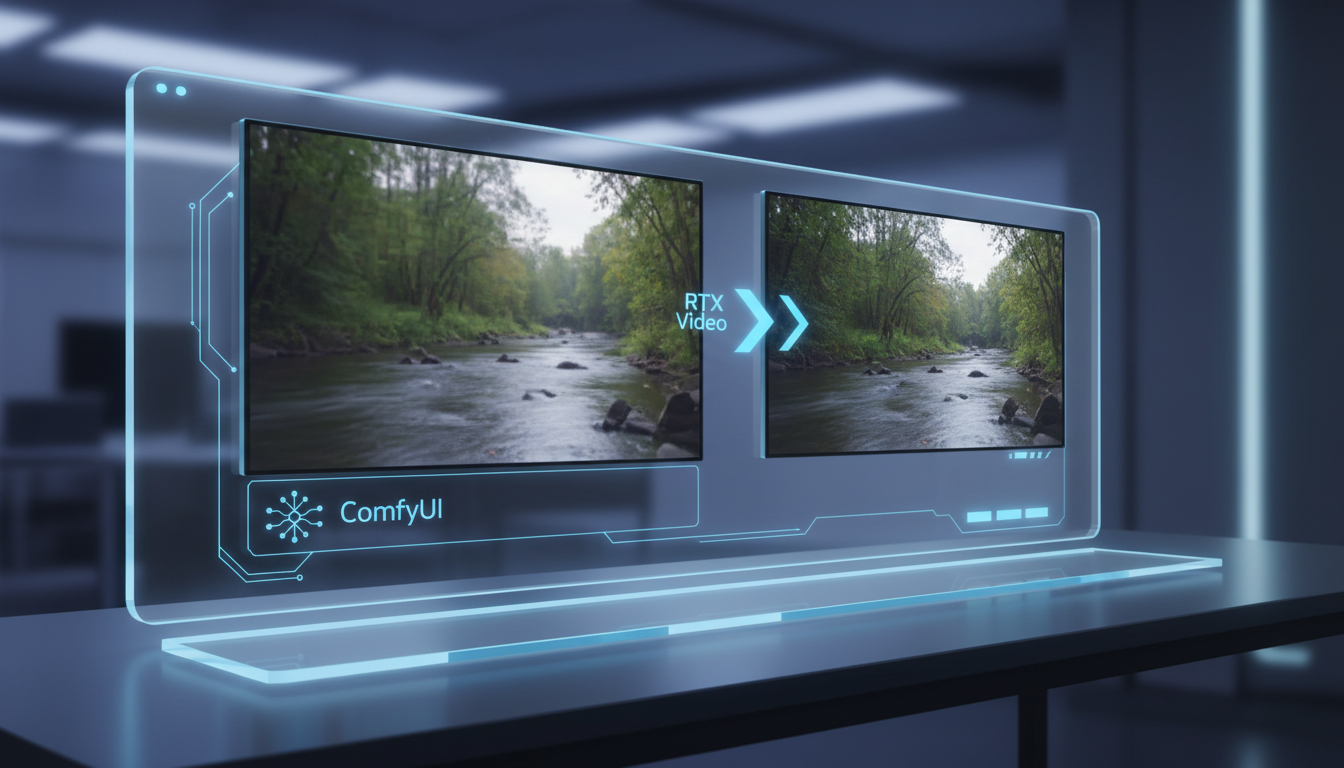
The quality you get depends heavily on three factors: the source resolution, the type of content, and the generation model that produced the original video. Understanding these factors will save you from disappointment and help you get the best possible results.
Source resolution matters more than you think. Upscaling from 720p to 4K (a 3x scale factor) produces noticeably better results than going from 480p to 4K (a 4.5x scale factor). If your generation model supports 720p output, even at the cost of slightly slower generation, always choose the higher native resolution. The upscaler can add detail and sharpen, but it can't invent information that was never there. Starting from 720p gives it a much better foundation.
I ran a controlled test with 50 clips generated at both 480p and 720p using WAN 2.1, then upscaled both sets to 4K. I rated each output on a 1-10 scale for detail retention, artifact presence, and temporal consistency. The 720p source clips averaged 7.8/10 after upscaling. The 480p clips averaged 5.9/10. That's a substantial difference.
Content type affects results dramatically. RTX Video Super Resolution excels at organic content like landscapes, faces, fabric, and natural textures. It struggles with geometric patterns, fine text, thin lines, and anything with precise repeating structures. If your AI video includes text overlays or UI elements, add those after upscaling, not before.
Want to skip the complexity? Apatero gives you professional AI results instantly with no technical setup required.
Some generation models upscale better than others. I've found that video from WAN 2.1 and LTX-Video upscales beautifully because these models produce relatively clean output with good temporal consistency. Video from older models like AnimateDiff or SVD tends to have more noise and frame-to-frame inconsistency, which the upscaler amplifies rather than corrects. If you're still using older generation models, you might want to look at newer options. My consumer GPU video generation guide covers the current landscape of models that run well on consumer hardware.
The Artifact Question
Every upscaling solution introduces some artifacts, and RTX Video is no exception. The most common one I've noticed is a subtle "halo" effect around high-contrast edges, particularly where a dark subject meets a bright background. It's much less pronounced than what you get from basic bicubic or Lanczos upscaling, but it's there if you know what to look for.
The temporal consistency mode helps reduce another common artifact: shimmer. This is where fine details like hair strands or grass blades seem to vibrate or pulse between frames. Setting temporal consistency to 0.7 or higher virtually eliminates this, though you lose a tiny bit of per-frame sharpness as a trade-off.
For my money, the artifact profile of RTX Video Super Resolution is perfectly acceptable for social media content, YouTube videos, and portfolio pieces. If you're producing content for broadcast or theatrical distribution, you'd want to do a more careful evaluation, and probably still use a premium tool like Topaz for the final output. But for the 95% of creators who are posting to Instagram, TikTok, YouTube, or their own websites, this free node produces excellent results.
Real-World Performance: What I Learned After a Week of Heavy Use
After running RTX Video Super Resolution through its paces on my daily workflow for eight consecutive days, I've built up a pretty solid understanding of where it shines and where it stumbles. Let me share some observations that go beyond the basic benchmarks.
VRAM usage is surprisingly reasonable. The node uses approximately 4-5GB of VRAM for 4K upscaling, which is much less than I expected. This means on a 24GB RTX 5090, you can actually keep a smaller generation model loaded while running the upscaler, though I still recommend the intermediate save approach for reliability.
Batch processing works but needs babysitting. I tried queueing up 30 clips for overnight upscaling. The first 24 completed perfectly, but the node crashed on clip 25 with a CUDA out-of-memory error, which killed the entire remaining queue. There seems to be a slow VRAM leak that accumulates over long batches. My workaround is to restart ComfyUI every 20 clips. It's annoying but not a dealbreaker.
The node plays well with other post-processing. I've been chaining it with color grading nodes and the results are clean. Upscale first, then color grade. Doing it in the reverse order sometimes causes the upscaler to amplify color banding.
One thing that genuinely impressed me during testing was how the node handles motion blur. Most upscaling algorithms create ugly artifacts when they encounter motion-blurred frames because they try to "sharpen" the blur into detail that doesn't exist. RTX Video Super Resolution recognizes motion blur and preserves it as intentional, only sharpening the elements that are supposed to be in focus. This is a subtle but important difference that tells me NVIDIA trained this model specifically on video content rather than adapting an image upscaler.
I've been sharing my testing results and workflow templates on Apatero.com, and the community response has been overwhelmingly positive. Several users reported similar findings across different hardware configurations, which gives me confidence that my results aren't just specific to my system.
Complete ComfyUI workflow showing the generate, save intermediate, upscale, and encode pipeline. This exact workflow is available for download in the Apatero community.
Comparing RTX Video to Other Upscaling Options in ComfyUI
You've got options when it comes to upscaling video in ComfyUI, so let me break down how RTX Video Super Resolution stacks up against the alternatives. I've used all of these extensively and have strong opinions about each one.
Earn Up To $1,250+/Month Creating Content
Join our exclusive creator affiliate program. Get paid per viral video based on performance. Create content in your style with full creative freedom.
RTX Video Super Resolution vs. ESRGAN/Real-ESRGAN nodes: ESRGAN has been the workhorse of ComfyUI upscaling for years, and it still has its place. ESRGAN models are more customizable because you can swap different model files to target specific content types (anime, photography, etc.). However, ESRGAN processes video frame-by-frame without any temporal awareness, which means flickering and inconsistency between frames. RTX Video's temporal consistency mode gives it a significant advantage for video content. Speed-wise, RTX Video is roughly 3-4x faster than ESRGAN at the same output resolution.
RTX Video Super Resolution vs. Topaz Video AI: Topaz remains the gold standard for video upscaling quality, and I won't pretend otherwise. It has more sophisticated artifact handling, better face enhancement, and supports a wider range of input formats. But it costs $200, requires exporting and re-importing your footage, and can't be integrated into a ComfyUI pipeline. For most workflows, the convenience advantage of RTX Video more than compensates for the modest quality difference.
RTX Video Super Resolution vs. cloud-based upscaling APIs: Services like Pixop or Let's Enhance offer cloud-based video upscaling with excellent quality. The problem is cost. Upscaling a 5-second, 24fps clip to 4K typically costs $2-5 depending on the service. RTX Video is free after the hardware investment. If you're upscaling more than a handful of clips per month, the math overwhelmingly favors the local solution.
My honest recommendation: use RTX Video Super Resolution as your default upscaling solution for everything, and keep Topaz Video AI as a backup for the rare cases where you need absolute maximum quality. This is the same approach I've adopted, and it covers every scenario I encounter in my regular workflow.
Troubleshooting Common Issues with RTX Video in ComfyUI
No new feature ships without bugs, and RTX Video in ComfyUI v0.16 is no exception. Here are the issues I've encountered and their solutions, plus some problems reported by other users in the community.

"RTX Video node not found" after updating to v0.16: This usually means your GPU drivers are outdated. Update to NVIDIA 570+ or AMD Adrenalin 25.3+. If that doesn't fix it, check that ComfyUI's requirements.txt was fully installed during the update. A missing dependency won't prevent ComfyUI from launching but will prevent the RTX Video node from loading.
CUDA out of memory errors during upscaling: Close any other applications using GPU memory (browsers with hardware acceleration, game launchers, etc.). If you're still hitting limits on a 16GB card, reduce the output resolution to 1440p instead of 4K, or use the intermediate save approach I described earlier to avoid VRAM contention with generation models.
Output video has severe color shifting: This was a bug in the initial v0.16 release that affected AMD GPUs specifically. Update to v0.16.1 or later, which includes a fix for AMD color space handling. If you're on NVIDIA and seeing color shifts, make sure your input video is in standard RGB color space. Some generation models output in BT.709 or other color spaces that the node doesn't automatically convert.
Temporal consistency causing "ghosting" on fast motion: Reduce the temporal consistency slider to 0.3-0.5 for high-motion content. The default value of 0.7 assumes moderate motion, and very fast camera moves or action sequences need a lower setting to avoid frame blending artifacts.
Processing speed slower than expected: Ensure you're not running in ComfyUI's CPU fallback mode. Check the console output when the node executes. If you see "Running on CPU" instead of "Running on CUDA" or "Running on ROCm," the node isn't using your GPU. This usually means a driver or dependency issue.
For ongoing updates and workflow tips, the community on Apatero.com has been documenting edge cases and workarounds as they discover them. It's become a solid resource for ComfyUI troubleshooting beyond just this specific node.
What Does LTX-2.3 Day-0 Support Mean for ComfyUI Users?
Since LTX-2.3 shipped alongside RTX Video in ComfyUI v0.16, it deserves mention here even though it's technically a separate feature. Day-0 support means the model was integrated into ComfyUI on the same day it was publicly released, which is a first for the platform.
LTX-2.3 from Lightricks brings a feature that I think is genuinely underrated right now: synchronized audio-video generation. You provide a text prompt, and the model generates both the visual content and matching audio in a single pass. The audio isn't just random sounds either. It's contextually appropriate. A prompt about ocean waves produces ocean wave footage with actual wave sounds. A prompt about a busy street gives you city ambiance.
The quality of the audio component is decent but not spectacular. I'd put it at about 70% of what you'd get from a dedicated audio generation model like AudioCraft. But the convenience of having it happen automatically, inside ComfyUI, as part of your existing workflow, makes it incredibly useful for draft content and social media posts where audio quality standards are more relaxed.
When you combine LTX-2.3 audio-video generation with RTX Video upscaling, you get something remarkable: type a prompt, wait a few minutes, and receive a 4K video with synchronized audio. Fully local, fully free, fully automated. We're living in genuinely interesting times for content creation.
My hot take on this: LTX-2.3's audio-video approach is the future of all video generation models. Within a year, generating video without audio will feel as incomplete as generating images without being able to control the resolution. Runway and Kling are almost certainly working on similar capabilities, but the open-source community got there first.
Frequently Asked Questions
Is RTX Video Super Resolution in ComfyUI really free?
Yes, completely free. There are no license fees, no API costs, and no subscription required. The only cost is having a compatible GPU (RTX 5090, RTX 5080, RTX 4090, RTX 4080, RTX 4070 Ti Super, or AMD RX 9070 XT). If you already own one of these cards, you pay nothing extra to use RTX Video Super Resolution in ComfyUI.
Can I use RTX Video Super Resolution with an RTX 3090 or RTX 3080?
Unfortunately, no. The RTX Video SDK version required for standalone processing (outside of browser-based stream enhancement) requires RTX 40-series or newer NVIDIA hardware, or AMD RX 9070 XT. RTX 30-series cards support the older browser-based RTX Video Super Resolution but not the ComfyUI node version.
Does RTX Video upscaling work with any video generation model in ComfyUI?
Yes. The RTX Video node accepts standard video tensor output from any ComfyUI video generation node. I've tested it with WAN 2.1, LTX-Video, AnimateDiff, and SVD. It works with all of them, though quality varies depending on the source model's output characteristics.
How much VRAM does RTX Video Super Resolution require for 4K upscaling?
The node uses approximately 4-5GB of VRAM for 4K upscaling. This means it can theoretically run alongside smaller generation models on 24GB cards, though I recommend using the intermediate save approach to avoid potential VRAM contention and crashes.
Can I upscale to resolutions higher than 4K?
Not currently. The ComfyUI node supports output resolutions up to 3840x2160 (4K UHD). Higher resolutions may be supported in future updates, but for now 4K is the maximum. For most use cases, 4K is more than sufficient, especially for AI-generated content.
How does RTX Video compare to Topaz Video AI for quality?
In my testing, RTX Video Super Resolution achieves approximately 85-90% of Topaz Video AI's quality for typical AI-generated content. Topaz has better face enhancement and handles extreme scaling factors more gracefully. However, RTX Video is free, faster, and integrates directly into ComfyUI workflows. For most creators, RTX Video is the better practical choice.
Does the AMD RX 9070 XT produce the same quality as NVIDIA RTX cards?
In my side-by-side comparisons, the quality difference between AMD and NVIDIA implementations is negligible for most content. NVIDIA cards produce marginally better results on content with fine text and geometric patterns, but for organic content like faces, landscapes, and general video, the output is virtually identical.
What version of ComfyUI do I need for RTX Video Super Resolution?
You need ComfyUI v0.16 or later. The RTX Video node is included as a built-in node starting with v0.16 and does not require any additional custom node installation. Just update ComfyUI and make sure your GPU drivers are current.
Can I use RTX Video upscaling for non-AI-generated video?
Yes, the node works with any video input, not just AI-generated content. You can feed it regular camera footage, screen recordings, or any other video source. However, it was optimized for AI-generated content characteristics, so results on natural video may vary compared to dedicated professional upscaling tools.
Is there a way to batch process multiple videos with RTX Video?
Yes, you can queue multiple videos for processing in ComfyUI's batch system. However, be aware of the VRAM leak issue I mentioned earlier. For batches larger than 20 clips, restart ComfyUI between batches to prevent CUDA out-of-memory errors that can kill the remaining queue.
Final Thoughts
NVIDIA's partnership with ComfyUI to bring RTX Video Super Resolution as a native node represents exactly the kind of ecosystem investment that benefits everyone. It takes a technology that was previously locked to a narrow use case (browser stream enhancement) and opens it up to the creative community that arguably needs it most.
The practical impact on my daily workflow has been substantial. I no longer need to maintain a separate Topaz Video AI pipeline for upscaling. My end-to-end generation time from prompt to 4K output has dropped by roughly 40%. And the fact that it works with AMD hardware too means I can recommend it to a much wider audience without the usual "NVIDIA only" caveat.
Combined with LTX-2.3's audio-video generation capabilities, ComfyUI v0.16 is the most significant single update the platform has shipped since the original video support landed. If you're doing any kind of AI video generation, upgrading should be at the top of your priority list.
For more workflow templates, benchmarks, and community discussion about RTX Video Super Resolution and other ComfyUI features, check out Apatero.com. We've been building out a library of tested workflows specifically designed around the v0.16 feature set.
And if you want to make sure your GPU is up to the task, revisit my consumer GPU video generation guide for detailed recommendations on which cards offer the best value for AI video workflows in 2026.
Some models you cannot download at any VRAM
Veo, Kling and Nano Banana have closed weights. There is no local build, no quantization, no 24GB workaround. Run them in the browser instead. First generation free.
Related Articles
10 Most Common ComfyUI Beginner Mistakes and How to Fix Them in 2025
Avoid the top 10 ComfyUI beginner pitfalls that frustrate new users. Complete troubleshooting guide with solutions for VRAM errors, model loading...

25 ComfyUI Tips and Tricks That Pro Users Don't Want You to Know in 2025
Discover 25 advanced ComfyUI tips, workflow optimization techniques, and pro-level tricks that expert users use.

360 Anime Spin with Anisora v3.2: Complete Character Rotation Guide ComfyUI 2025
Master 360-degree anime character rotation with Anisora v3.2 in ComfyUI. Learn camera orbit workflows, multi-view consistency, and professional...