Prompt Weighting Syntax: Complete Guide 2025
Master prompt weighting for Stable Diffusion, ComfyUI, and Midjourney. Learn (word:1.3), BREAK, AND syntax for precise control over AI image generation.
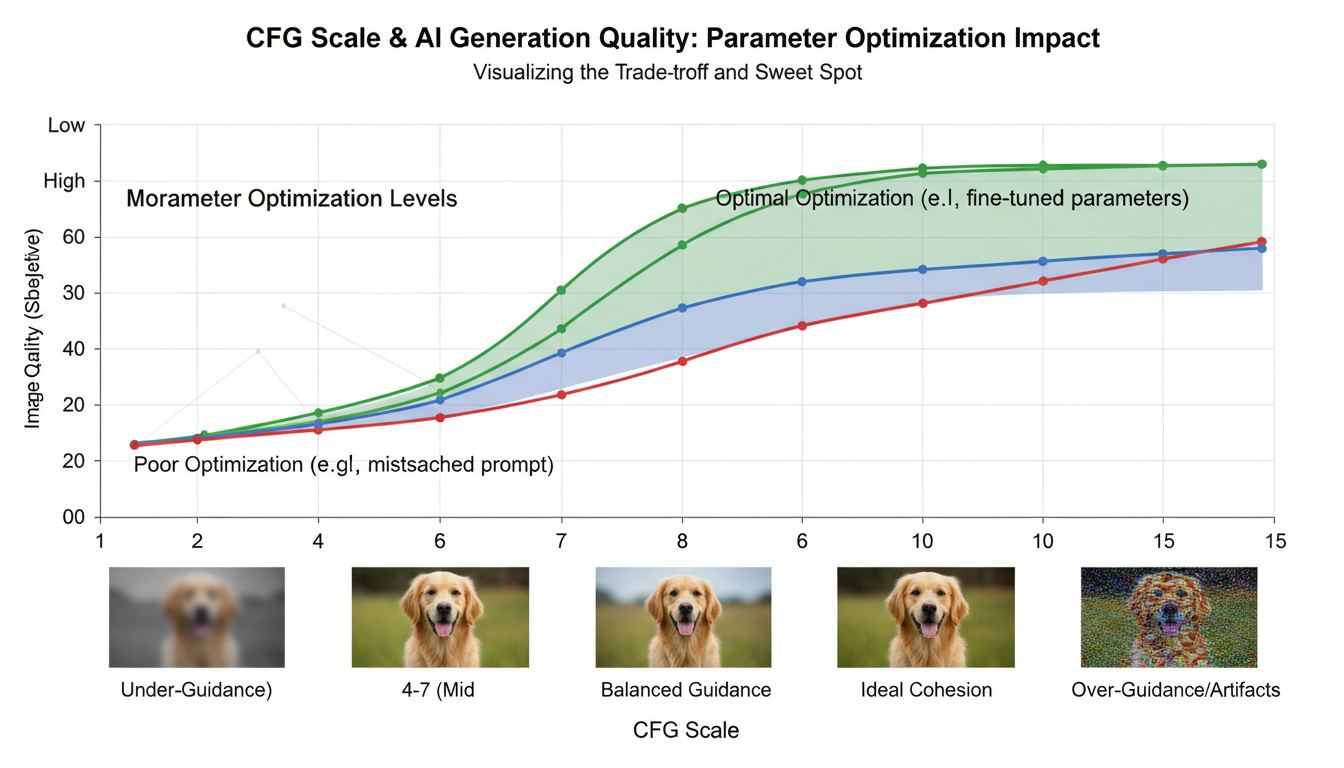
Prompt weighting gives you precise control over AI image generation. Instead of hoping the AI emphasizes what matters, you can explicitly boost or reduce attention to specific concepts.
Quick Answer: Use (word:1.3) to increase emphasis (1.3x attention) or (word:0.7) to decrease it. BREAK separates prompt sections, AND blends concepts. Syntax varies slightly between platforms.
:::tip[Key Takeaways]
- Key options include Weight sparingly: and Stay in safe range:
- Start with the basics before attempting advanced techniques
- Common mistakes are easy to avoid with proper setup
- Practice improves results significantly over time :::
- ComfyUI/A1111: (word:1.3) for weighting, BREAK for sections
- Midjourney: ::2 for double weight, :: for blending
- Flux: Limited weighting support, focus on prompt quality
- DALL-E/SD3: Natural language, weighting less effective
Basic Weighting Syntax
Parentheses Notation
The standard format for SD 1.5, SDXL, and ComfyUI:
(word:weight)
Examples:
(red hair:1.3)— 30% more attention to red hair(background:0.7)— 30% less attention to background(detailed eyes:1.5)— 50% more attention to eye detail
Weight Ranges
| Weight | Effect |
|---|---|
| 0.5 | Significantly reduced |
| 0.7-0.9 | Moderately reduced |
| 1.0 | Default (no change) |
| 1.1-1.3 | Moderately increased |
| 1.4-1.5 | Strongly increased |
| 1.5+ | Very strong (may cause artifacts) |
Safe Range: 0.5 to 1.5. Beyond this, expect quality issues.
Multiple Parentheses Notation
Alternative syntax using stacked parentheses:
(word) = 1.1x
((word)) = 1.21x (1.1 × 1.1)
(((word))) = 1.33x
Equivalent:
(red hair)≈(red hair:1.1)((red hair))≈(red hair:1.21)
This notation is less precise but faster to type.
- Weights over 1.5 often cause artifacts and distortion
- Weighting every word dilutes effectiveness
- Conflicting weights (boosting and reducing same concept) confuse the model
- Platform syntax differences cause errors when copying prompts
The BREAK Keyword
BREAK separates prompt sections, preventing concept bleeding:
beautiful woman in red dress BREAK
forest background with sunlight BREAK
cinematic lighting, film grain
How It Works:
- Each section is processed somewhat independently
- Reduces unintended associations between concepts
- Particularly useful for separating subject from background
Use Cases:
- Subject vs environment separation
- Style vs content separation
- Multiple distinct elements
The AND Syntax
AND blends concepts with controllable weights:
portrait of a woman AND watercolor painting style::0.5
This creates a blend: full portrait concept + half-strength watercolor style.
Syntax:
concept1 AND concept2::weight
Examples:
cat AND dog::0.5        # Cat with subtle dog features
photo AND painting::0.7  # Photo with painterly quality
Platform-Specific Syntax
AUTOMATIC1111 / ComfyUI
(word:1.3)           # Weight syntax
BREAK                # Section separator
[word]               # Decrease by 1.1x (legacy)
{word}               # NOT SUPPORTED (use weight:0.x)
Midjourney
word::2              # Double weight
concept1::2 concept2::1  # Relative weighting
--no word            # Negative (avoid this)
Flux
Flux has limited weighting support:
- Natural language prompts work best
- creative weights have minimal effect
- Focus on prompt clarity instead
SD 3.5
Similar limitations to Flux:
- Designed for natural language
- Weighting less effective
- Write descriptive prompts
Practical Examples
Portrait Enhancement
portrait of a woman with (piercing blue eyes:1.3),
(flowing red hair:1.2), (soft skin:1.1),
(background:0.7), studio lighting
Landscape Control
mountain landscape BREAK
(snow-capped peaks:1.3), pine forest,
(dramatic clouds:1.2) BREAK
golden hour lighting, (mist in valley:1.1)
Style Mixing
portrait in the style of (oil painting:1.2)
AND (art nouveau:0.8), detailed brushwork
Concept Balance
(cyberpunk city:1.0) AND (nature reclaiming:0.6),
overgrown buildings, vines, (neon signs:0.8)
Advanced Techniques
Scheduled Weighting
In ComfyUI, weights can change during generation:
[word:alternate:0.5] # Switch at 50% of steps
Early steps: "word" Later steps: "alternate"
Regional Prompting
Combine with regional prompter for spatial control:
- Different weights in different image regions
- Subject boosted in center, background reduced at edges
Dynamic Weights
Some workflows support weight interpolation:
- Start with high weight, reduce over steps
- Gradual concept introduction
Troubleshooting Weights
Issue: Weights have no effect
- Check syntax for your platform
- Ensure weight is different from 1.0
- Some models respond less to weights
Issue: Artifacts at high weights
- Reduce weight below 1.5
- Split into multiple lower-weighted terms
- Use BREAK to isolate concepts
Issue: Prompt too complex
- Simplify by removing low-priority weights
- Focus weights on 2-3 key elements
- Let the model handle details naturally
Issue: Unexpected results
- Check for conflicting weights
- Ensure BREAK is uppercase
- Verify parentheses are balanced
Best Practices
- Weight sparingly: Only boost what matters most
- Stay in safe range: 0.5-1.5 for reliability
- Use BREAK: Separate subject from background
- Test incrementally: Adjust weights one at a time
- Know your platform: Syntax varies significantly
- Natural language first: Good prompts need less weighting
Frequently Asked Questions
Do weights work in negative prompts?
Yes, but use carefully. Boosting a negative concept can have unexpected effects.
Can I weight phrases, not just words?
Yes: (beautiful sunset over mountains:1.3) weights the entire phrase.
Why doesn't my weight work in Flux?
Flux uses a different architecture where creative weights have minimal impact. Focus on prompt quality.
What's the maximum effective weight?
Around 1.5-2.0. Higher values cause artifacts without additional emphasis.
Should I weight everything?
No. Weight only 2-4 key elements. Over-weighting makes prompts less effective.
Conclusion
Prompt weighting transforms vague prompts into precise instructions. Master the syntax for your platform, use weights strategically on key elements, and combine with BREAK for clean concept separation.
Remember: well-written prompts need less weighting. Use these tools to fine-tune, not to force poorly structured prompts to work.
Some models you cannot download at any VRAM
Veo, Kling and Nano Banana have closed weights. There is no local build, no quantization, no 24GB workaround. Run them in the browser instead. Check current model access and generation costs in the app.
Related Articles

5 Proven AI Influencer Niches That Actually Make Money in 2025
Discover the most profitable niches for AI influencers in 2025. Real data on monetization potential, audience engagement, and growth strategies for virtual content creators.

AI Background Replacement: Professional Guide 2025
Master AI background replacement for professional results. Learn rembg, BiRefNet, and ComfyUI workflows for smooth background removal and replacement.

AI Character Consistency: How to Maintain Virtual Persona Identity Across Content
Learn techniques for maintaining AI character consistency across hundreds of images. Master the art of creating recognizable virtual personas with consistent visual identity.