Video2X AI Upscaling: Complete Guide to Free 4K Enhancement (2025)
Master Video2X for free AI video upscaling. Complete guide covering installation, configuration, best models, and workflow optimization for 4K enhancement.
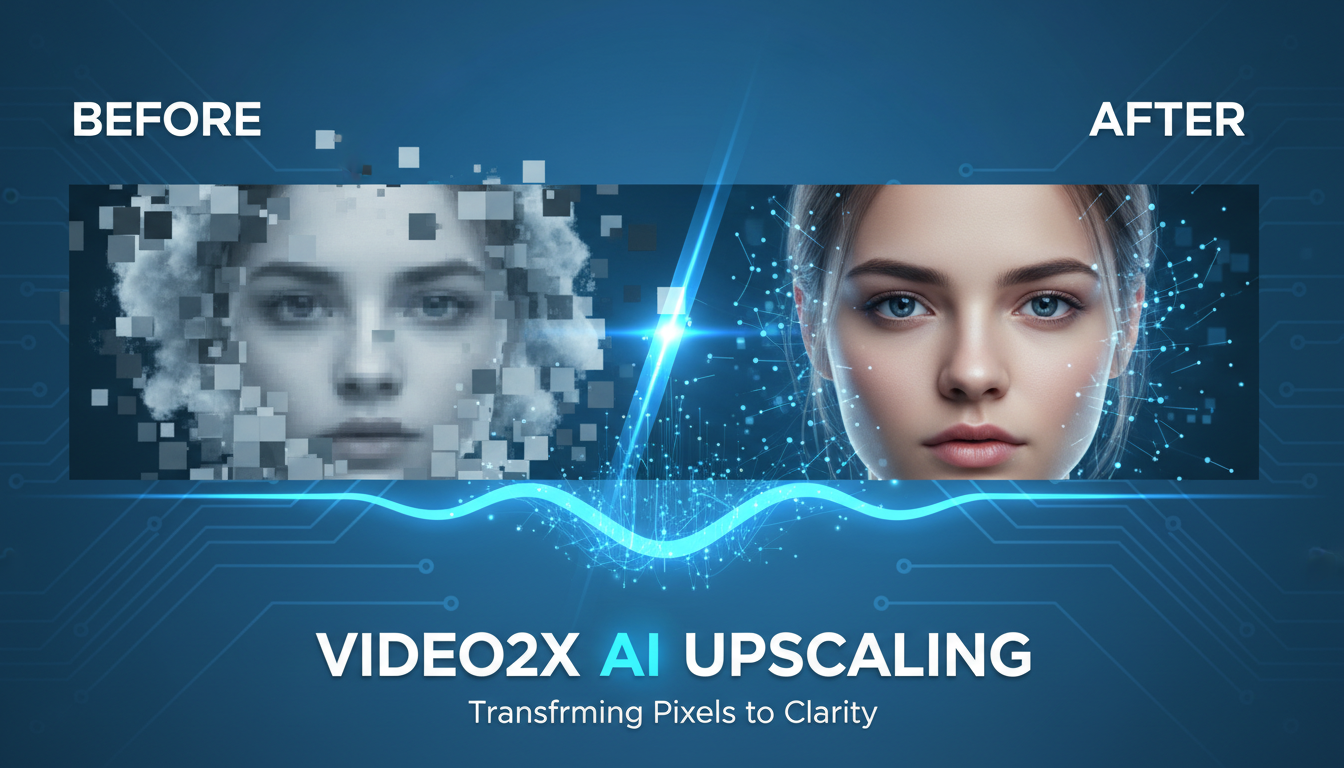
Video2X is the most popular free, open-source AI video upscaler, capable of enhancing footage to 4K quality without expensive software. This comprehensive guide covers everything from installation to advanced optimization for professional-quality results.
Quick Answer: Video2X is a free, open-source video upscaler that uses AI models like Real-ESRGAN, Waifu2X, and Anime4K to enhance video resolution. It works on Windows and Linux, supports GPU acceleration, and can upscale 1080p to 4K with excellent quality. Processing time varies by model and hardware, typically 5-30 seconds per frame.
- Free and open source (GPLv3 license)
- Multiple AI upscaling engines
- GPU acceleration support (NVIDIA, AMD)
- 2x, 3x, and 4x upscaling options
- Frame interpolation capability
- Batch processing support
What is Video2X?
Before paid solutions like Topaz Video AI dominated the market, Video2X was pioneering AI-powered video upscaling for everyone. It remains one of the best free options available, and in some specific use cases, it actually produces results that rival or exceed paid alternatives. The project has been continuously developed since 2018 and has a dedicated community constantly improving it.
What makes Video2X special isn't any single capability, but rather its flexibility. It acts as a frontend and automation tool for multiple AI upscaling engines. Rather than being a single upscaler, it orchestrates the best available tools and lets you choose the right engine for your specific content:
Supported engines:
- Waifu2X - Optimized for anime/illustration
- Real-ESRGAN - Best for real-world footage
- Anime4K - Fast anime processing
- SRMD - Noise reduction focused
- RealCUGAN - Enhanced anime upscaling
Each engine has strengths for different content types.
Installation Guide
Getting Video2X running requires some technical setup, but it's much simpler than it was a few years ago. The project now offers pre-built releases for Windows users who want to avoid command-line installation, though building from source gives you more control and access to the latest features. Linux users will need to work with the command line, but the process is straightforward if you're comfortable with basic terminal commands.
The most common installation issues stem from GPU driver problems or Python environment conflicts. I'll walk through both the easy path and the manual approach, so you can choose based on your comfort level and needs.
Windows Installation
Option 1: Pre-built release (Recommended)
- Download latest release from GitHub
- Extract to folder (e.g.,
C:\Video2X) - Run
video2x.exe
Option 2: From source
## Clone repository
git clone https://github.com/k4yt3x/video2x.git
cd video2x

## Create virtual environment
python -m venv venv
venv\Scripts\activate

## Install dependencies
pip install -r requirements.txt
Linux Installation
## Install dependencies
sudo apt update
sudo apt install ffmpeg python3-pip

## Clone and install
git clone https://github.com/k4yt3x/video2x.git
cd video2x
pip3 install -r requirements.txt

## Download models
python3 -m video2x.video2x --download-models
GPU Setup
NVIDIA (Recommended):
## Install CUDA and cuDNN
## Then verify:
nvidia-smi
AMD:
## Install ROCm (Linux only)
## AMD GPU support is limited
Downloading Models
Models aren't included by default. Download them:
## Automatic download
python -m video2x.video2x --download-models

## Or manually place in models/ directory
Model sizes vary from 50MB to 500MB depending on engine.
Basic Usage
Command Line Usage
Basic upscale (2x with Real-ESRGAN):
python -m video2x.video2x -i input.mp4 -o output.mp4 -r 2 -p realesrgan
4x upscale with anime engine:
python -m video2x.video2x -i anime.mp4 -o anime_4k.mp4 -r 4 -p waifu2x
With specific model:
python -m video2x.video2x -i input.mp4 -o output.mp4 -r 2 -p realesrgan -m realesrgan-x4plus
GUI Usage
Launch the graphical interface:
python -m video2x.video2x --gui
- Click "Add Files" to import videos
- Select upscaling engine
- Choose scale factor (2x, 3x, 4x)
- Set output directory
- Click "Start"
Key Parameters
| Parameter | Description | Options |
|---|---|---|
-i |
Input file | Video path |
-o |
Output file | Video path |
-r |
Scale ratio | 2, 3, or 4 |
-p |
Processor/Engine | See below |
-m |
Model | Engine-specific |
-t |
Threads | Number (default: auto) |
Choosing the Right Engine
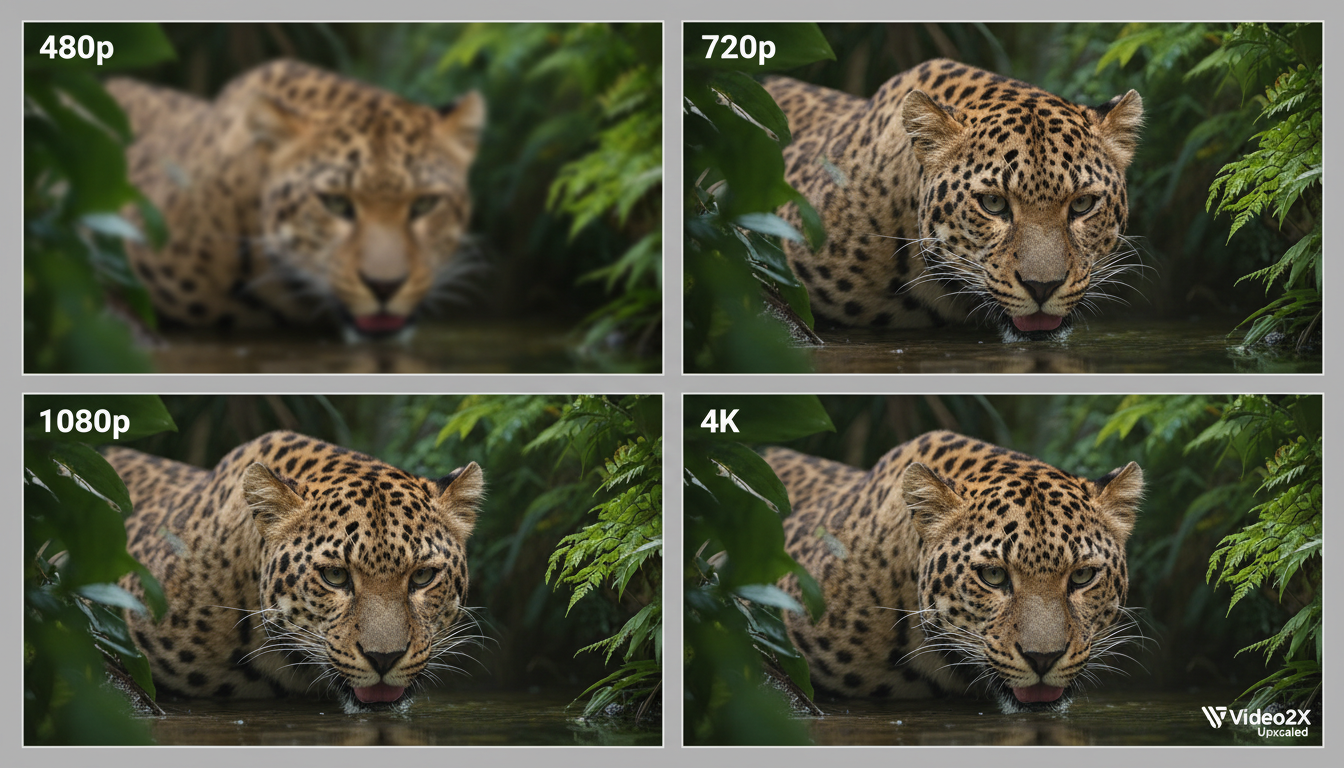 AI upscaling dramatically improves resolution while preserving and enhancing detail.
For Real-World Footage
Real-ESRGAN is the best choice for:
- Live action video
- Photos and documentaries
- Nature and landscapes
- General content
-p realesrgan -m realesrgan-x4plus
For Anime Content
Waifu2X or RealCUGAN for:
- Anime series
- Animated movies
- Cartoon content
- Hand-drawn animation
-p waifu2x -m cunet
## Or
-p realcugan -m models-pro
For Speed Priority
Anime4K offers fastest processing:
- 5-10x faster than Real-ESRGAN
- Good quality for anime
- Not ideal for real footage
-p anime4k
Engine Comparison
| Engine | Quality | Speed | Best For |
|---|---|---|---|
| Real-ESRGAN | Excellent | Slow | Real footage |
| Waifu2X | Excellent | Medium | Anime |
| RealCUGAN | Great | Medium | Anime |
| Anime4K | Good | Fast | Anime (quick) |
| SRMD | Good | Medium | Noisy footage |
Advanced Configuration
Quality Optimization
For maximum quality:
python -m video2x.video2x \
  -i input.mp4 \
  -o output.mp4 \
  -r 4 \
  -p realesrgan \
  -m realesrgan-x4plus \
  --tile 256 \
  --tile-pad 32
Smaller tiles use less VRAM but may show seams. Balance for your GPU.
Speed Optimization
For faster processing:
python -m video2x.video2x \
  -i input.mp4 \
  -o output.mp4 \
  -r 2 \
  -p realesrgan \
  --tile 512 \
  -t 4
Larger tiles and more threads speed up processing.
Noise Reduction
For noisy source material:
## SRMD with denoising
python -m video2x.video2x \
  -i noisy.mp4 \
  -o clean.mp4 \
  -r 2 \
  -p srmd \
  --noise-level 3
Noise levels: 0 (none) to 3 (maximum).
Frame Interpolation
Add frame interpolation for smoother playback:
## 24fps to 60fps
python -m video2x.video2x \
  -i input_24fps.mp4 \
  -o output_60fps.mp4 \
  --interpolate \
  --target-fps 60
Workflow Optimization
Processing Pipeline
For best results with AI-generated video:
- Generate at lower resolution (480p or 720p)
- Apply Video2X for upscaling
- Post-process in video editor
This is faster than generating at 4K and often produces better results.
Batch Processing
Process multiple files:
## All MP4 files in directory
for f in *.mp4; do
  python -m video2x.video2x -i "$f" -o "upscaled_$f" -r 2 -p realesrgan
done
Resume Failed Jobs
If processing stops:
python -m video2x.video2x \
  -i input.mp4 \
  -o output.mp4 \
  --resume
Video2X saves progress and can continue from interruption.
Cloud Processing
Run Video2X on cloud GPU:
Google Colab:
!git clone https://github.com/k4yt3x/video2x.git
%cd video2x
!pip install -r requirements.txt
!python -m video2x.video2x -i /content/input.mp4 -o /content/output.mp4 -r 2 -p realesrgan
RunPod: Use templates with Video2X pre-installed, or install on standard PyTorch template.
VRAM Requirements
| Resolution | 2x Scale | 4x Scale |
|---|---|---|
| 480p input | 2GB | 4GB |
| 720p input | 4GB | 8GB |
| 1080p input | 6GB | 12GB |
If you hit VRAM limits:
- Reduce tile size (
--tile 128) - Use smaller models
- Process in smaller batches
Comparing Results
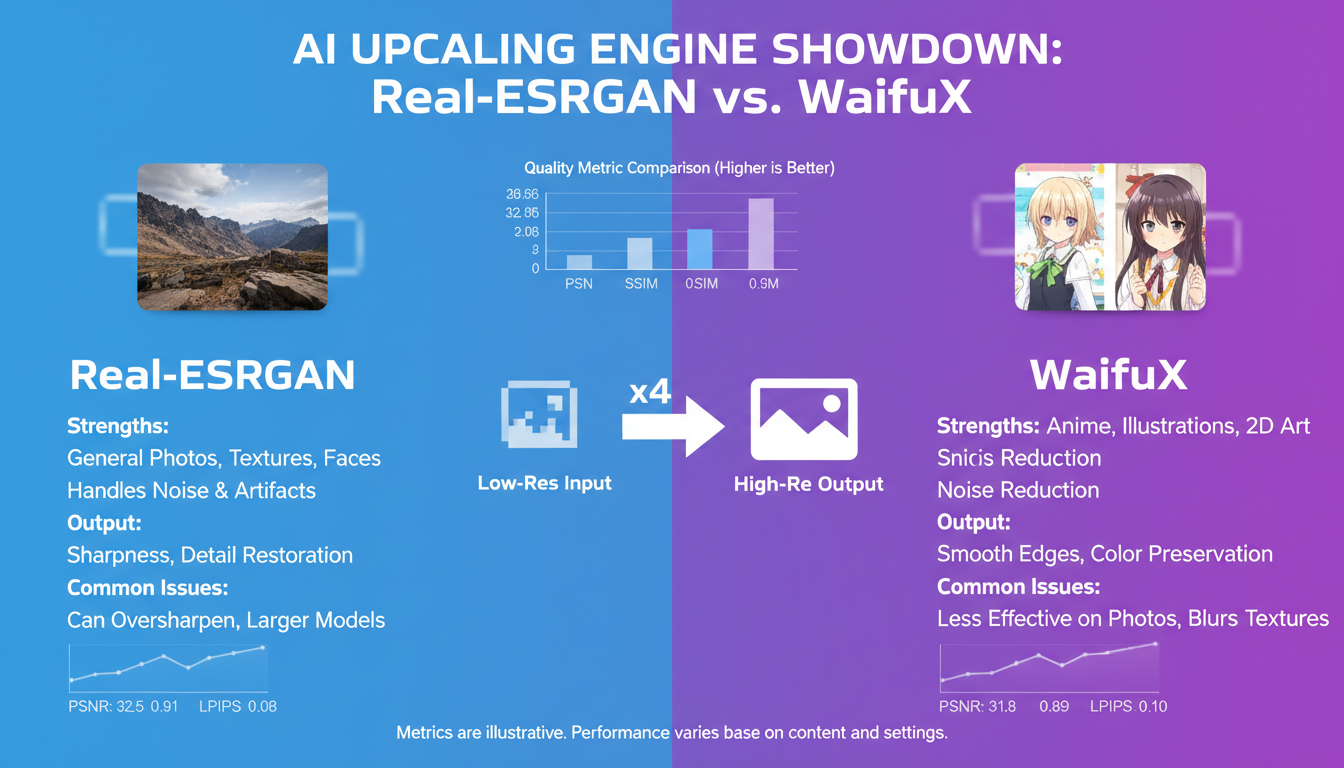 Different AI upscaling engines excel at different content types and quality levels.
Video2X vs Topaz Video AI
| Aspect | Video2X | Topaz |
|---|---|---|
| Price | Free | $299 |
| Quality | Great | Excellent |
| Speed | Medium | Fast |
| Ease of use | Moderate | Easy |
| GPU support | NVIDIA, AMD | NVIDIA, Apple |
| Updates | Community | Regular |
Video2X is 90% as good for free. Topaz is more polished and faster.
Quality Benchmarks
Testing on standard video benchmark:
| Engine | PSNR | SSIM | Speed |
|---|---|---|---|
| Real-ESRGAN x4 | 28.4 | 0.91 | 1.0x |
| Waifu2X cunet | 27.8 | 0.89 | 1.5x |
| Anime4K | 26.2 | 0.85 | 8.0x |
| Bilinear (baseline) | 24.1 | 0.78 | 50x |
Real-ESRGAN provides best quality, Anime4K best speed.
Troubleshooting
Common Errors
"CUDA out of memory":
- Reduce tile size:
--tile 128 - Close other GPU applications
- Use smaller scale factor first
"Model not found":
- Run
--download-models - Check models/ directory
- Verify model name spelling
"FFmpeg not found":
- Install FFmpeg to system PATH
- Or specify:
--ffmpeg-path /path/to/ffmpeg
Slow processing:
- Verify GPU is being used (not CPU)
- Update GPU drivers
- Check for thermal throttling
Quality Issues
Artifacts in output:
- Try different engine
- Reduce scale factor
- Check source quality
Seams visible:
- Increase tile padding:
--tile-pad 48 - Use larger tiles if VRAM allows
Color shift:
- Ensure consistent color space
- Try different model variant
Alternative Free Upscalers
If Video2X doesn't meet your needs:
| Tool | Strengths | Limitations |
|---|---|---|
| Waifu2X-Caffe | Anime focus | Windows only |
| ESRGAN | Image focus | Manual batching |
| Dandere2x | Fast anime | Less quality |
| BasicSR | Research quality | Complex setup |
Workflow Integration
Integration with AI Video Generation
Video2X pairs perfectly with AI video generators:
AI generation + upscaling workflow:
- Generate at 480p or 720p (faster generation)
- Apply basic color correction
- Upscale with Video2X
- Final output at 1080p or 4K
This workflow produces better results than generating at high resolution directly while being much faster.
Scripted Workflows
Automate Video2X in production pipelines:
Bash automation:
#!/bin/bash
INPUT_DIR="./raw_videos"
OUTPUT_DIR="./upscaled"

for file in "$INPUT_DIR"/*.mp4; do
    filename=$(basename "$file" .mp4)
    python -m video2x.video2x \
        -i "$file" \
        -o "$OUTPUT_DIR/${filename}_4k.mp4" \
        -r 2 \
        -p realesrgan
    echo "Completed: $filename"
done
Python integration:
import subprocess
import os

def upscale_video(input_path, output_path, scale=2, engine="realesrgan"):
    cmd = [
        "python", "-m", "video2x.video2x",
        "-i", input_path,
        "-o", output_path,
        "-r", str(scale),
        "-p", engine
    ]
    subprocess.run(cmd, check=True)
Quality Control Pipeline
Ensure consistent quality in batch processing:
Pre-processing checks:
- Verify source resolution
- Check source quality (no point upscaling very low quality)
- Validate file format
Post-processing validation:
- Confirm output resolution matches expected
- Check file size is reasonable
- Sample frame comparison
Hardware Scaling
For high-volume upscaling:
Single GPU optimization:
- Process overnight for large batches
- Use queue systems for multiple files
- Monitor temperature during long runs
Multi-GPU setups:
- Process different files on different GPUs
- Use environment variables to target specific GPU
- Parallel processing for faster throughput
Frequently Asked Questions
Is Video2X really free?
Yes, completely free and open source under GPLv3 license. No hidden costs, no watermarks, no usage limits.
How long does upscaling take?
Depends on hardware and settings. Typical: 5-30 seconds per frame. 1-minute video at 24fps = 1440 frames = 2-12 hours on mid-range GPU.
Can I use Video2X commercially?
Yes, GPLv3 allows commercial use. Just follow license requirements about source code availability.
What's the maximum resolution?
Technically unlimited, but 8K output is practical maximum before memory becomes prohibitive. Most users target 4K.
Does Video2X work on Mac?
Limited support, especially for Apple Silicon. Best results on Windows with NVIDIA GPU or Linux with CUDA support.
Is quality as good as Topaz?
Close. Topaz has edge in some cases, but Video2X is free and quality difference is often negligible for most content.
Which model should I use for mixed content?
Real-ESRGAN x4plus is the safest choice for mixed or unknown content. It handles both real footage and animation reasonably well.
Can I upscale already compressed video?
Yes, but compression artifacts may be enhanced along with the video. Consider denoising first, or use models with artifact reduction.
How do I reduce processing time?
Use larger tile sizes if VRAM allows, reduce scale factor to 2x instead of 4x, use faster models like Anime4K for animation, or process on cloud GPUs.
What happens if processing fails midway?
Use the --resume flag to continue from where processing stopped. Video2X saves progress and can pick up from interruption.
Can I upscale only part of a video?
Yes, extract the segment using FFmpeg, upscale it, then concatenate in post. Or use the frame range options if available.
Should I denoise before or after upscaling?
Generally before. Denoising at original resolution is more effective and prevents noise from being amplified by upscaling.
Wrapping Up
Video2X democratizes high-quality video upscaling. For free, you get results that rival expensive commercial software.
Key takeaways:
- Use Real-ESRGAN for real footage, Waifu2X for anime
- Start with 2x scaling, go to 4x for critical content
- Adjust tile size based on your VRAM
- Cloud processing is viable for one-off jobs
- Quality rivals commercial options at no cost
For AI video generation that benefits from upscaling, check our LTX-2 guide or WAN 2.2 guide. Generate at Apatero.com.
Render the video you just read about
Kling, Veo, Seedance and more, in your browser, no queue to build. Check your welcome allowance and the displayed cost before generating.
Related Articles
AI Video Denoising and Restoration: Complete Guide to Fixing Noisy Footage (2025)
Master AI video denoising and restoration techniques. Fix grainy footage, remove artifacts, restore old videos, and enhance AI-generated content with professional tools.
AI Video Multi-Clip Editing: Complete Workflow for Smooth Transitions (2025)
Master multi-clip AI video editing workflows. Learn to combine LTX-2, WAN, and Hunyuan clips into cohesive videos with smooth transitions and consistent style.

LTX-2 on 8GB VRAM: Complete Optimization Guide for Low-End GPUs (2025)
Run LTX-2 video generation on 8GB VRAM GPUs. Complete guide to memory optimization, FP8 quantization, tile processing, and settings for RTX 3070, 3060, and similar cards.