LTX-2 on 8GB VRAM: Complete Optimization Guide for Low-End GPUs (2025)
Run LTX-2 video generation on 8GB VRAM GPUs. Complete guide to memory optimization, FP8 quantization, tile processing, and settings for RTX 3070, 3060, and similar cards.

LTX-2 officially requires 12GB+ VRAM, but with proper optimization, it runs on 8GB cards. This guide covers every technique to get LTX-2 working on RTX 3060, 3070, and similar GPUs.
Quick Answer: LTX-2 works on 8GB VRAM with FP8 quantization (40% VRAM savings), aggressive tile processing (256x256 or smaller), lowvram mode enabled, and limited resolution (480p). Expect 3-5 second clips maximum at 480p. Processing is 2-3x slower than on higher VRAM cards, but quality remains good.
- Use FP8 quantized model (~40% VRAM savings)
- Enable lowvram mode in ComfyUI
- Generate at 480p resolution maximum
- Limit to 3-5 second clips
- Use aggressive tiling (256x256)
- Close all other GPU applications
Understanding VRAM Limits
If you've tried running LTX-2 on an 8GB card and immediately hit out-of-memory errors, you're not alone. The official requirements list 12GB as the minimum, and that's being conservative. But here's the thing: those requirements assume default settings and no optimization. With the right configuration, LTX-2 absolutely runs on 8GB cards, and the results can be surprisingly good.
The key to success is understanding where VRAM gets consumed and systematically reducing each component. It's not about finding one magic setting but rather applying multiple optimizations that compound together. By the end of this guide, you'll have a working setup that extracts real value from your "underpowered" GPU.
Why LTX-2 Is Memory Hungry
LTX-2 loads multiple components simultaneously during generation, and each one claims a slice of your precious VRAM:
- Video transformer model: 4-8GB
- VAE encoder/decoder: 1-2GB
- Audio model (optional): 1-2GB
- Frame buffer: Variable based on resolution
- CUDA kernels: ~0.5GB
Total easily exceeds 8GB at default settings.
VRAM Usage by Setting
| Resolution | Frames | FP16 VRAM | FP8 VRAM |
|---|---|---|---|
| 480p | 72 (3s) | 10GB | 6GB |
| 480p | 120 (5s) | 12GB | 7GB |
| 720p | 72 (3s) | 14GB | 9GB |
| 720p | 120 (5s) | 18GB+ | 12GB |
FP8 makes 8GB viable for 480p.
Breaking the 8GB Barrier
With optimization, you can:
- Generate 480p video (854x480)
- Produce 3-5 second clips
- Maintain good visual quality
- Use audio features (with care)
- Process on consumer GPUs
ComfyUI Low VRAM Setup
Launch Arguments
Start ComfyUI with memory optimization:
```bash python main.py --lowvram --use-split-cross-attention --disable-smart-memory ```
Explanation:
- `--lowvram`: Aggressive memory management
- `--use-split-cross-attention`: Splits attention computation
- `--disable-smart-memory`: Prevents memory caching
Alternative Launch Options
For even more aggressive optimization:
```bash python main.py --lowvram --cpu-vae ```
`--cpu-vae`: Runs VAE on CPU, freeing GPU memory. Slower but saves ~1-2GB.
Testing Your Setup
After launching, check available VRAM:
```python import torch print(f"Available: {torch.cuda.memory_reserved(0)/10243:.1f}GB") print(f"Allocated: {torch.cuda.memory_allocated(0)/10243:.1f}GB") ```
You need ~6-7GB free for 480p generation.
FP8 Quantization
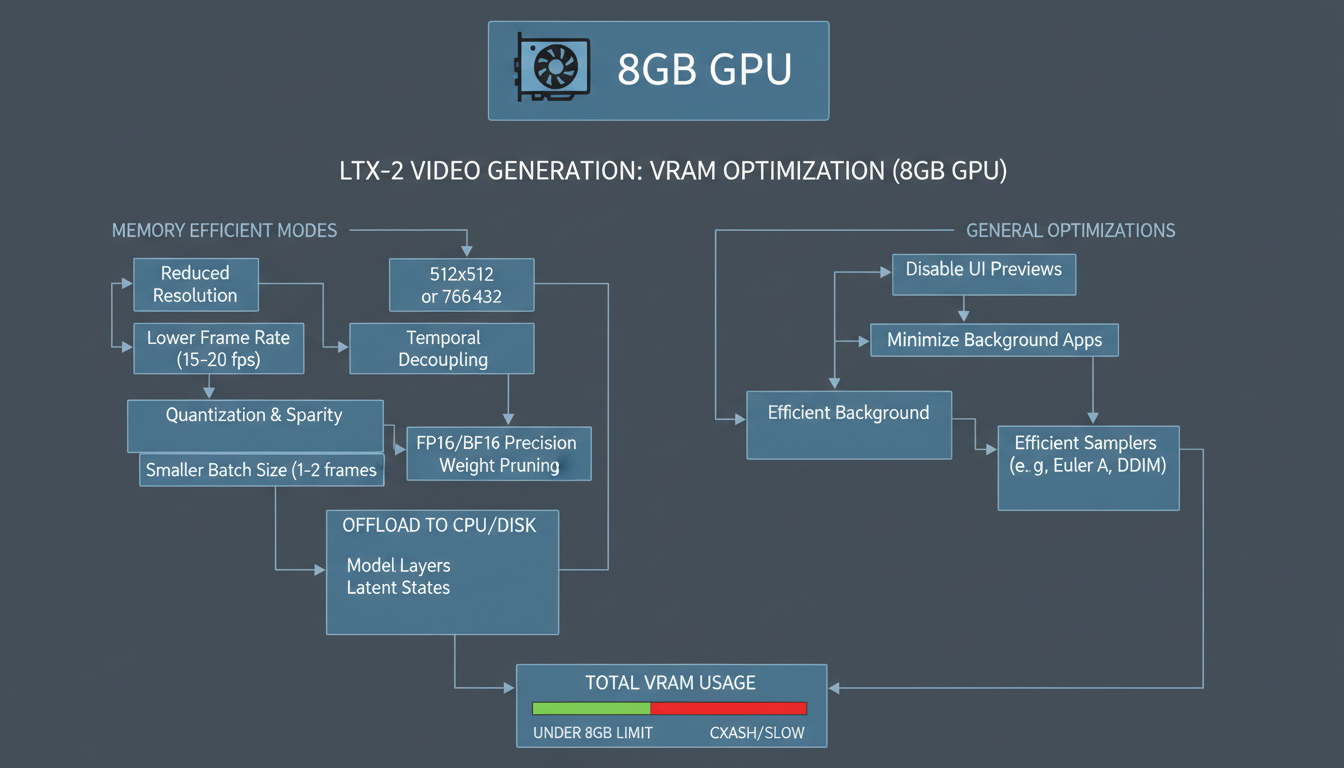 Memory-efficient settings enable LTX-2 video generation on GPUs with limited VRAM.
What Is FP8?
FP8 (8-bit floating point) reduces model size:
- FP16: 2 bytes per weight
- FP8: 1 byte per weight
- Result: ~50% model size reduction
Quality impact is minimal for most use cases.
Downloading FP8 Model
From Hugging Face: ```bash huggingface-cli download Lightricks/LTX-2-FP8 --local-dir models/ltx-2-fp8 ```
Or community quantized: Look for community FP8 quantizations on CivitAI or Hugging Face.
Using FP8 in ComfyUI
- Place FP8 model in models folder
- Select FP8 model in LTX-2 loader node
- Enable appropriate precision settings
- Generation uses less VRAM automatically
FP8 Quality Comparison
| Aspect | FP16 | FP8 |
|---|---|---|
| Visual quality | 100% | 95-98% |
| Fine details | Excellent | Very good |
| Color accuracy | Perfect | Slightly reduced |
| VRAM usage | 100% | 55-60% |
For most content, FP8 quality loss is imperceptible.
Resolution Optimization
Optimal 8GB Resolutions
Recommended:
- 480p (854x480): Best balance of quality and stability
- 360p (640x360): Maximum clip length, lower quality
Push limits:
- 576p (1024x576): Possible with all optimizations, risky
Avoid:
- 720p+: Will OOM on 8GB
Aspect Ratio Considerations
| Aspect Ratio | 480p Size | VRAM Impact |
|---|---|---|
| 16:9 | 854x480 | Standard |
| 4:3 | 640x480 | Slightly lower |
| 1:1 | 480x480 | Lowest |
| 9:16 | 270x480 | Similar to 16:9 |
Square and 4:3 use marginally less VRAM.
Post-Generation Upscaling
Generate at 480p, upscale after:
Workflow:
- Generate 480p video in ComfyUI
- Export video
- Upscale with Video2X or Real-ESRGAN
- Result: 1080p or 4K quality
This produces better results than struggling with native high-res.
Frame and Duration Limits
Maximum Frames at 8GB
| Resolution | Max Frames | Duration (24fps) |
|---|---|---|
| 480p | 120 | 5 seconds |
| 480p | 96 | 4 seconds |
| 360p | 168 | 7 seconds |
These are maximums. Leave buffer for stability.
Recommended Settings
Conservative (stable): ``` Resolution: 480p (854x480) Frames: 72 (3 seconds) Buffer: 1-2GB VRAM free ```
Aggressive (risky): ``` Resolution: 480p (854x480) Frames: 120 (5 seconds) Buffer: Minimal ```
Extending Video Length
For longer content:
- Generate multiple 3-5 second clips
- Use image-to-video for continuity
- Combine clips in post-production
- Apply transitions between clips
Tile Processing
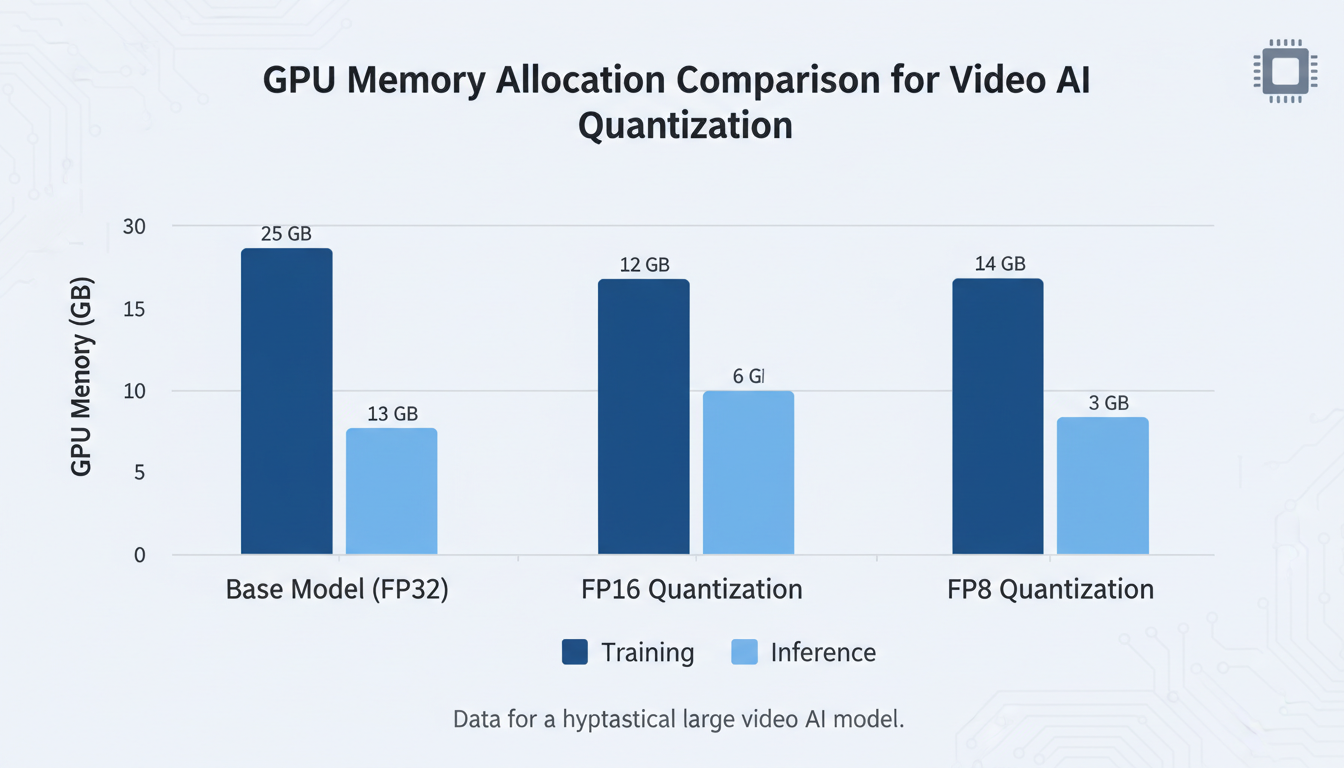 FP8 quantization reduces VRAM requirements by approximately 40% compared to FP16.
What Is Tiling?
Tiling breaks large operations into smaller chunks:
- Process 256x256 sections instead of full frame
- Uses less VRAM per operation
- Allows larger total resolution
Enabling Tiling in ComfyUI
In VAE decode node settings: ``` tile_size: 256 tile_overlap: 32 ```
Smaller tiles = less VRAM but slower processing.
Tile Size Guidelines
| VRAM Available | Tile Size |
|---|---|
| < 6GB | 128 |
| 6-7GB | 192 |
| 7-8GB | 256 |
| 8GB+ | 384+ |
For 8GB, start with 256 and reduce if OOM.
Tile Artifacts
Small tiles can cause visible seams. Solutions:
- Use tile_overlap of 32-64 pixels
- Post-process with slight blur at seams
- Increase tile size if VRAM allows
Model Offloading
GPU-CPU Offloading
Move inactive model components to CPU RAM:
In ComfyUI: The `--lowvram` flag enables automatic offloading.
Manual control: Some nodes allow creative CPU offloading of specific components.
What Can Be Offloaded
| Component | Offload Impact | VRAM Saved |
|---|---|---|
| Text encoder | Low | ~0.5GB |
| VAE | Medium | ~1-2GB |
| Audio model | Low | ~1GB |
| Video model | Very slow | ~4-8GB |
Don't offload video model unless desperate. Too slow.
Memory Clearing
Between generations, clear VRAM:
```python import torch import gc gc.collect() torch.cuda.empty_cache() ```
Add this between clip generations for stability.
System Optimization
Before Generation
Close applications:
- Web browsers (especially Chrome)
- Discord, Slack
- Other GPU applications
- Hardware monitoring tools
Each saves 100-500MB VRAM.
GPU Driver Settings
NVIDIA Control Panel:
- Power management: Prefer maximum performance
- Texture filtering quality: High performance
- Vertical sync: Off
Windows Virtual Memory
Increase page file for memory overflow:
- System Properties → Advanced → Performance Settings
- Advanced → Virtual Memory → Change
- Set to 32GB or more
- Restart system
Linux Users
Increase swap: ```bash sudo fallocate -l 32G /swapfile sudo chmod 600 /swapfile sudo mkswap /swapfile sudo swapon /swapfile ```
GPU memory settings: ```bash export PYTORCH_CUDA_ALLOC_CONF=max_split_size_mb:128 ```
Audio on 8GB
The Audio Challenge
LTX-2's audio model adds ~1-2GB VRAM usage. On 8GB, this is significant.
Audio Strategy
Option 1: Disable audio Generate video only, add audio in post-production. ``` audio_enabled: false ```
Option 2: Shorter clips with audio If audio is critical, reduce frame count: ``` Resolution: 480p Frames: 48 (2 seconds) Audio: Enabled ```
Option 3: Sequential processing
- Generate video (audio disabled)
- Clear VRAM
- Load audio model
- Generate audio for video
- Combine in post
Audio Alternatives
Post-production audio:
- ElevenLabs sound effects
- AudioCraft for ambient
- Suno/Udio for music
- Foley libraries
Often better quality than generated audio anyway.
Workflow Optimization
Efficient Node Order
Optimal ComfyUI node arrangement:
```
- Text encoding (low memory)
- Model loading (peak memory)
- Sampling (sustained memory)
- VAE decode (tiled, controlled memory)
- Output (release memory) ```
Memory-Aware Workflow
``` Load Text Encoder → Encode → Unload Load Video Model → Sample → Keep loaded Load VAE → Decode (tiled) → Unload Save Output Clear memory between runs ```
Batch Processing
For multiple clips:
``` Generate Clip 1 → Save → Clear VRAM Generate Clip 2 → Save → Clear VRAM Generate Clip 3 → Save → Clear VRAM ```
Don't batch in parallel. Sequential with clearing is stable.
Performance Expectations
Generation Speed
| GPU | 480p 3s | 480p 5s |
|---|---|---|
| RTX 3060 8GB | 4-6 min | 7-10 min |
| RTX 3070 8GB | 3-5 min | 5-8 min |
| RTX 2080 8GB | 5-8 min | 10-15 min |
2-3x slower than 12GB+ cards.
Quality Results
Despite VRAM constraints:
- Visual quality: 90-95% of full VRAM results
- FP8 impact: 2-5% quality reduction
- Resolution impact: Upscaling recovers detail
- Audio: Best added in post
Success Rate
With proper optimization:
- Stable: 90%+ success rate for 3s clips
- Moderate: 80% success rate for 5s clips
- Risky: 50% success rate at limits
Troubleshooting
OOM During Model Load
Error: CUDA out of memory when loading model.
Solutions:
- Use FP8 model instead of FP16
- Enable `--lowvram` flag
- Close all other applications
- Reduce other loaded models
- Restart ComfyUI fresh
OOM During Sampling
Error: OOM partway through generation.
Solutions:
- Reduce frame count
- Lower resolution
- Enable CPU offloading
- Increase tile size (counterintuitive but can help with fragmentation)
- Reduce sampling steps
OOM During VAE Decode
Error: OOM at decoding stage.
Solutions:
- Reduce tile size to 192 or 128
- Enable `--cpu-vae` for CPU decoding
- Process fewer frames
- Clear memory before decode
Slow Performance
Symptoms: Generation takes 10x longer than expected.
Causes and fixes:
- CPU fallback: Verify GPU is being used
- Thermal throttling: Check GPU temperature
- VRAM swapping: Too aggressive settings, reduce resolution
- Fragmented memory: Restart ComfyUI
Inconsistent Results
Symptoms: Sometimes works, sometimes OOM.
Solutions:
- Fresh restart before each generation
- Consistent settings (no experimentation mid-session)
- Leave 500MB+ VRAM buffer
- Monitor VRAM usage pattern
Alternative Approaches
Cloud GPU Option
When 8GB isn't enough:
| Service | GPU | Cost/Hour |
|---|---|---|
| RunPod | RTX 4090 | $0.74 |
| Vast.ai | RTX 3090 | $0.30-0.50 |
| Google Colab Pro | A100 | ~$0.10 |
For occasional high-res generation, cloud may be cost-effective.
Lighter Models
Consider alternatives for 8GB:
AnimateDiff: Lower VRAM requirement, shorter clips.
Stable Video Diffusion: ~6GB for basic generation.
WAN 2.2 5B: Lower VRAM than 14B variant.
Hybrid Workflow
Use local 8GB for:
- Testing and iteration
- 480p preview generation
- Shorter clips
Use cloud for:
- Final high-res renders
- Longer sequences
- Time-critical production
Frequently Asked Questions
Can I run LTX-2 on 6GB VRAM?
Technically possible but very limited. 360p maximum, 2-second clips. FP8 required. CPU VAE required. Not recommended.
Is FP8 quality really acceptable?
Yes, for most content. Side-by-side comparison shows minimal difference. Fine details slightly affected. Colors very slightly reduced. Most viewers can't tell.
Should I upgrade my GPU or use cloud?
Depends on usage. For daily use, upgrade to 12GB+ card pays off quickly. For occasional use, cloud is more economical.
Why does my first generation work but second fails?
VRAM fragmentation. Memory not properly released between runs. Restart ComfyUI between generations.
Can I generate 720p on 8GB?
Not recommended. Even with all optimizations, 720p typically OOMs or produces artifacts. Generate 480p and upscale.
Does system RAM help with 8GB VRAM?
Indirectly. More system RAM allows better CPU offloading. 32GB+ recommended for comfortable 8GB VRAM operation.
Will future updates improve 8GB support?
Likely. Optimization is ongoing. Better quantization, attention mechanisms, and memory management expected.
Can I use multiple 8GB GPUs?
Multi-GPU for single generation isn't well supported. Can use separate GPUs for batch processing different clips.
Is LTX-2 the best option for 8GB?
For audio+video together, yes. For video-only, Stable Video Diffusion or smaller WAN variants may be easier.
How do I know if my optimization is working?
Monitor VRAM with nvidia-smi during generation. Should stay below 7.5GB with buffer. If hitting 8GB, too aggressive.
Wrapping Up
LTX-2 on 8GB VRAM is challenging but achievable. The key is aggressive optimization at every level: FP8 quantization, resolution limits, tiling, and memory management.
Key takeaways:
- Use FP8 quantized model for 40% VRAM savings
- Limit to 480p resolution, 3-5 second clips
- Enable all lowvram optimizations in ComfyUI
- Plan for post-generation upscaling
- Accept 2-3x slower generation speed
- Clear VRAM between generations
With these optimizations, 8GB GPU owners can still create quality AI video content.
For general LTX-2 usage, see our complete LTX-2 guide. For upscaling your 480p output, check our Video2X guide. Generate AI video at Apatero.com.
Some models you cannot download at any VRAM
Veo, Kling and Nano Banana have closed weights. There is no local build, no quantization, no 24GB workaround. Run them in the browser instead. Check current model access and generation costs in the app.
Related Articles
AI Video Denoising and Restoration: Complete Guide to Fixing Noisy Footage (2025)
Master AI video denoising and restoration techniques. Fix grainy footage, remove artifacts, restore old videos, and enhance AI-generated content with professional tools.
AI Video Multi-Clip Editing: Complete Workflow for Smooth Transitions (2025)
Master multi-clip AI video editing workflows. Learn to combine LTX-2, WAN, and Hunyuan clips into cohesive videos with smooth transitions and consistent style.
LTX-2 Audio Prompting Masterclass: Write Prompts for Synchronized Sound (2025)
Master LTX-2 audio prompting to generate videos with perfectly synchronized sound. Learn audio cue techniques, sound design prompts, and pro tips for coherent audio-video output.