Fix Z Image Turbo Issues: Complete Troubleshooting Guide
Solve every common Z Image Turbo problem from model loading errors to quality issues. File placement, VRAM fixes, LoRA compatibility, and more.
Z Image Turbo is brilliant when it works. When it doesn't, the error messages are often unhelpful and the fixes aren't obvious. I've troubleshot these issues enough times that I made this reference guide for myself. Now you can use it too.
Quick Answer: Most Z Image Turbo issues stem from incorrect file placement, outdated ComfyUI versions, VRAM limitations, or parameter misconfiguration. This guide covers every common problem with specific solutions.
- File placement is critical: each component has a specific folder
- Fully restart ComfyUI after adding models (runtime won't detect them)
- FP8 and GGUF versions available for VRAM-constrained systems
- Z Image uses CFG 4-6, not the 7-8 typical of other models
- ControlNet requires ComfyUI nightly as of December 2025
Model Loading Problems
Files Not Found
The most common issue. Z Image Turbo requires three separate files in specific locations:
Required files:
z_image_turbo_bf16.safetensors→ComfyUI/models/diffusion_models/qwen_3_4b.safetensors→ComfyUI/models/text_encoders/ae.safetensors→ComfyUI/models/vae/
What goes wrong:
- Putting all files in one folder
- Using wrong folder names (it's
diffusion_models, notdiffusion_model) - Forgetting to download one of the three files
The fix: Double-check each file is in the correct subfolder. If folders don't exist, create them manually.
Model Loads But Nothing Happens
ComfyUI scans model directories at startup, not during runtime. If you add files while ComfyUI is running, they won't appear.
The fix: Fully restart ComfyUI. Not just refresh. Close and reopen.
File Corruption
If generation completes but output is garbage (pure noise or color blocks), the model files may be corrupted.
The fix:
- Check file sizes against official specs
- Re-download from Hugging Face if sizes don't match
- Verify your download wasn't interrupted
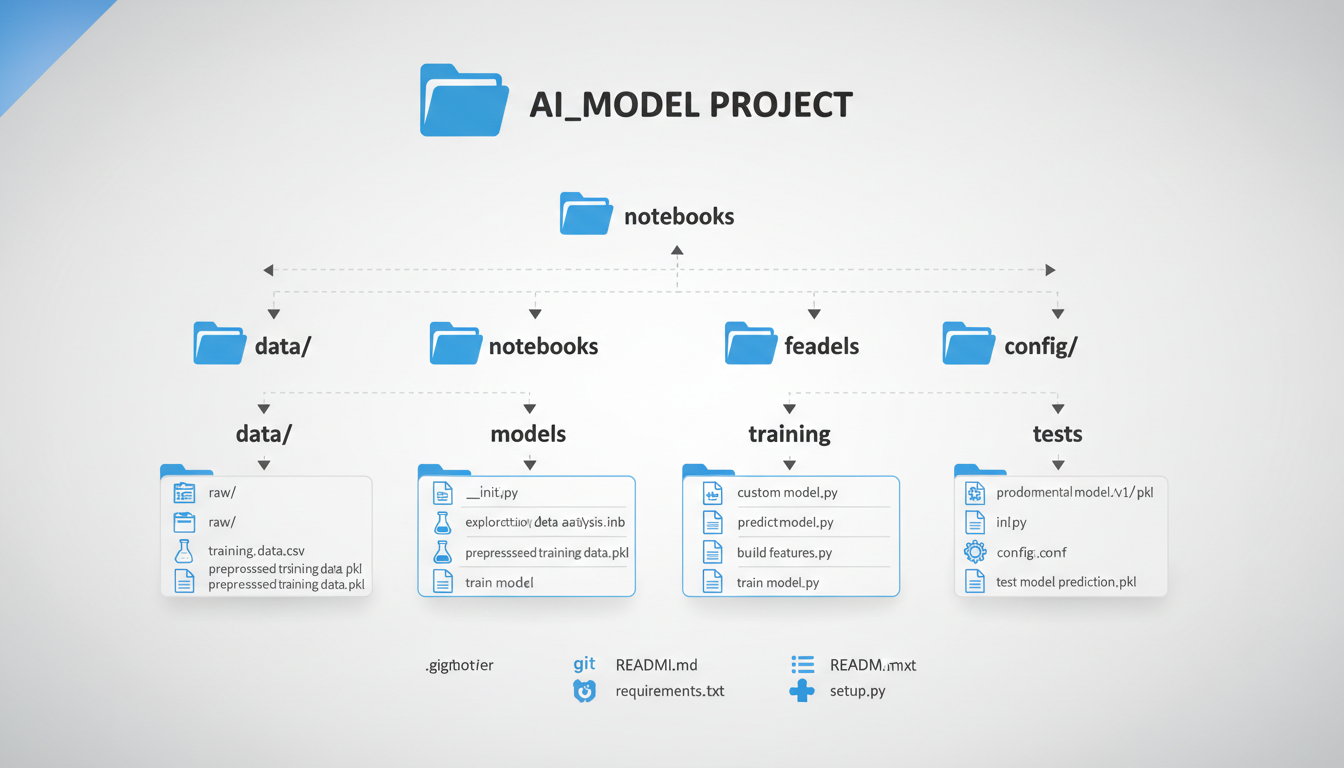 Correct folder structure for Z Image Turbo files
VRAM and Memory Issues
Model Won't Load (Out of Memory)
The full precision BF16 model needs significant VRAM. If you're getting OOM errors during load:
Solution 1: Use FP8 version
Download z_image_turbo_fp8.safetensors instead. Reduces VRAM to ~8GB with minimal quality loss.
Solution 2: Use GGUF version The GGUF quantized version runs on as little as 5GB VRAM. Install the ComfyUI-GGUF custom node set first.
Solution 3: Enable CPU offload In ComfyUI settings, enable memory-efficient options. Slower but works on limited hardware.
Memory Leaks During Generation
If VRAM usage keeps climbing until errors occur:
Causes:
- Complex workflows with many nodes
- Certain node combinations that don't release memory
- Outdated custom nodes
Fixes:
- Update ComfyUI to latest version
- Update all custom nodes
- Simplify workflow (test with minimal nodes first)
- Restart ComfyUI between heavy batches
Generation Gets Slower Over Time
Same root cause as memory leaks. Memory fragmentation causes slowdown before actual OOM.
Fix: Restart ComfyUI periodically during long sessions. There's no shame in a fresh start.
Quality Issues
Output Looks Wrong or Low Quality
Z Image Turbo is optimized for specific parameters. Using typical SDXL settings will produce poor results.
Correct settings:
- Steps: 8 (not 20-30)
- CFG: 4-6 (not 7-8)
- Resolution: 1024x1024 native
Common mistake: Using CFG 7+ causes artifacts. Z Image was trained for low CFG. Respect that.
Garbled Colors or Noise Patterns
VAE issues. Either wrong VAE or corrupted VAE.
Fix:
- Verify you're using Z Image's specific
ae.safetensors - Don't load a generic SDXL VAE
- Check VAE file isn't corrupted
Blurry or Soft Output
Usually over-processing. Z Image should be crisp at 8 steps.
Check:
- Are you upscaling incorrectly? (See blurry image fixes)
- Is denoise set wrong for your workflow?
- Are you accidentally applying smoothing post-processing?
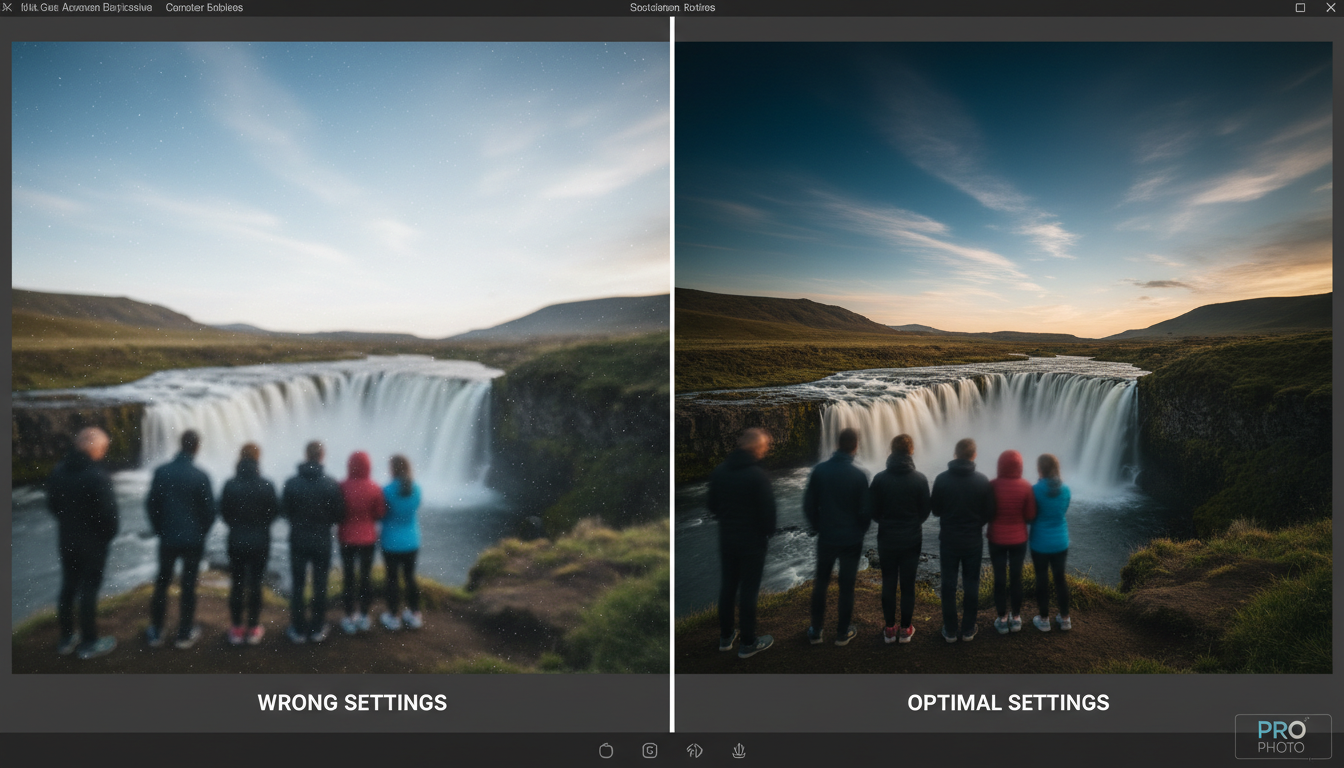 Left: Wrong settings (CFG 7, 20 steps). Right: Correct settings (CFG 5, 8 steps).
Text Encoder Issues
Qwen Encoder Not Loading
The Qwen text encoder is a separate download, and some users miss it.
Symptoms:
- Model loads but prompts aren't followed
- Generations are random regardless of prompt
- Errors mentioning text encoder
Fix:
- Download
qwen_3_4b.safetensorsfrom Hugging Face - Place in
text_encoders/folder - Restart ComfyUI
Wrong Text Encoder
Using a different text encoder (like CLIP) causes prompt misunderstanding.
Fix: Only use the Qwen encoder. Z Image is specifically trained for it.
LoRA Compatibility Issues
LoRA Not Working
Z Image Turbo requires LoRAs specifically trained for it. SDXL or SD 1.5 LoRAs won't work.
Solution:
- Find Z Image-specific LoRAs on CivitAI
- Or train your own using the de-turbo variant
- See my LoRA training guide
LoRA Artifacts
Strange artifacts when using LoRAs usually means strength is wrong.
Z Image LoRA strength recommendations:
- Character LoRAs: 0.8-1.0
- Style LoRAs: 0.5-0.7
Also lower your CFG further when using LoRAs. Try CFG 4 instead of 5-6.
Trained LoRA Doesn't Work with Turbo
If you trained on Z Image but it doesn't work with the Turbo version:
Explanation: Training uses the de-distilled variant. Inference uses the distilled Turbo variant. They're compatible, but you need to use the right one for each purpose.
Fix: Train on de-turbo, run on turbo. Not the reverse.
ControlNet Issues
Model Patch Loader Error
The Z Image Fun-ControlNet-Union requires specific ComfyUI versions.
Fix: Update ComfyUI to the December 3rd 2025 nightly or later. Standard stable releases may not work.
ControlNet Has No Effect
Control conditions aren't applying to output.
Check:
- ControlNet model is Z Image compatible
- Connection is correct in workflow
- ControlNet strength isn't 0
- Input image is properly processed
ControlNet Causes Crashes
Memory issues compound with ControlNet active.
Fix:
- Use smaller ControlNet models if available
- Reduce batch size to 1
- Use FP8 quantized versions
Workflow-Specific Issues
Inpainting Doesn't Work
Z Image inpainting requires specific node configuration.
Check:
- Using inpaint-specific nodes, not regular generation
- Mask is properly formatted
- Denoise is set appropriately (0.5-0.8 for inpainting)
See the Z Image inpainting guide for detailed workflow.
Batch Processing Fails
Large batches exhaust VRAM.
Solutions:
- Reduce batch size (try 1-2 at a time)
- Use FP8 version to free memory
- Enable CPU offload for long batches
Update-Related Issues
Worked Before, Broken Now
ComfyUI or custom node updates can break workflows.
Diagnostic steps:
- Check ComfyUI update notes for breaking changes
- Update custom nodes (outdated nodes cause conflicts)
- Roll back to previous ComfyUI version if needed
Node Not Found Errors
Custom nodes need installation.
For Z Image: Most workflows need basic ComfyUI only. But check if your workflow requires:
- ComfyUI-GGUF (for quantized models)
- ComfyUI-ControlNet (for control)
- Other specific node packs
Quick Diagnostic Checklist
When something's wrong, run through this:
- Files in right places? (diffusion_models, text_encoders, vae)
- ComfyUI restarted after adding files?
- Using correct settings? (8 steps, CFG 4-6)
- Correct VAE? (ae.safetensors, not external)
- Enough VRAM? (try FP8/GGUF if limited)
- ComfyUI up to date?
- Custom nodes up to date?
90% of issues resolve by checking this list.
Where to Get Help
If nothing in this guide works:
Community Resources:
- ComfyUI Discord (#z-image channel if it exists)
- Reddit r/comfyui
- GitHub issues for specific custom nodes
Official Documentation:
For production workflows, Apatero.com handles Z Image setup automatically. If you're tired of troubleshooting local installations, cloud options remove these friction points entirely.
FAQ
Z Image suddenly stopped working after an update Roll back ComfyUI or check update notes. Update broke something.
Images are generating but quality is terrible Wrong settings. Use 8 steps, CFG 4-6, correct VAE.
Can't find Z Image in model dropdown File is in wrong folder or ComfyUI needs restart.
LoRA trained elsewhere doesn't work Z Image needs Z Image-trained LoRAs. SDXL LoRAs won't work.
Getting CUDA errors GPU driver issue. Update NVIDIA drivers. Check CUDA version compatibility.
Memory error with small image size Model load requires VRAM regardless of output size. Use quantized version.
Generation is extremely slow Check if CPU offload is accidentally enabled when you have enough VRAM.
Most Z Image issues are solvable with the right information. Bookmark this guide and come back when something breaks. Because in ComfyUI, something always eventually breaks.
Some models you cannot download at any VRAM
Veo, Kling and Nano Banana have closed weights. There is no local build, no quantization, no 24GB workaround. Run them in the browser instead. Check current model access and generation costs in the app.
Related Articles

25 ComfyUI Workflow Tips: Settings and Review
Explore ComfyUI workflow organization, settings and output review, with a blank worksheet for comparing performance on your own setup.

7 ComfyUI Custom Nodes That Should Be Built-In (And How to Get Them)
Essential ComfyUI custom nodes every user needs in 2025. Complete installation guide for WAS Node Suite, Impact Pack, IPAdapter Plus, and more...

ADetailer Single Character Focus - How to Target Specific Faces in Multi-Character Images 2025
Master ADetailer and FaceDetailer to focus on single characters in multi-person images. Complete guide to targeting specific faces with different prompts in ComfyUI.