Fine-Tuning Z-Image Base with AI Toolkit: Modern Training Approach
Learn to fine-tune Z-Image Base using AI Toolkit. Modern training pipeline, configuration options, and advantages over traditional Kohya methods.
Make AI images and video in your browser
Characters, video, photo packs. No GPU, no setup. Your first generation is free.
While Kohya_ss has been the traditional choice for LoRA training, AI Toolkit (also known as Ostris Toolkit) has emerged as a modern alternative that many find easier to use and more flexible. For Z-Image Base fine-tuning, AI Toolkit offers a simplified experience with powerful customization options. This guide covers setup, configuration, and best practices.
The AI Toolkit approach focuses on making training accessible while maintaining the flexibility that advanced users need.
Why AI Toolkit?
Understanding AI Toolkit's advantages helps you decide whether to adopt it.
Simplified Configuration
Traditional training tools require navigating complex GUIs or understanding dozens of command-line parameters. AI Toolkit uses clean YAML configuration:
job: train
model:
  type: z-image-base
  path: ./models/z-image-base.safetensors

dataset:
  path: ./training_data
  caption_extension: .txt
  resolution: 1024

training:
  learning_rate: 0.0001
  steps: 2000
  save_every: 500
This declarative approach makes it clear what you're configuring and easy to share configurations.
Better Defaults
AI Toolkit includes sensible defaults specifically tuned for modern diffusion models:
- Optimized learning rate schedules
- Appropriate memory management
- Model-specific configurations
- Performance optimizations out of the box
Modern Architecture Support
While Kohya originated in the SD 1.5 era, AI Toolkit was designed with modern architectures in mind:
- Native S3-DiT support for Z-Image models
- Flux architecture compatibility
- Efficient attention implementations
- Current optimization techniques
Installation
Setting up AI Toolkit is straightforward on systems with Python and CUDA.
Prerequisites
Ensure you have:
- Python 3.10+
- CUDA 11.8 or 12.x
- 12GB+ VRAM recommended
- Git for cloning
Installation Steps
## Clone repository
git clone https://github.com/ostris/ai-toolkit
cd ai-toolkit

## Create virtual environment
python -m venv venv
source venv/bin/activate  # Linux/Mac
## or: venv\Scripts\activate  # Windows

## Install dependencies
pip install -r requirements.txt
Model Setup
Download Z-Image Base and place in your models directory:
mkdir -p models
## Download from HuggingFace to models/z-image-base.safetensors
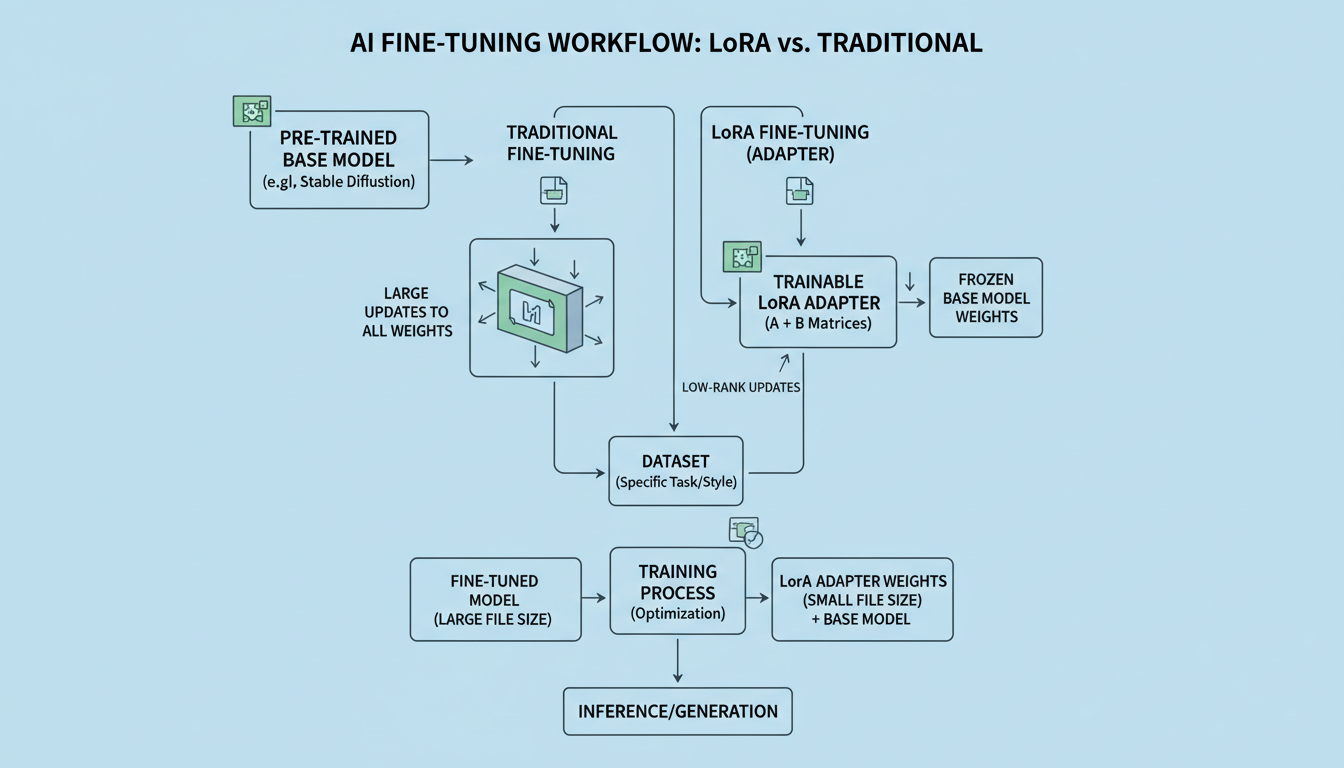 AI Toolkit setup is simpler than traditional training tools
Configuration Detailed look
Understanding configuration options helps you optimize training for your specific needs.
Model Configuration
Specify your base model and output settings:
model:
  type: z-image-base
  path: ./models/z-image-base.safetensors

output:
  name: my_character_lora
  path: ./output
  save_format: safetensors
The toolkit automatically handles model-specific settings when you specify the type.
Dataset Configuration
Define your training data:
dataset:
  path: ./training_data
  caption_extension: .txt
  resolution: 1024
  shuffle: true

  augmentation:
    flip_horizontal: true
    random_crop: true
Augmentation options help expand limited datasets without requiring more images.
Training Parameters
Core training settings:
Free ComfyUI Workflows
Find free, open-source ComfyUI workflows for techniques in this article. Open source is strong.
training:
  # Learning
  learning_rate: 0.0001
  lr_scheduler: cosine
  warmup_steps: 100

  # Duration
  steps: 2000
  batch_size: 1
  gradient_accumulation: 4

  # Optimization
  optimizer: adamw8bit
  mixed_precision: bf16
  gradient_checkpointing: true
LoRA-Specific Settings
Configure the LoRA architecture:
lora:
  rank: 32
  alpha: 16
  dropout: 0.0
  target_modules:
    - to_q
    - to_k
    - to_v
    - to_out
Targeting specific modules lets you control what the LoRA affects.
Full Example Configuration
Here's a complete configuration for a character LoRA:
job: train

model:
  type: z-image-base
  path: ./models/z-image-base.safetensors

output:
  name: sarah_character_v1
  path: ./output
  save_format: safetensors
  save_every: 500

dataset:
  path: ./datasets/sarah
  caption_extension: .txt
  resolution: 1024
  shuffle: true
  augmentation:
    flip_horizontal: false  # Keep face consistent
    random_crop: false

training:
  learning_rate: 0.0001
  lr_scheduler: cosine
  warmup_steps: 50
  steps: 2000
  batch_size: 1
  gradient_accumulation: 4
  optimizer: adamw8bit
  mixed_precision: bf16
  gradient_checkpointing: true

lora:
  rank: 32
  alpha: 16
  dropout: 0.0

logging:
  log_every: 10
  sample_every: 250
  sample_prompts:
    - "sarah_char, portrait, professional lighting"
    - "sarah_char, full body, standing, simple background"
Running Training
With configuration ready, training execution is simple.
Basic Training
python train.py --config configs/my_training.yaml
Monitoring Progress
AI Toolkit provides real-time feedback:
- Loss values logged at intervals
- Sample images generated during training
- Progress bar with time estimates
- Memory usage reporting
Using Tensorboard
For detailed monitoring:
tensorboard --logdir ./output/logs
View training curves, sample outputs, and gradient statistics in your browser.
Comparing to Kohya
Understanding differences helps you choose the right tool.
Want to skip the complexity? Apatero gives you professional AI results instantly with no technical setup required.
Advantages of AI Toolkit
| Aspect | AI Toolkit | Kohya |
|---|---|---|
| Configuration | YAML files | GUI or complex CLI |
| Setup | Simple pip install | Multiple dependencies |
| Modern models | Native support | Requires patches |
| Defaults | Optimized | Manual tuning |
| Documentation | Growing | Extensive |
Advantages of Kohya
| Aspect | Kohya | AI Toolkit |
|---|---|---|
| Community | Massive | Growing |
| Presets | Many available | Fewer |
| GUI option | Built-in | Command-line |
| Legacy support | Excellent | Limited |
When to Use Which
Use AI Toolkit when:
- Training on modern architectures (Z-Image, Flux)
- Preferring configuration files over GUIs
- Wanting simpler setup
- Working in scripted pipelines
Use Kohya when:
- Needing GUI interaction
- Working with SD 1.5/SDXL
- Following existing tutorials
- Using shared presets
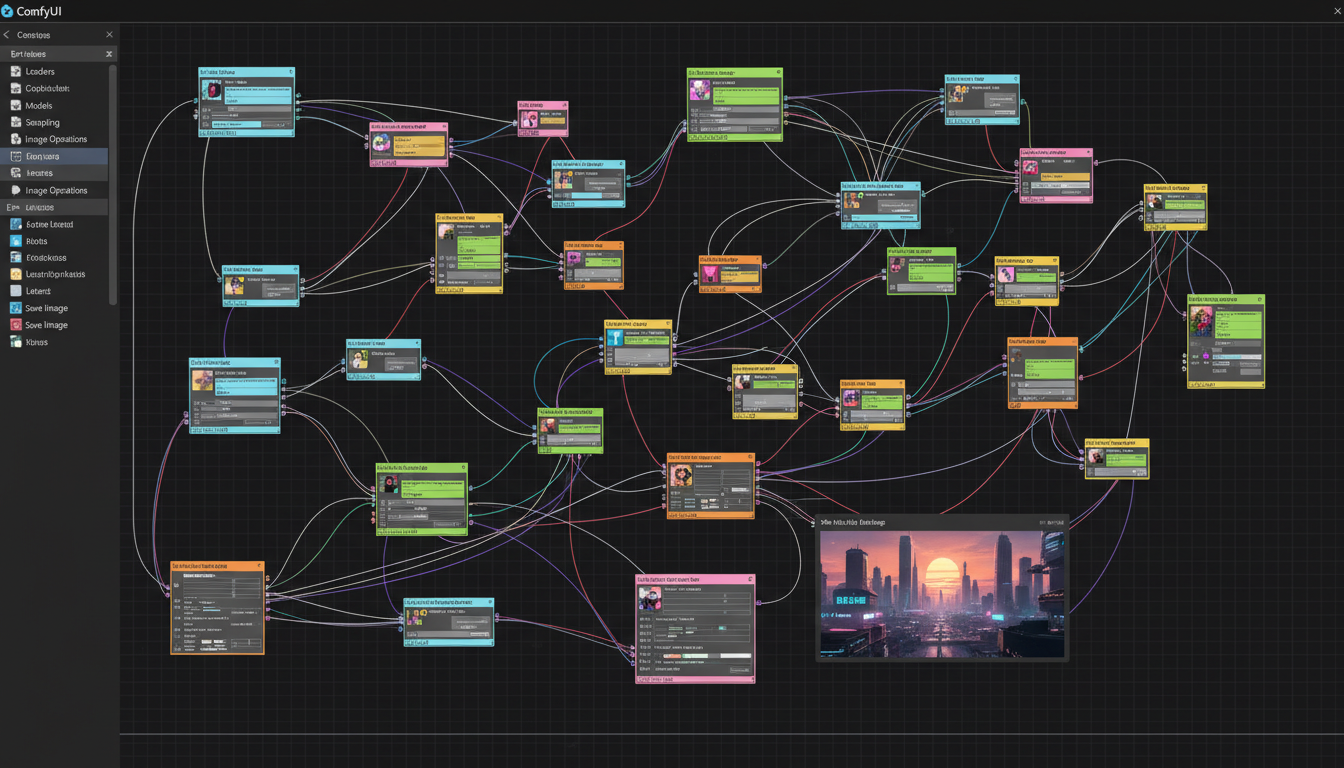 Different tools suit different workflows and preferences
Optimization Tips
Get the most from AI Toolkit training.
Memory Optimization
For limited VRAM:
training:
  gradient_checkpointing: true
  mixed_precision: bf16
  batch_size: 1
  gradient_accumulation: 8  # Simulate larger batch
Speed Optimization
For faster training:
training:
  mixed_precision: bf16  # or fp16
  xformers: true  # If available
  compile_model: true  # PyTorch 2.0+
Quality Optimization
For best results:
Earn Up To $1,250+/Month Creating Content
Join our exclusive creator affiliate program. Get paid per viral video based on performance. Create content in your style with full creative freedom.
training:
  learning_rate: 0.00005  # Lower for stability
  steps: 3000  # More iterations

lora:
  rank: 64  # Higher capacity
  alpha: 32
Troubleshooting
Common issues and solutions.
CUDA Out of Memory
Solution: Enable gradient checkpointing, reduce batch size, use accumulation:
training:
  gradient_checkpointing: true
  batch_size: 1
  gradient_accumulation: 8
Training Not Converging
Solutions:
- Check caption accuracy
- Verify trigger word consistency
- Lower learning rate
- Increase steps
Artifacts in Outputs
Solutions:
- Reduce learning rate
- Add regularization
- Check dataset for issues
- Use lower LoRA rank
Config Not Loading
Solutions:
- Validate YAML syntax
- Check file paths
- Ensure model exists
- Verify Python environment
Key Takeaways
- AI Toolkit offers simpler configuration via YAML files
- Modern architecture support makes it ideal for Z-Image Base
- Better defaults require less manual tuning
- Single command training simplifies workflows
- Growing community provides increasing resources
- Choose based on workflow - CLI lovers will prefer AI Toolkit
Frequently Asked Questions
Can I use existing Kohya configs with AI Toolkit?
No, the configuration formats differ. You'll need to translate settings.
Is AI Toolkit faster than Kohya?
Performance is similar. AI Toolkit may have better defaults for modern models.
Does AI Toolkit support SDXL?
Yes, though Z-Image and Flux are where it shines most.
Can I train multiple concepts?
Yes, define multiple triggers and organize your dataset accordingly.
Where do I find example configs?
Check the AI Toolkit GitHub repository for examples and community configs.
Is Windows supported?
Yes, with some additional setup for CUDA paths.
How do I add new model support?
AI Toolkit is extensible. Check documentation for adding custom model types.
Can I resume interrupted training?
Yes, point to the latest checkpoint in your config.
What's the minimum VRAM needed?
8GB with optimizations, 12GB+ recommended for comfortable training.
How do I validate my trained LoRA?
Load it in ComfyUI or your preferred interface and test with sample prompts.
AI Toolkit represents the evolution of training tools toward simpler, more maintainable approaches. For Z-Image Base users, it offers a modern alternative that's particularly well-suited to current model architectures and workflows.
For users who want to skip local training complexity, Apatero Pro plans offer hosted LoRA training where you upload images and receive trained models without managing infrastructure.
Make AI images and video in your browser
Characters, video, photo packs. No GPU, no setup. Your first generation is free.
Related Articles
Adobe Firefly vs Midjourney vs Ideogram 2026: Which Wins
Brand-safe licensing, scroll-stopping aesthetics, or text rendering. Three tools optimized for three different jobs, tested against real briefs.
AI Architecture Rendering 2026: Veras vs Paintit vs Midjourney
44 percent of architects use AI in 2026. Veras, Paintit, ArchiVinci, and Midjourney tested on five real architectural briefs from a working studio.
AI Art Market Statistics 2025: Industry Size, Trends, and Growth Projections
Comprehensive AI art market statistics including market size, creator earnings, platform data, and growth projections with 75+ data points.