ComfyUI Video Generation Errors: Complete Troubleshooting Guide (2025)
Fix common ComfyUI video generation problems including noise/snow output, VRAM errors, sync issues, and workflow failures. Solutions for WAN, LTX, and Hunyuan models.
ComfyUI video generation can be frustrating when things go wrong. Noise/snow output, VRAM crashes, and mysterious failures plague even experienced users. This comprehensive troubleshooting guide covers the most common issues and their solutions.
Quick Answer: The most common ComfyUI video errors are: (1) Pure noise/snow output after first successful generation - restart ComfyUI or clear VRAM; (2) Out of memory during upscaling - reduce resolution or use tiled processing; (3) Workflow disconnection during sampling - update nodes and check padding settings. Most issues stem from VRAM management or outdated custom nodes.
- Noise/Snow Output: Memory state corruption
- VRAM/OOM Errors: Insufficient GPU memory
- Workflow Disconnection: Node compatibility issues
- Quality Degradation: Export or sampling problems
- Sync Issues: Timing and frame problems
Error 1: Noise/Snow Output
This is probably the single most reported issue in ComfyUI video generation communities. You get an amazing first generation, feel excited about your workflow, and then everything falls apart. The frustration is real because there's no obvious error message. The workflow runs to completion, but instead of video, you get visual garbage.
Understanding why this happens helps you prevent it. Video models are memory-intensive, and ComfyUI's default memory management wasn't originally designed for the demands of video generation. When residual data from one generation bleeds into the next, the entire latent space becomes corrupted. The good news is that once you know the cause, the solutions are straightforward.
The Problem
First generation works perfectly. Second generation produces pure noise or snow-like artifacts. All subsequent generations are unusable until ComfyUI restarts.
Why It Happens
ComfyUI doesn't properly clear VRAM between video generations. Residual data from the first generation corrupts the latent space for subsequent runs.
Solutions
Immediate fix:
- Restart ComfyUI completely
- Clear GPU memory before restarting:
## In Python console or separate script
import torch
torch.cuda.empty_cache()
Permanent solutions:
Option A: Add memory clear node Install ComfyUI-Memory-Clear custom node and add it at the end of your workflow.
Option B: Use fresh latents Ensure you're creating new latents for each generation, not reusing from previous runs.
Option C: Lower batch size Reduce video frames per batch. Smaller batches reduce memory accumulation.
Option D: Update ComfyUI This issue has been partially addressed in recent updates. Run:
git pull
pip install -r requirements.txt
Model-Specific Notes
WAN 2.2: Most affected by this issue. Always restart between sessions.
LTX-2: Less prone but can still occur with long clips.
Hunyuan: Generally stable but clear cache for best results.
Error 2: Out of Memory (OOM)
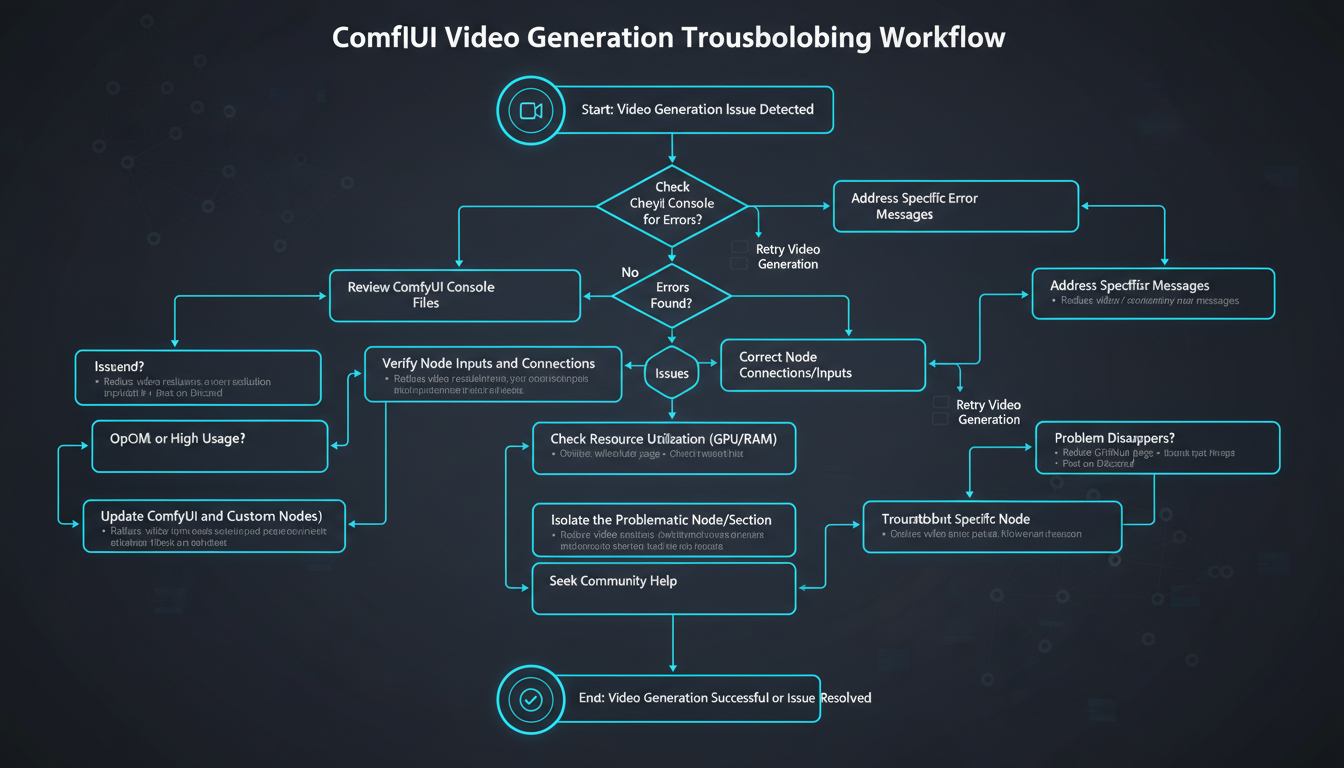 Systematic debugging helps identify and resolve common video generation errors.
Video generation is incredibly VRAM hungry compared to image generation. A workflow that produces stunning images might completely crash when you try to generate video with the same GPU. This isn't a bug in your workflow. It's a fundamental characteristic of video models that process multiple frames simultaneously while maintaining temporal coherence.
The key insight is that VRAM usage isn't constant throughout generation. Different phases have dramatically different memory requirements, and the peaks often occur at unexpected moments. Understanding this pattern helps you optimize your workflow to avoid crashes rather than just reducing quality across the board.
The Problem
Generation starts normally, then crashes with CUDA out of memory error. Often happens during upscaling phase.
Common Trigger Points
| Phase | Typical VRAM Spike |
|---|---|
| Model loading | +4-8GB |
| Sampling | +2-4GB |
| 2x Upscale | +6-12GB |
| VAE decode | +2-4GB |
| Audio generation | +1-2GB |
Solutions
Reduce resolution:
Generate at 480p, upscale externally
480p → 720p is more stable than native 720p.
Enable tiled processing: For upscaling, use tiled VAE decode:
- Install ComfyUI-Tile-VAE
- Split large frames into tiles
- Process individually
- Merge results
Aggressive memory optimization: Add to ComfyUI launch:
python main.py --lowvram --use-split-cross-attention
Reduce sampling steps: 20 steps often sufficient. 50 steps uses significantly more memory.
Use quantized models: LTX-2 FP8 uses ~40% less VRAM than FP16.
Model-Specific Memory Requirements
| Model | Minimum VRAM | Comfortable |
|---|---|---|
| WAN 2.2 5B | 8GB | 12GB |
| WAN 2.2 14B | 12GB | 24GB |
| LTX-2 | 12GB | 16GB |
| Hunyuan 1.5 | 16GB | 24GB |
Error 3: Workflow Disconnection
The Problem
Workflow disconnects during generation. Usually happens after "sampling of high-noise process completed" message.
Why It Happens
- Node incompatibility after updates
- Wrong padding settings for LoRA workflows
- Memory timeout during model swap
- Custom node conflicts
Solutions
Check padding settings: SVI LoRA workflows require specific padding. Standard WAN workflows won't work.
Use official workflows: Download workflows from official repositories, not random sources:
- WAN: Kijai's ComfyUI-WanVideoWrapper
- LTX: Lightricks' ComfyUI-LTXVideo
- Hunyuan: Official Hunyuan nodes
Update all nodes:
## In ComfyUI folder
cd custom_nodes
for dir in */; do
  cd "$dir"
  git pull
  cd ..
done
Disable conflicting nodes: If disconnection started after installing new node, remove it:
mv custom_nodes/suspicious-node custom_nodes/suspicious-node.disabled
Increase timeout: Some disconnections are timeout-related. In ComfyUI settings, increase execution timeout.
Error 4: Video Quality Degradation
The Problem
Videos suddenly export at extremely low quality. File sizes drop from 5MB to 33KB. Bitrate drops from 8000+ kbps to under 100 kbps.
Why It Happens
VideoHelperSuite or export node settings changed, often after updates.
Solutions
Check VideoHelperSuite settings:
- Verify bitrate setting (8000+ for good quality)
- Check codec (H.264 or H.265)
- Confirm CRF value (18-23 for quality)
Downgrade if needed: If update broke exports:
cd custom_nodes/ComfyUI-VideoHelperSuite
git log --oneline -10  # Find last working commit
git checkout <commit-hash>
Use alternative export: Save as image sequence, encode externally:
ffmpeg -framerate 24 -i frame_%04d.png -c:v libx264 -crf 18 output.mp4
Verify output node: Make sure you're using the correct output node for your format.
Error 5: Kijai Nodes Freezing
The Problem
Workflows with Kijai nodes freeze at sampler step. Native workflows work fine.
Why It Happens
Kijai's WanVideoWrapper has specific requirements that differ from built-in nodes.
Solutions
Use compatible versions: Check Kijai's GitHub for ComfyUI version compatibility.
Try native workflow: Use built-in LTX or WAN nodes instead of Kijai's for troubleshooting.
Check dependencies: Kijai nodes have specific dependency requirements:
pip install xformers
pip install flash-attn  # If supported
Reduce complexity: Simplify workflow. Remove optional nodes until it works, then add back.
Error 6: Audio Sync Issues
The Problem
LTX-2 audio doesn't match video. Sound happens at wrong times or is completely misaligned.
Why It Happens
- FPS mismatch between generation and export
- Audio sampling rate conflicts
- Variable frame rate in source
- Buffer underruns during generation
Solutions
Match FPS consistently: Set same FPS in:
- Generation node (e.g., 24 FPS)
- Export node (24 FPS)
- Output settings (24 FPS)
Use constant frame rate: In export settings, enable CFR (Constant Frame Rate).
Check audio sampling rate: LTX-2 uses 44.1kHz. Ensure export preserves this.
Generate shorter clips: Audio sync degrades in longer clips. Generate 4-second clips, combine in editor.
Error 7: First Frame Artifacts
The Problem
First frame of video has artifacts, noise, or wrong colors. Rest of video is fine.
Why It Happens
Image-to-video workflows sometimes corrupt the conditioning image.
Solutions
Preprocess input image:
- Resize to exact target resolution
- Remove alpha channel
- Convert to RGB
- Save as PNG (not JPEG)
Use padding: Add 1-2 duplicate frames at start, trim in post.
Check conditioning strength: Too high conditioning can cause first-frame issues.
Error 8: Slow Generation
The Problem
Video generation is extremely slow. Expected 30 seconds, taking 10+ minutes.
Why It Happens
- xformers or flash attention not working
- CPU fallback instead of GPU
- Wrong precision settings
- Thermal throttling
Solutions
Verify GPU usage:
nvidia-smi
GPU should show high utilization during generation.
Enable optimizations:
python main.py --use-pytorch-cross-attention
## Or with xformers
python main.py --xformers
Check precision: FP16 is fastest for most GPUs. FP32 is slower but may be needed for stability.
Monitor temperature: GPU throttling starts at ~83°C. Improve cooling if needed.
Error 9: Model Loading Failures
The Problem
Model fails to load. Errors about corrupted files, wrong format, or missing components.
Solutions
Verify download:
## Check file integrity
sha256sum model.safetensors
## Compare with official hash
Re-download if needed: Incomplete downloads are common. Delete and re-download.
Check format compatibility: Some models are GGUF quantized. Need appropriate loader nodes.
Verify CUDA compatibility: Newer models may require newer CUDA versions.
Diagnostic Checklist
When encountering any video generation error:
Step 1: Basic Checks
- ComfyUI is latest version
- Custom nodes are updated
- Model files are complete
- Sufficient disk space
- No other GPU applications running
Step 2: VRAM Check
- Close other GPU applications
- Check VRAM usage with nvidia-smi
- Try lowvram mode if close to limit
- Reduce resolution/frames if needed
Step 3: Workflow Check
- Using official/verified workflow
- All nodes connected properly
- Correct model selected
- Settings match model requirements
Step 4: Isolation Test
- Try minimal workflow
- Test with different prompt
- Test with different model
- Test on fresh ComfyUI install
Prevention Best Practices
Before Each Session
- Check for ComfyUI updates
- Clear temp files
- Verify VRAM availability
- Close unnecessary applications
Workflow Hygiene
- Save working workflows with version numbers
- Document custom node requirements
- Test changes incrementally
- Keep backup of working configuration
Regular Maintenance
- Update custom nodes weekly
- Clean model cache monthly
- Review VRAM usage patterns
- Update GPU drivers periodically
Community Solutions and Resources
Useful Custom Nodes for Troubleshooting
Several custom nodes help diagnose and fix common issues:
ComfyUI-Memory-Cleaner: Clears VRAM between generations. Essential for multi-generation sessions.
cd custom_nodes
git clone https://github.com/example/ComfyUI-Memory-Cleaner
ComfyUI-Debug-Nodes: Shows intermediate outputs to identify where workflows fail.
VRAM Monitor Node: Displays real-time VRAM usage within ComfyUI interface.
Workflow Sharing Best Practices
When sharing workflows to get help:
Include with workflow:
- Screenshot of error message
- ComfyUI version
- List of custom nodes installed
- GPU model and VRAM
- Settings used (resolution, frames, etc.)
Community resources:
- ComfyUI Discord: Active troubleshooting channel
- Reddit r/ComfyUI: Community solutions
- GitHub Issues: Bug reports and fixes
Log Analysis
ComfyUI logs reveal detailed error information:
Accessing logs: Check terminal/console where ComfyUI runs. Full stack traces appear there.
Key information to look for:
- "CUDA out of memory": VRAM issue
- "Node X not found": Missing custom node
- "Execution failed": Check previous lines for cause
- "Connection refused": Server/network issue
Model-Specific Troubleshooting
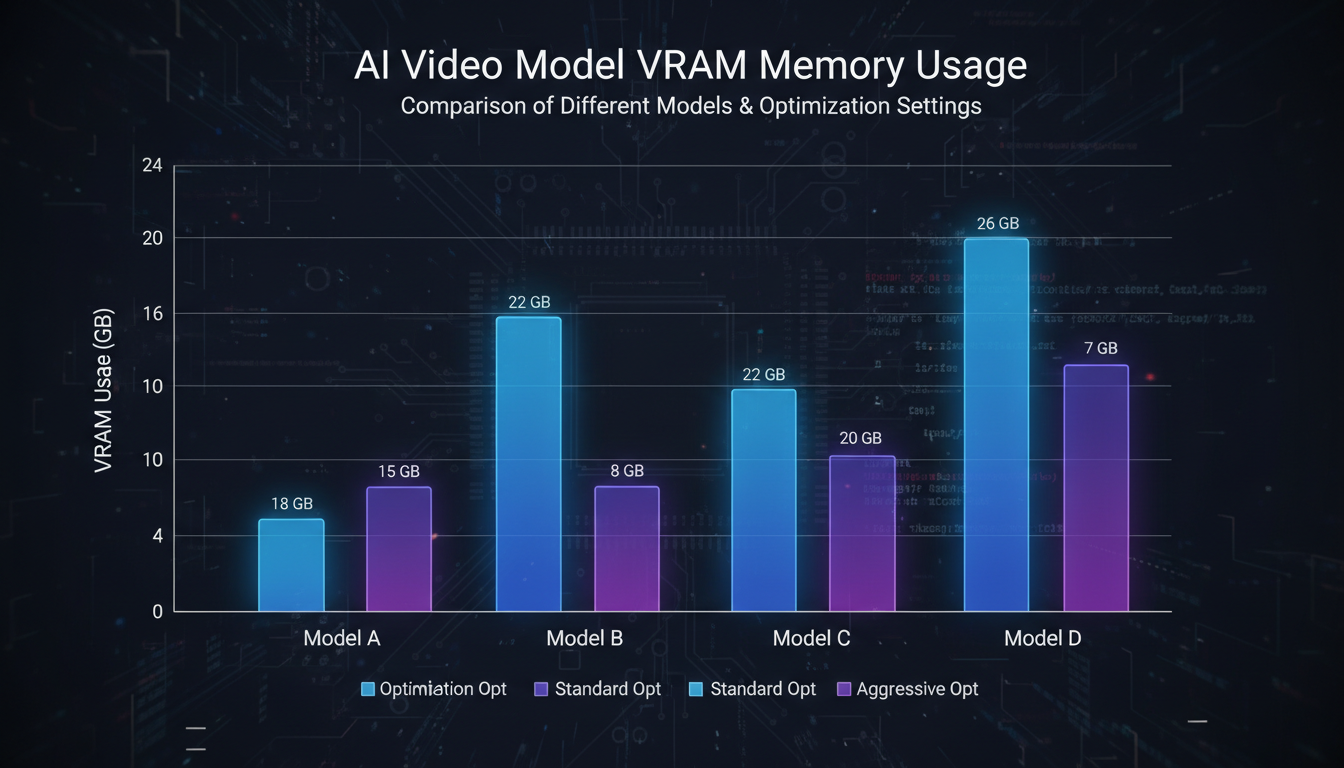 Understanding VRAM requirements for different models helps prevent out-of-memory errors.
WAN 2.2 Issues
WAN has specific quirks:
SVI LoRA conflicts: Standard LoRAs don't work with SVI workflows. Use dedicated SVI LoRAs.
14B model memory: WAN 14B requires 12GB+ VRAM minimum. Use 5B variant for lower VRAM cards.
Long generation stalls: 30-second clips may stall. Generate shorter clips and chain them.
LTX-2 Issues
LTX-specific solutions:
Audio sync problems: Ensure audio is enabled in node settings. Check frame rate consistency.
Quantized model artifacts: FP8 models may show slight quality reduction. Use FP16 for quality-critical work.
Extension failures: Image-to-video extensions may fail with incompatible input dimensions.
Hunyuan Issues
Hunyuan-specific troubleshooting:
High VRAM requirement: Hunyuan needs 16GB+ VRAM. Use extreme optimization for lower cards.
Chinese text generation: Model may generate Chinese text without proper prompting. Be creative in prompts.
Frequently Asked Questions
Why does only the first generation work?
VRAM corruption between runs. The model leaves residual data that corrupts subsequent generations. Restart ComfyUI or add memory clear nodes at workflow end.
How do I know if it's a VRAM issue?
Watch nvidia-smi during generation. OOM errors or slow generation with high VRAM usage indicates memory problems. If VRAM hits 95%+, you're at risk.
Should I update ComfyUI often?
Yes, but test on non-critical work first. Updates can break workflows temporarily. Keep a working backup before updating.
Can I prevent all these issues?
Not entirely, but regular updates, proper VRAM management, and using verified workflows minimize problems. Most issues become rare with experience.
Why are my clips only producing black frames?
Usually VAE decode failure. Check VAE is loaded correctly, try different VAE, or reduce resolution. May also indicate corrupted model download.
How do I fix "No module named" errors?
Missing Python dependency. Run pip install [module name] or reinstall requirements.txt for affected custom node.
Why does generation take forever but never finishes?
Likely insufficient VRAM causing constant swapping. Reduce resolution/frames or use lowvram mode. Check for thermal throttling with high GPU temps.
Can I recover from a failed long generation?
Sometimes. Some samplers save progress and can resume. Otherwise, consider generating shorter clips that can complete successfully.
Should I use one long clip or multiple short clips?
Multiple short clips are more stable. 4-5 second clips complete reliably. Chain them in editing for longer content.
Why do my exports have bad quality even when preview looks good?
Check VideoHelperSuite export settings. Ensure bitrate is adequate (8000+ kbps), correct codec selected, and CRF value appropriate (18-23).
Wrapping Up
ComfyUI video generation errors are frustrating but usually solvable. Most issues fall into VRAM management, node compatibility, or configuration problems.
Key takeaways:
- Restart ComfyUI to fix noise/snow output
- Use lowvram flags for memory issues
- Keep nodes and ComfyUI updated
- Use official workflows as starting points
- Generate shorter clips for better stability
With systematic troubleshooting, you can resolve most issues and get back to creating.
For WAN-specific issues, see our WAN 2.2 guide. For LTX problems, check our LTX-2 tips. Generate videos at Apatero.com.
Some models you cannot download at any VRAM
Veo, Kling and Nano Banana have closed weights. There is no local build, no quantization, no 24GB workaround. Run them in the browser instead. Check current model access and generation costs in the app.
Related Articles

25 ComfyUI Workflow Tips: Settings and Review
Explore ComfyUI workflow organization, settings and output review, with a blank worksheet for comparing performance on your own setup.

7 ComfyUI Custom Nodes That Should Be Built-In (And How to Get Them)
Essential ComfyUI custom nodes every user needs in 2025. Complete installation guide for WAS Node Suite, Impact Pack, IPAdapter Plus, and more...

ADetailer Single Character Focus - How to Target Specific Faces in Multi-Character Images 2025
Master ADetailer and FaceDetailer to focus on single characters in multi-person images. Complete guide to targeting specific faces with different prompts in ComfyUI.