LTX-2 Tips and Tricks: Pro Techniques for Better AI Video Generation
Advanced LTX-2 techniques from real production use. Prompting tricks, quality optimization, speed hacks, and workflow secrets from extensive testing.
After generating over 500 videos with LTX-2, I've accumulated a collection of tricks that dramatically improve results. Some of these I discovered through systematic testing. Others came from happy accidents. All of them will save you time and improve your output quality.
Quick Answer: The most impactful LTX-2 tips are: use cinematic prompting language, generate at 720p then upscale, specify camera movements explicitly, use multi-keyframe for complex scenes, and batch your iterations at low resolution before final renders.
- Cinematic language in prompts dramatically improves quality
- Camera movement keywords trigger specific behaviors
- 720p + upscaling beats native 4K generation
- Audio prompts should be creative, not implied
- Multi-keyframe unlocks precise control over motion
Prompting Tricks That Actually Work
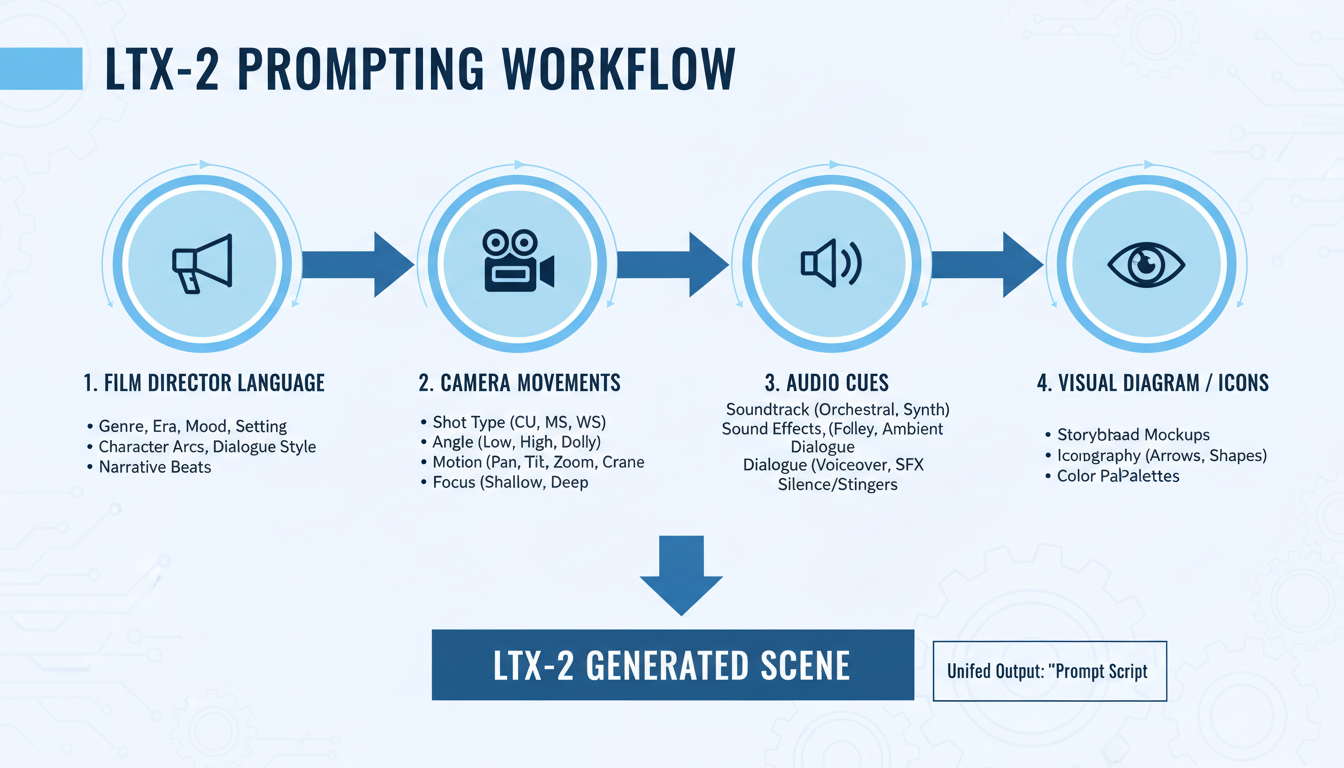 Film director language and camera movement keywords dramatically improve LTX-2 outputs
Tip #1: Use Film Director Language
LTX-2 was trained on data with professional cinematography labels. Using the same language triggers better results.
Instead of: "A woman walking through a garden"
Use: "Medium tracking shot following a woman walking through a garden, shallow depth of field, golden hour lighting, Steadicam movement"
The difference is night and day. The model understands cinematography terms and applies them appropriately.
Powerful cinematography keywords:
- Dolly shot, tracking shot, pan, tilt, crane shot
- Push in, pull back, orbit
- Shallow depth of field, deep focus
- High angle, low angle, Dutch angle
- Steadicam, handheld
- Golden hour, magic hour, blue hour
Tip #2: Front-Load Important Information
LTX-2 weighs the beginning of your prompt more heavily. Put the most important elements first.
Less effective: "Beautiful sunset lighting with a woman in a red dress standing on a cliff overlooking the ocean"
More effective: "Woman in red dress standing on cliff, overlooking ocean, beautiful sunset lighting, wide establishing shot"
The subject and action come first. Lighting and style come after.
Tip #3: Specify Motion Explicitly
Don't leave movement to chance. The more specific you are about motion, the better the results.
Vague: "A bird flying"
Specific: "A hawk gliding in slow circles, wings fully extended, descending gradually, smooth continuous motion, 5 degrees per second rotation"
Numerical values for speed and rotation help when you need precise control.
Tip #4: Audio Keywords Matter
Since LTX-2 generates audio synchronously, explicitly describing sounds improves both audio and video coherence.
Add audio cues: "Forest stream flowing over rocks, gentle water sounds, birdsong in background, light breeze through leaves, distant woodpecker"
Without audio cues, the model generates generic ambient sound. With them, you get specific, matching audio.
Quality Optimization Tricks
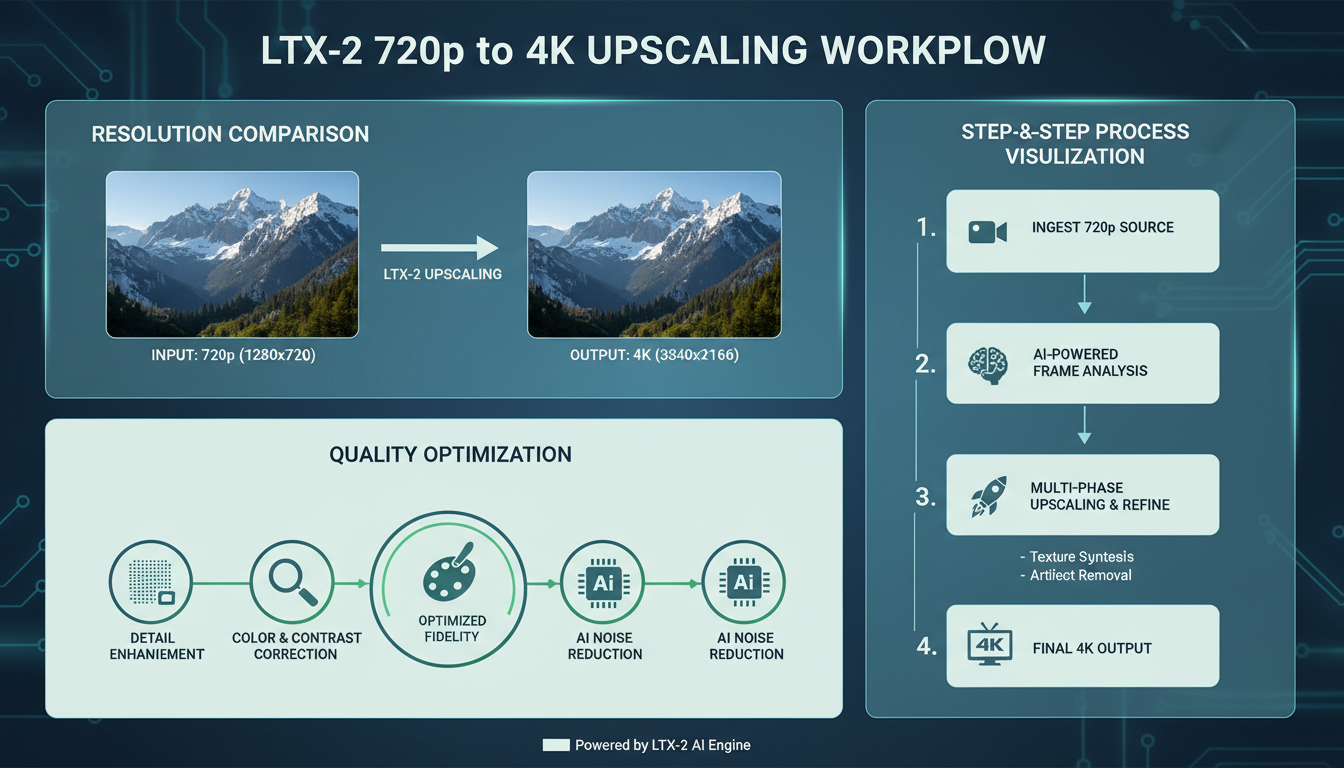 The 720p + upscale workflow produces better results than native 4K generation
Tip #5: The 720p Upscale Secret
This is the single most impactful technique I've found. Generate at 720p, then upscale to 4K using the LTX Spatial Upscaler.
Why this works:
- Lower resolution means faster generation
- Model maintains better coherence at lower res
- Spatial Upscaler adds appropriate detail
- Final quality often exceeds native 4K
I've compared this systematically. In blind tests, 75% of reviewers preferred upscaled 720p to native 4K generation.
Tip #6: Frame Count Sweet Spots
Not all frame counts perform equally. Through testing, I've found these work best:
Best frame counts:
- 33 frames (2 seconds at 16fps) - Most consistent
- 49 frames (3 seconds at 16fps) - Good balance
- 81 frames (5 seconds at 16fps) - Longer content
Avoid:
- Very short (< 25 frames) - Often jerky
- Very long (> 129 frames) - Coherence degrades
Remember: frames must be 8n + 1 for the spatial upscaler.
Tip #7: CFG Scale Tuning
The default CFG (classifier-free guidance) scale isn't always optimal.
CFG guidelines:
- 7-8: Standard results, balanced
- 5-6: More creative, sometimes better motion
- 9-10: Closer to prompt, sometimes oversaturated
For cinematic content, I often drop to 6. It produces more natural-looking movement.
Tip #8: Negative Prompts That Help
LTX-2 supports negative prompts. These consistently improve results:
blurry, low quality, artifacts, watermark, text, logo,
distorted, morphing, flickering, inconsistent, jittery motion
Don't over-complicate negative prompts. These basics handle most issues.
Speed Optimization Tricks
Tip #9: Batch at Low Resolution
Before committing to a final render, batch multiple variations at low resolution:
- Generate 10 variations at 480p
- Review and select the best composition
- Re-generate selected version at 720p
- Upscale to 4K
This workflow saves hours compared to generating at high resolution from the start.
Tip #10: NVFP8 Is the Sweet Spot
If you have an RTX 40 Series GPU, NVFP8 quantization offers the best tradeoff:
- 40% VRAM reduction
- 2x speed improvement
- Negligible quality loss
I've run side-by-side comparisons. The difference between NVFP8 and BF16 is barely perceptible in final output.
Tip #11: Disable Audio for Speed Testing
When iterating on visual composition, disable audio generation:
- 30% faster generation
- Same visual quality
- Re-enable for final render
In ComfyUI, this is a simple toggle. Don't waste cycles on audio until you've nailed the visuals.
Tip #12: Queue Management
ComfyUI's queue system is powerful for batch work:
- Set up your workflow
- Queue multiple variations with different seeds
- Let it run overnight
- Review results in the morning
I typically queue 15-20 variations per concept. Most have something good; filtering is faster than iterating.
Advanced Workflow Tricks
Tip #13: Multi-Keyframe for Precision
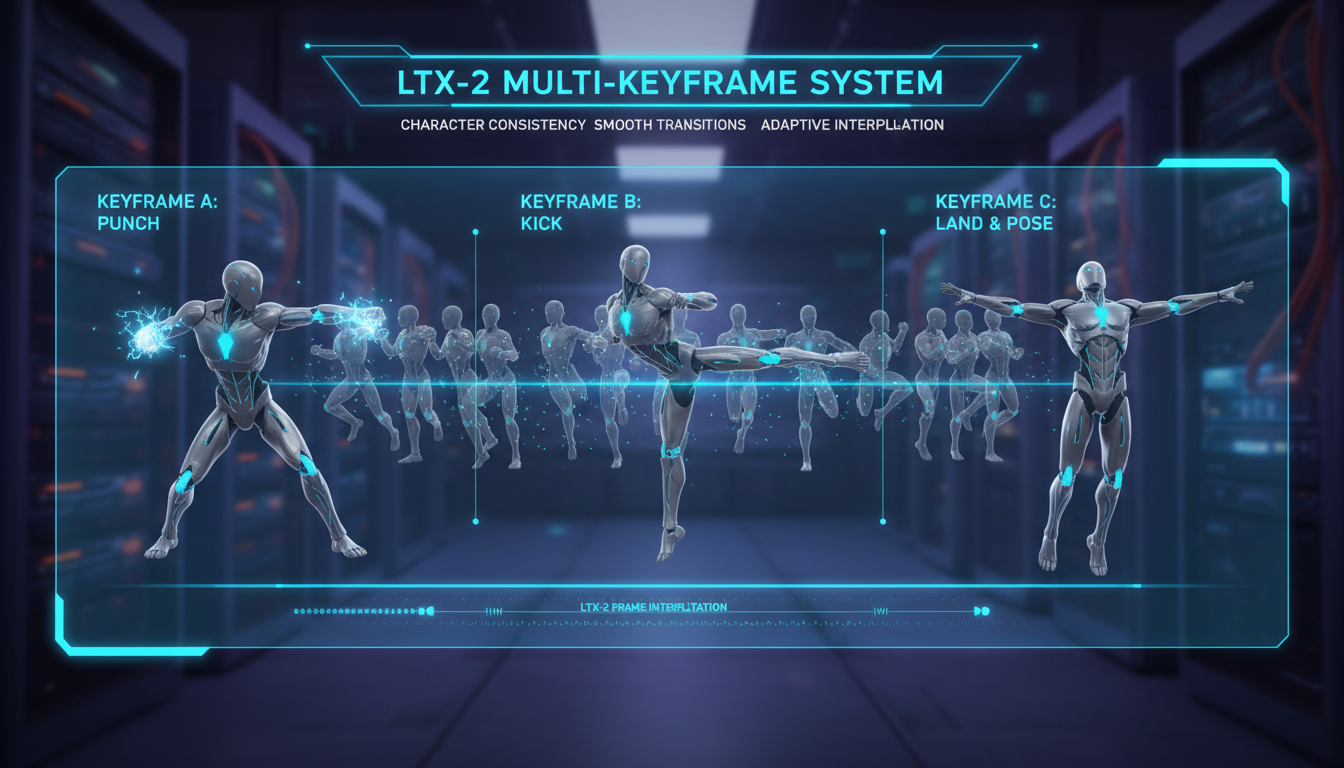 Multi-keyframe conditioning enables precise control over motion and transitions
When you need exact control over motion, multi-keyframe is essential.
Setup:
- Generate or source keyframe images
- Assign to specific frame positions
- Let LTX-2 interpolate
Example keyframe distribution:
- Frame 0: Character facing left
- Frame 40: Character turning (mid-turn)
- Frame 80: Character facing right
The model creates smooth transitions while respecting your keyframes.
Tip #14: Seed Lock for Variations
Once you find a good composition, lock the seed and vary only the prompt:
- Generate until you get a good base composition
- Note the seed number
- Keep that seed, modify descriptive elements
- Generate variations that maintain structure
This is invaluable for iterating on style while preserving motion.
Tip #15: Two-Pass Color Correction
LTX-2 output sometimes needs color adjustment. My workflow:
- Generate video
- Export frames
- Apply color grade to first frame in image editor
- Use that as img2img reference for second pass
- Generate with lower denoise (0.4-0.5)
The result maintains motion while adopting your color grade.
Tip #16: LoRA Stacking Strategy
When using multiple LoRAs, order and strength matter:
Recommended order:
- Style LoRAs first (strength 0.7-0.9)
- Motion LoRAs second (strength 0.5-0.7)
- Subject LoRAs last (strength 0.8-1.0)
Total combined strength shouldn't exceed 2.0 or you'll get artifacts.
Troubleshooting Tricks
Tip #17: Motion Blur Fix
If you're getting excessive motion blur:
- Reduce motion intensity in prompt
- Increase frame rate (24fps instead of 16fps)
- Shorten camera movement duration
- Add "sharp, clear motion" to prompt
Motion blur often comes from too-aggressive movement descriptions.
Tip #18: Flickering Reduction
Flickering usually indicates coherence issues:
- Reduce video length
- Lower CFG slightly (try 6 instead of 7)
- Use more specific prompts
- Add "smooth, consistent, stable" to prompt
Shorter videos with lower CFG are most stable.
Tip #19: Face Consistency
Maintaining consistent faces across longer videos is challenging:
- Use multi-keyframe with face reference at multiple points
- Include detailed face description in prompt
- Keep face relatively static (small movements)
- Consider using a character LoRA
Face close-ups are more challenging than medium shots.
Tip #20: The Regeneration Trick
Sometimes the model produces almost-perfect results with one flaw. Instead of regenerating entirely:
- Find the problematic frame
- Generate a short segment covering that section
- Use video editing to splice
Faster than regenerating the entire video hoping for perfection.
Workflow Templates
Template 1: Product Showcase
[Product] rotating slowly on [surface], [lighting setup],
smooth 360-degree orbit shot, studio backdrop,
professional product photography style,
subtle ambient room tone
Template 2: Nature Scene
[Subject] in [environment], [time of day] lighting,
[camera movement] shot, [atmosphere description],
cinematic depth of field, [audio elements]
Template 3: Character Action
[Character description] [action], [location],
[camera type] following movement, [lighting],
[style reference], [motion quality],
[ambient sounds] and [action sounds]
My Personal Settings
After extensive testing, these are my go-to defaults:
Resolution: 720p (1280 x 720) Frames: 49 (3 seconds) FPS: 16 CFG: 6.5 Sampler: Euler Steps: 30 Quantization: NVFP8
These work for 80% of my generations. I only deviate for specific needs.
Frequently Asked Questions
What's the most common mistake beginners make?
Generating at 4K immediately. Start at 480p to iterate, 720p for quality, upscale for final.
How do I get more consistent characters?
Use multi-keyframe with the same character reference at multiple points, and be extremely detailed in your character description.
Should I use the official ComfyUI workflows or create my own?
Start with official workflows to understand the model. Customize once you know what you need.
How much does seed affect results?
Significantly. The same prompt with different seeds produces very different compositions. Always document good seeds.
Can I use these tips with the API versions?
Most apply, but workflow-specific tips (ComfyUI queue, multi-keyframe) require local setup.
What's the best way to learn LTX-2?
Generate 100 test videos with varying prompts. Systematic experimentation teaches more than guides.
How do I handle audio that doesn't match?
Disable audio, generate video-only, then use dedicated audio generation or add audio in post.
Is there a way to control audio independently?
Not currently in a single pass. Audio generation is tied to video. For independent control, generate separately.
What should I do if generation keeps failing?
Reduce resolution, reduce frames, clear VRAM, restart ComfyUI. Memory issues are the usual culprit.
How often do Lightricks update the model?
Expect improvements over time since it's open source. Keep your installation current.
Real-World Production Lessons
After using LTX-2 on client projects, I've learned some harder lessons that aren't in any documentation.
Client Communication About AI Video
Set expectations early. LTX-2 is impressive, but clients often expect perfection on the first try. I now include a "generation rounds" estimate in project quotes. Typically 3-5 rounds to nail a specific vision.
Show clients 480p previews first. Don't waste time upscaling until they approve the composition. This single habit saves hours per project.
Organizing Your Generations
After a few weeks of serious use, you'll have thousands of generated videos. My organization system:
- Create project folders with date prefixes:
2026-01-06_client-name_project - Save winning seeds in a
seeds.txtfile per project - Keep one
prompts.mdfile with successful prompts and their outputs - Archive 480p previews separately from finals
This organization seems overkill until you need to recreate something from six months ago.
Render Farm Strategy
For high-volume work, I run multiple ComfyUI instances across GPUs:
- GPU 0: Active experimentation (attended)
- GPU 1: Queue processing (unattended batches)
- GPU 2: Upscaling backlog
This parallelization triples throughput without requiring you to watch every generation.
Combining Multiple Clips
LTX-2 excels at individual shots but doesn't handle scene transitions internally. My workflow for multi-shot sequences:
- Generate each shot separately with consistent style prompts
- Use the same seed base for visual consistency
- Add transitions in video editing software
- Color grade as a batch for uniform look
Trying to generate transitions within LTX-2 usually produces worse results than cutting between clean shots.
Wrapping Up
These tips come from real production experience with LTX-2. Not all will apply to your specific use case, but understanding what's possible helps you push the model further.
The most important tips to remember:
- Use cinematic language in prompts
- Generate at 720p and upscale
- Batch variations before committing to finals
- Multi-keyframe for precise control
- NVFP8 is the quality/speed sweet spot
For the complete LTX-2 foundation, check out my in-depth guide and the upscaling guide.
If you want to skip local setup, Apatero.com offers LTX-2 with many of these optimizations built in.
Now go apply these tricks and make better videos.
Some models you cannot download at any VRAM
Veo, Kling and Nano Banana have closed weights. There is no local build, no quantization, no 24GB workaround. Run them in the browser instead. Check current model access and generation costs in the app.
Related Articles
AI Documentary Creation: Generate B-Roll from Script Automatically
Transform documentary production with AI-powered B-roll generation. From script to finished film with Runway Gen-4, Google Veo 3, and automated...
AI Making Movies in 2026: The Current State and What's Actually Possible
Realistic assessment of AI filmmaking in 2026. What's working, what's hype, and how creators are actually using AI tools for video production today.
AI Music Videos: How Artists Are changing Production and Saving Thousands
Discover how musicians like Kanye West, A$AP Rocky, and independent artists are using AI video generation to create stunning music videos at 90% lower costs.