TTS Audio Suite: Multi-Engine Voice Synthesis in ComfyUI
Master TTS Audio Suite for ComfyUI with 8 voice engines including F5-TTS, RVC, IndexTTS-2, and Microsoft VibeVoice. Complete setup guide with voice cloning and emotion control.

I've been waiting for something like TTS Audio Suite. Not another single-engine TTS node that does one thing adequately. A unified system that puts every major voice synthesis engine under one roof, inside ComfyUI, with proper workflow integration.
Quick Answer: TTS Audio Suite is a ComfyUI extension providing unified access to 8+ voice synthesis engines including F5-TTS, Chatterbox, IndexTTS-2, RVC, Higgs Audio 2, and Microsoft VibeVoice. It supports voice cloning from reference audio, emotion control, unlimited text length, and multi-character dialogues in a single workflow.
- 8 synthesis engines: F5-TTS, Chatterbox (23 languages), IndexTTS-2, RVC, Higgs Audio 2, VibeVoice, Step Audio EditX
- Microsoft VibeVoice can generate up to 90 minutes of continuous audio
- IndexTTS-2 includes 8-emotion vector system for expressive speech
- Zero manual setup: ComfyUI Manager handles installation automatically
- Voice cloning works from short reference audio clips
- SRT subtitle timing support for video synchronization
Why This Matters
Before TTS Audio Suite, adding voice to ComfyUI workflows meant cobbling together multiple separate nodes. Want F5-TTS for quality? Install those nodes. Need RVC for voice conversion? Different extension. Emotion control? Another system entirely.
Now you pick one extension and get access to everything. Same interface, same workflow patterns, consistent output formats. When you're generating video content and need matching voiceover, this integration saves hours.
Supported Engines Explained
Let me break down what each engine actually does and when you'd use it.
F5-TTS
The workhorse engine. F5-TTS (Flow-matching Five TTS) produces natural-sounding speech with good prosody. It's fast, reliable, and handles most use cases well.
Best for: General-purpose TTS, narration, most everyday needs.
Limitations: Less emotion range than specialized engines. English-focused quality.
Chatterbox Classic and Multilingual
ResembleAI's Chatterbox comes in two versions. Classic for English. Multilingual for 23 languages including Chinese, Japanese, Korean, Spanish, French, German, and many more.
Best for: Multilingual projects, voice cloning with minimal reference audio.
Standout feature: Zero-shot voice cloning from short samples. Give it 3-10 seconds of reference audio and it captures the voice.
IndexTTS-2
The emotion specialist. IndexTTS-2 includes an 8-dimension emotion vector system: Happy, Angry, Sad, Surprised, Afraid, Disgusted, Calm, and Melancholic.
Best for: Expressive voiceover, character dialogue, audiobooks, content that needs emotional range.
How emotions work: You can set global emotion for a piece or switch emotions per character within dialogue. The vector system means you can blend emotions (70% happy, 30% excited) rather than just selecting discrete states.
Microsoft VibeVoice
The long-form champion. VibeVoice can generate up to 90 minutes of continuous audio in a single session. Available in 1.5B and 7B parameter variants.
Best for: Audiobooks, long narration, podcast content, any scenario where you need extended continuous speech.
Why it matters: Most TTS systems choke on long content. They're optimized for sentence-level generation. VibeVoice was designed for extended generation from the start.
RVC (Real-time Voice Conversion)
Not TTS but voice conversion. RVC takes existing audio and transforms it to sound like a different voice.
Best for: Applying a consistent voice to varied source material, voice-acting your own content then converting to character voices, style transfer.
Workflow: Record yourself → Pass through RVC → Output sounds like target voice.
Higgs Audio 2
High-quality synthesis with good naturalness. Positioned as a premium quality option.
Best for: Production-quality output where you need the best possible synthesis.
Step Audio EditX
Audio editing capabilities beyond pure synthesis. Allows modification of existing audio.
Best for: Post-processing, cleanup, audio manipulation tasks.
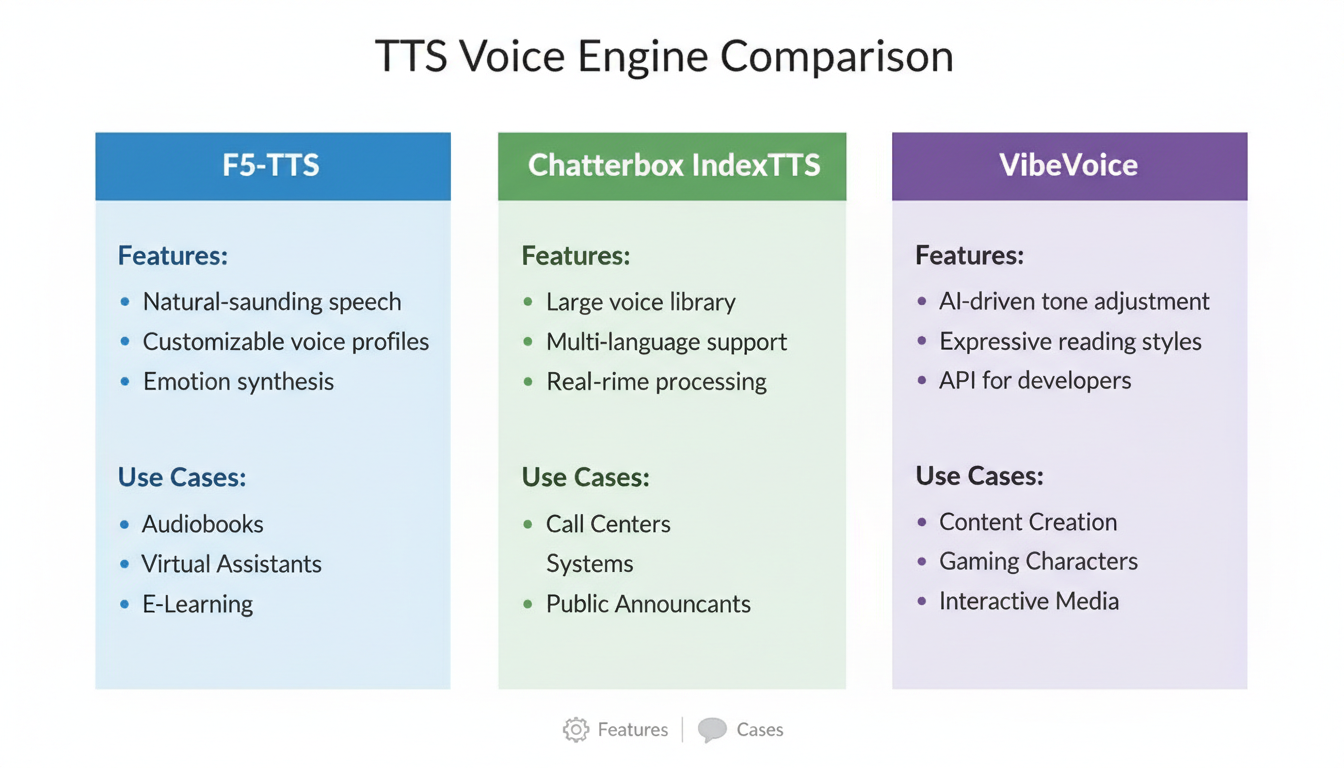 Different engines serve different purposes - F5-TTS for general use, IndexTTS-2 for emotion, VibeVoice for length
Installation
The installation experience has improved dramatically. Current version works through ComfyUI Manager with zero manual setup.
Steps:
- Open ComfyUI Manager
- Search for "TTS Audio Suite"
- Install
- Restart ComfyUI
That's it. Dependencies resolve automatically. Python 3.13 is fully supported. No pip conflicts to debug.
Model downloads: Models download automatically from HuggingFace on first use of each engine. First generation takes longer while models cache locally.
Basic Workflow Setup
The core workflow pattern is consistent across engines:
- TTS Text node: Enter your text
- Engine node: Select and configure engine (F5-TTS, Chatterbox, etc.)
- Reference Audio (optional): For voice cloning
- Audio Output: Save or pass to video workflow
Simple TTS Generation
[TTS Text] → [F5-TTS Engine] → [Save Audio]
Minimal setup. Type text, select engine, generate.
Voice Cloning Setup
[Load Audio (reference)] → [Engine with Clone Mode] → [Save Audio]
                              ↑
                         [TTS Text]
The reference audio defines whose voice the output mimics. Quality of reference audio matters. Clear, noise-free recordings of 5-10 seconds work best.
Emotion-Controlled Generation
[TTS Text with emotion tags] → [IndexTTS-2 Engine] → [Save Audio]
IndexTTS-2 accepts emotion tags in the text:
[happy] Great to see you! [sad] I'll miss this place.
Or use the per-character emotion control for dialogue scripts.
Multi-Character Dialogue
One of the most powerful features. TTS Audio Suite handles scripts with multiple characters, each with their own voice and emotion settings.
Setup:
- Define characters with reference audio for each
- Tag dialogue with character names
- Engine processes and generates with voice switching
Example text format:
[Character: Alice, Emotion: happy]
Hello! So glad you're here.

[Character: Bob, Emotion: serious]
We need to discuss the situation.

[Character: Alice, Emotion: concerned]
What's wrong?
The output is continuous audio with smooth transitions between voices.
SRT Timing for Video Sync
When generating voiceover for video, timing matters. TTS Audio Suite accepts SRT subtitle files to control timing.
Workflow:
- Create SRT file with text and timestamps
- Load SRT into TTS workflow
- Engine generates audio matching the timing
- Audio syncs with video cuts
This solves the classic problem of generated audio being slightly too long or short for video segments. The engine adjusts speaking rate to hit timing marks.
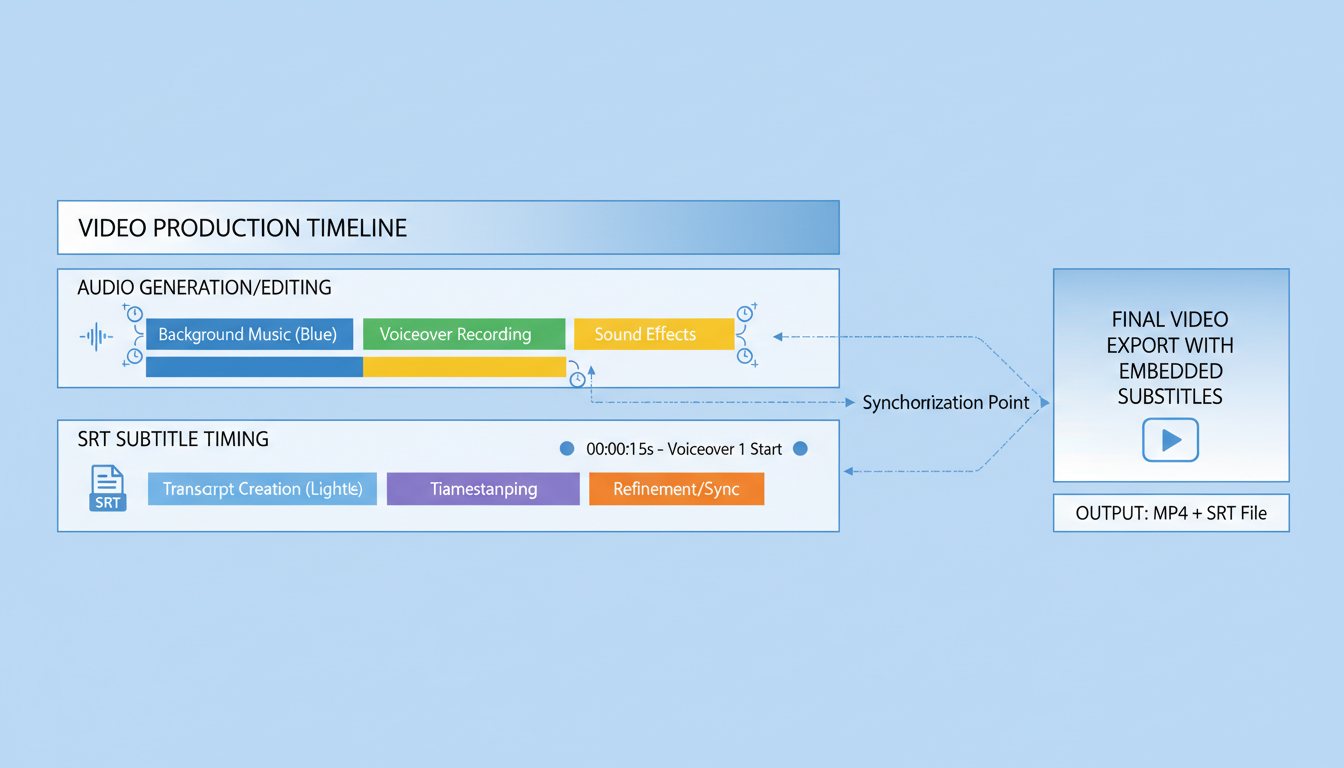 SRT timing ensures generated audio matches video segment durations
Audio Processing Options
Beyond generation, TTS Audio Suite includes cleanup tools:
Noise Reduction: Clean up reference audio or process output.
Echo Removal: Essential when reference audio was recorded in reverberant spaces.
Audio Analysis: Inspect waveforms and characteristics within ComfyUI.
These tools mean you don't need to bounce out to Audacity for basic cleanup.
Performance Considerations
VRAM Usage by Engine
| Engine | Approximate VRAM | Quality |
|---|---|---|
| F5-TTS | 4-6GB | Good |
| Chatterbox | 4-6GB | Good |
| IndexTTS-2 | 6-8GB | Excellent |
| VibeVoice 1.5B | 8GB | Excellent |
| VibeVoice 7B | 16GB+ | Best |
| RVC | 4GB | N/A (conversion) |
For limited VRAM, start with F5-TTS or Chatterbox. Scale up to VibeVoice when you need extended generation and have the GPU headroom.
Generation Speed
Most engines generate faster than real-time on modern GPUs. A 30-second clip typically takes 5-15 seconds to generate depending on engine and hardware.
VibeVoice on long content maintains consistent speed throughout. It doesn't slow down at the 10-minute or 60-minute mark.
Integration with Video Workflows
The obvious use case: generate video with ComfyUI, add matching voiceover.
Combined workflow:
[Generate Video (WAN/AnimateDiff)]
         ↓
[Extract Duration]
         ↓
[TTS Audio Suite with timing]
         ↓
[Combine Video + Audio]
For AnimateDiff workflows, matching audio to animation timing creates much more polished output than silent video or manually synced narration.
Language Support
Chatterbox Multilingual covers 23 languages:
- European: English, German, French, Spanish, Italian, Portuguese, Dutch, Polish, Russian
- Asian: Chinese (Mandarin), Japanese, Korean, Vietnamese, Thai, Indonesian, Hindi
- Middle Eastern: Arabic, Turkish, Hebrew
- And more
Language selection happens at the engine node. For multilingual projects, you can switch languages mid-generation using character tags.
Quality varies by language. English has the most training data and typically sounds best. Less common languages may have more artifacts but are still usable.
Common Issues and Solutions
Reference Audio Not Working
Problem: Voice cloning produces wrong voice or ignores reference.
Fix:
- Use longer reference (minimum 3 seconds, prefer 5-10)
- Ensure reference is clean (no background noise)
- Check sample rate matches engine expectations (usually 22kHz or 44kHz)
Emotion Tags Not Applying
Problem: IndexTTS-2 ignores emotion tags.
Fix:
- Verify tag syntax:
[happy]not(happy)or<happy> - Check emotion spelling matches the 8 supported emotions exactly
- Some emotions blend better than others; try adjusting blend ratios
Long Generation Cuts Off
Problem: Extended text truncates.
Fix:
- Switch to VibeVoice for long content
- F5-TTS and others have practical limits; chunk long text
Audio Has Artifacts
Problem: Pops, clicks, or distortion in output.
Fix:
- Enable noise reduction
- Check reference audio quality
- Try different engine (artifacts vary by engine)
Advanced: Custom Voice Training
For ultimate quality, you can train custom RVC models on your own voice data:
- Record 10-30 minutes of clean voice samples
- Train RVC model using separate training workflow
- Load trained model into TTS Audio Suite
- Apply conversion to any TTS output
This gives you a custom voice that can speak anything, with quality approaching the original recordings.
Best Practices
Start simple. Try F5-TTS with basic text before adding complexity.
Test engines. Each has different character. IndexTTS-2 and F5-TTS produce noticeably different results on identical text.
Reference audio quality matters. Good reference = good cloning. Bad reference = bad cloning. This is non-negotiable.
Use appropriate engine for task. Don't use VibeVoice for a 5-second clip. Don't use F5-TTS for a 30-minute narration.
Use SRT for video. Manual timing is painful. Let the engine handle it.
Comparison with Standalone TTS Tools
Why use TTS Audio Suite instead of ElevenLabs, PlayHT, or other cloud services?
Local processing: No API costs, no usage limits, no internet required after model download.
Workflow integration: Output pipes directly to video workflows. No export/import cycle.
Customization: Full control over every parameter. Train custom voices locally.
Cost: One-time download vs. per-character cloud pricing.
Trade-off: Cloud services may have slightly better quality on some voices. Local gives you control and unlimited usage.
For production at Apatero.com, local TTS means predictable costs regardless of output volume. When you're generating thousands of audio clips, cloud pricing becomes prohibitive.
FAQ
Which engine should I start with? F5-TTS for general use. It's well-balanced and widely tested.
Can I use my own voice? Yes. Record reference audio and use voice cloning, or train a custom RVC model for better quality.
Is there a text length limit? Varies by engine. VibeVoice handles up to 90 minutes. Others have lower limits but can be chunked.
Do I need separate installations for each engine? No. TTS Audio Suite includes all engines. Models download on first use.
Can I mix engines in one workflow? Yes. Different characters can use different engines within the same generation.
How good is the voice cloning? Good enough for most purposes with quality reference audio. Not identical to source but clearly recognizable.
Does it work on Mac? Yes, with Metal acceleration. Some engines may be CPU-only.
Commercial use allowed? Depends on engine. Most are permissive but verify each engine's license for commercial projects.
Conclusion
TTS Audio Suite consolidates what used to require multiple extensions into one coherent package. The multi-engine approach means you're not locked into one synthesis style. Voice cloning, emotion control, and workflow integration make it genuinely useful for production work.
If you're building any ComfyUI workflow that needs audio output, this is currently the most comprehensive option available. Install it, experiment with different engines, and find what works for your specific needs.
The days of silent ComfyUI output are over. Your videos can finally speak.
Some models you cannot download at any VRAM
Veo, Kling and Nano Banana have closed weights. There is no local build, no quantization, no 24GB workaround. Run them in the browser instead. Check current model access and generation costs in the app.
Related Articles

25 ComfyUI Workflow Tips: Settings and Review
Explore ComfyUI workflow organization, settings and output review, with a blank worksheet for comparing performance on your own setup.

7 ComfyUI Custom Nodes That Should Be Built-In (And How to Get Them)
Essential ComfyUI custom nodes every user needs in 2025. Complete installation guide for WAS Node Suite, Impact Pack, IPAdapter Plus, and more...

ADetailer Single Character Focus - How to Target Specific Faces in Multi-Character Images 2025
Master ADetailer and FaceDetailer to focus on single characters in multi-person images. Complete guide to targeting specific faces with different prompts in ComfyUI.