Olm Color Suite: Professional Color Grading in ComfyUI
Master color grading in ComfyUI with Olm's professional node collection. Lift/Gamma/Gain, curves, hue correction, and channel mixing with real-time previews.
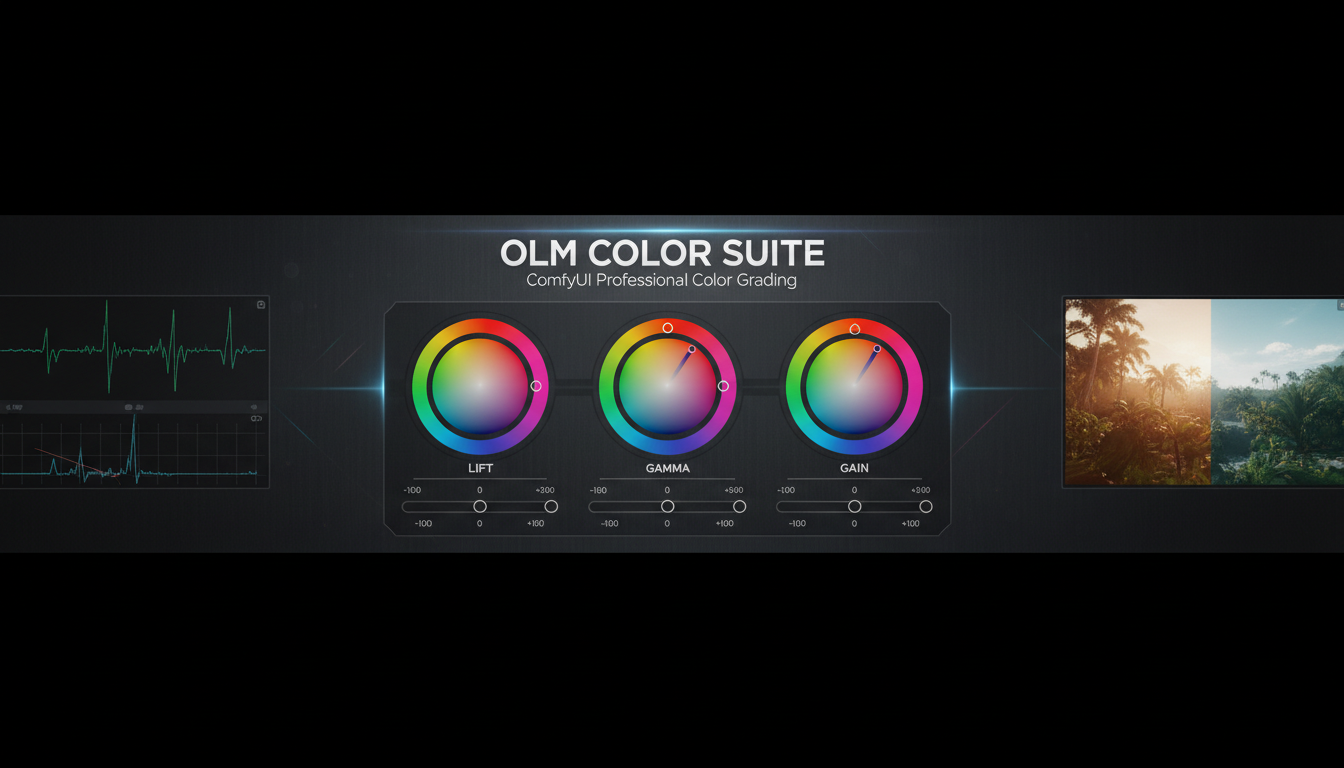
Color grading in ComfyUI has always been possible through various nodes, but nothing has approached the interactivity and precision of dedicated grading software. Until the Olm Color collection.
These nodes bring DaVinci Resolve-style color control directly into your ComfyUI workflow with real-time preview and professional-grade tools.
Quick Answer: The Olm Color Suite is a collection of professional color grading nodes for ComfyUI including Lift/Gamma/Gain, Color Balance, Curve Editor, Hue Correct, and Channel Mixer. All nodes feature real-time preview and interactive controls that match professional grading software.
- Five specialized nodes covering comprehensive color grading needs
- Real-time preview on all adjustments
- No external dependencies - just Pillow, Torch, NumPy
- Professional-style interface matching industry tools
- Works on any image in your ComfyUI pipeline
The Olm Color Collection
Developer Olmirad (o-l-l-i) created a suite of five color grading nodes, each serving a specific purpose:
1. Olm Lift Gamma Gain (LGG)
The foundational color grading tool. If you've used DaVinci Resolve or any professional grading software, this is immediately familiar.
Controls:
- Lift: Adjusts shadow tones
- Gamma: Adjusts midtones
- Gain: Adjusts highlights
- Color wheels: Visual color shift per range
- Strength sliders: Intensity control
Lift/Gamma/Gain is the industry standard for primary color correction. Moving lift adjusts your blacks without affecting whites. Moving gain adjusts highlights without crushing shadows. Gamma controls the middle.
2. Olm Color Balance
Inspired by Photoshop's Color Balance tool. Simpler than LGG but faster for basic adjustments.
Controls:
- Cyan-Red slider
- Magenta-Green slider
- Yellow-Blue slider
- Separate controls for shadows, midtones, highlights
Use this when you need quick color temperature fixes or simple tonal shifts without the complexity of full LGG adjustments.
3. Olm Curve Editor
Precise curve-based adjustments for RGB and luminance channels.
Features:
- Individual R, G, B channel curves
- Master luminance curve
- Point-based editing
- Real-time preview
Curves give you the most precise control over tonal response. S-curves add contrast. Adjusting individual channels corrects color casts or creates stylized looks.
4. Olm Hue Correct
Professional-grade hue-based correction similar to Nuke's HueCorrect node.
Lookup types:
- Hue vs Saturation
- Hue vs Value
- Hue vs Hue
This node lets you adjust specific color ranges without affecting others. Make only the blues more saturated. Shift only greens toward teal. Darken only reds. Extremely powerful for targeted corrections.
5. Olm Channel Mixer
Classic channel mixing for creative color effects.
Functionality: Each output channel can draw from any combination of input channels:
- Red output = (% of Red) + (% of Green) + (% of Blue)
- Green output = (% of Red) + (% of Green) + (% of Blue)
- Blue output = (% of Red) + (% of Green) + (% of Blue)
Channel mixing creates looks impossible with standard color tools. Cross-processing effects, infrared simulation, custom film looks.
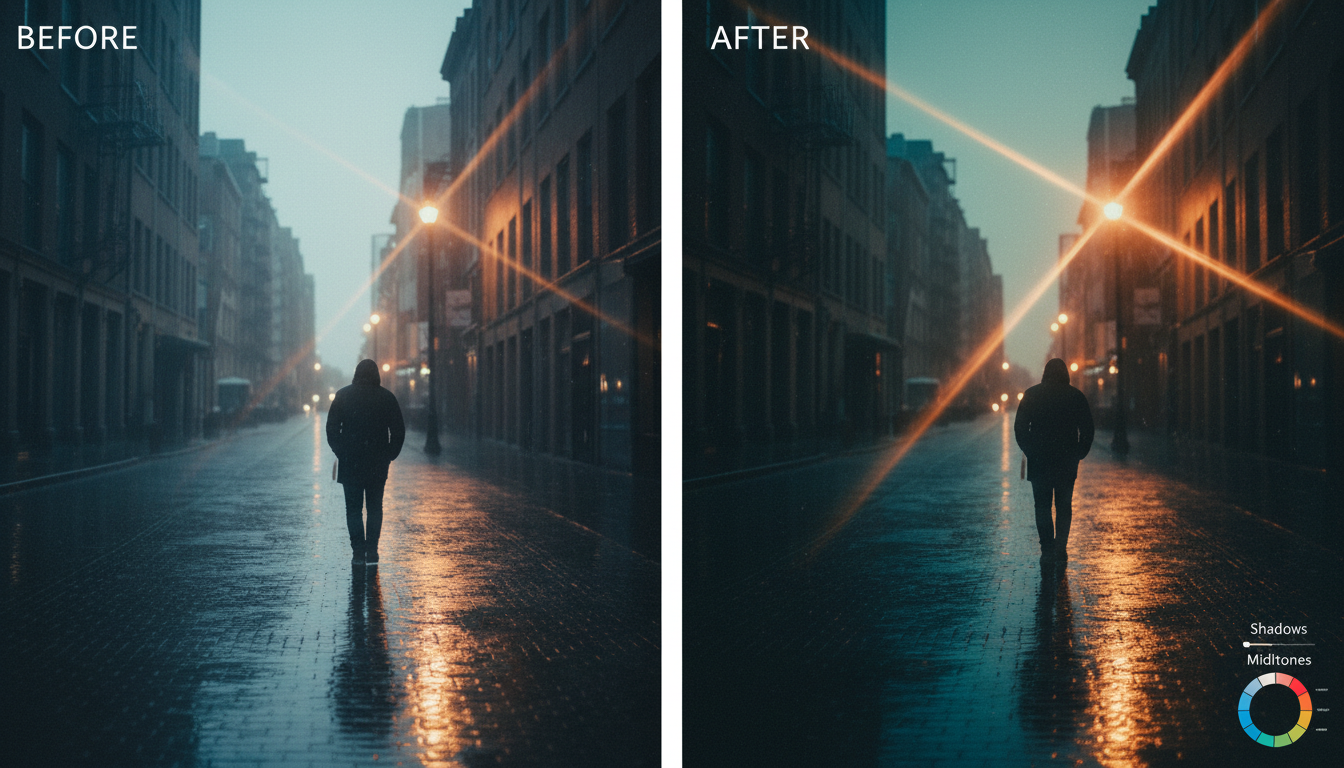 Color grading transforms flat images into cinematic looks
Installation
Each node installs separately. Install what you need:
Lift Gamma Gain:
cd ComfyUI/custom_nodes
git clone https://github.com/o-l-l-i/ComfyUI-Olm-LGG
Color Balance:
git clone https://github.com/o-l-l-i/ComfyUI-Olm-ColorBalance
Curve Editor:
git clone https://github.com/o-l-l-i/ComfyUI-Olm-CurveEditor
Hue Correct:
git clone https://github.com/o-l-l-i/ComfyUI-Olm-HueCorrect
Channel Mixer:
git clone https://github.com/o-l-l-i/ComfyUI-Olm-ChannelMixer
No extra dependencies. Just restart ComfyUI after installation.
Practical Workflow: Cinematic Look
Let me walk through creating a cinematic color grade:
Step 1: Primary Correction with LGG
Start with Lift/Gamma/Gain to establish your base look:
- Lift the blacks slightly - Pure black is rarely cinematic. Add a touch of blue or teal to shadows.
- Push gain toward warm - Highlights often benefit from subtle warmth.
- Leave gamma neutral or add slight contrast.
This creates the classic "orange and teal" look foundation.
Step 2: Fine-tune with Curves
Add the Curve Editor after LGG:
- Create a subtle S-curve on luminance for contrast
- Lift the bottom of the blue curve to add blue to shadows
- Lower the top of the blue curve to reduce blue in highlights
Curves give you precise control over where colors appear in the tonal range.
Step 3: Targeted Fixes with Hue Correct
If specific colors need adjustment:
- Saturate skin tones using Hue vs Saturation curve
- Shift greens toward teal for that film look
- Reduce extreme saturation in any problematic colors
Hue Correct lets you fix problems without affecting the entire image.
Step 4: Final Polish with Color Balance
Quick final adjustments:
- Check shadow tone - still looking good?
- Verify highlight warmth - not too yellow?
- Subtle midtone adjustments if needed
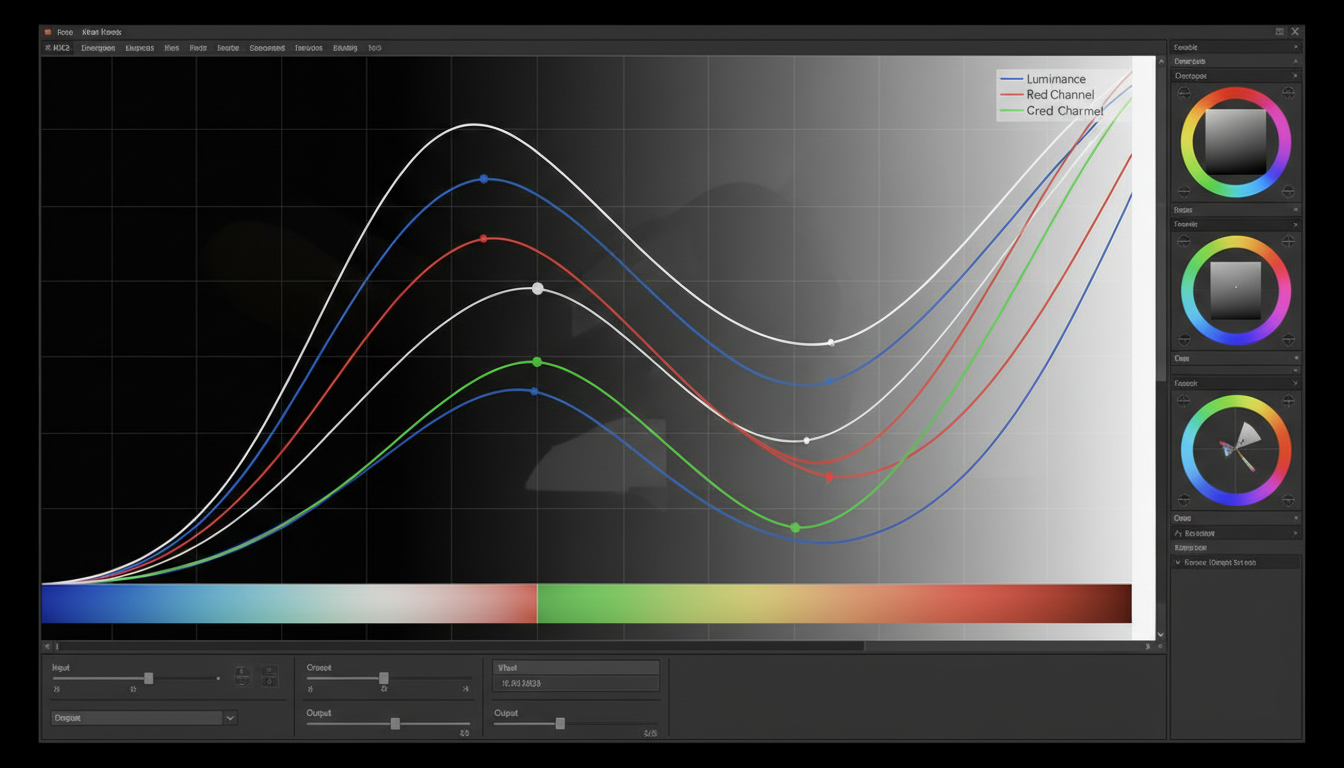 Curve editing provides precise control over tonal response
Real-Time Preview
All Olm Color nodes feature real-time preview. As you adjust controls, the preview updates immediately. No need to execute the workflow to see changes.
This interactivity transforms the grading experience. You can experiment freely, trying different looks without waiting for execution between each adjustment.
When to Use Each Node
Use LGG when:
- Doing primary color correction
- Establishing overall color direction
- Separating shadow/midtone/highlight color
Use Color Balance when:
- Making quick temperature fixes
- Simple tonal shifts
- You don't need LGG's precision
Use Curves when:
- You need precise tonal control
- Creating specific contrast profiles
- Making subtle channel adjustments
Use Hue Correct when:
- Adjusting specific color ranges
- Fixing color cast in certain tones only
- Creating targeted stylization
Use Channel Mixer when:
- Creating creative color effects
- Simulating film stocks
- Making impossible color transformations
Combining with AI Generation
The real power comes from integrating color grading into AI workflows:
Post-Generation Grading
Generate images → Olm Color nodes → Final output
Apply consistent looks to all generated images. Match different generations to the same color style.
Style Matching
Use Olm nodes to match AI generations to reference footage or existing project aesthetics. AI outputs often have different color characteristics than your target. Grade them to match.
Batch Processing
Since these are ComfyUI nodes, you can batch process entire folders of images through your color grade. Generate 100 images, grade them all identically.
Comparison to Alternative Solutions
| Tool | Real-time | Precision | Integration |
|---|---|---|---|
| Olm Color Suite | Yes | High | Native ComfyUI |
| Impact Pack color nodes | No | Medium | Native ComfyUI |
| External grading (DaVinci) | Yes | High | Export/import |
| Python color scripts | No | High | Custom coding |
Olm Color provides DaVinci-level control without leaving ComfyUI.
Licensing Note
Important: Olm Color nodes are source-available but not open-source. You can use them freely and own all results you create. However, redistribution, resale, or claiming authorship is prohibited.
For personal and commercial use of results: fully allowed. For redistributing the code: not allowed without permission.
Tips for Better Results
Start Subtle
Professional color grading is subtle. If your adjustments are immediately obvious, you've probably gone too far. Pull back.
Work in Order
- Primary correction (LGG)
- Curves for contrast/tone
- Hue-specific adjustments
- Final balance check
This order prevents cascading corrections.
Use Reference
Pull in reference images with the look you want. Compare side-by-side. Match rather than guess.
Check on Different Monitors
Colors look different on different displays. What looks great on your monitor might look off elsewhere.
FAQ
Can I save and reuse grades? Save your workflow with the node settings. Reload to apply the same grade later.
Do these work with video? Frame by frame, yes. For video efficiency, consider external grading software.
What about HDR? Nodes work in standard dynamic range. HDR grading requires specialized tools.
Any performance impact? Minimal. Color operations are fast. Real-time preview has no meaningful impact on generation time.
Can I use these commercially? Yes. You own results you create. Just don't redistribute the nodes themselves.
Do they work with all image formats? Any image passing through ComfyUI is compatible.
Integration with Existing Workflows
Adding Olm Color to existing workflows is straightforward:
- Find where your final image outputs
- Insert Olm Color node(s) before the save node
- Connect image input and output
- Adjust settings
No workflow restructuring required.
For cloud-based workflows where local node installation isn't possible, Apatero.com offers post-processing options that complement local color grading tools.
Conclusion
The Olm Color Suite brings professional color grading directly into ComfyUI without requiring external software. The real-time interactivity matches dedicated grading tools while maintaining full integration with your AI generation pipeline.
If you've been exporting to Photoshop or DaVinci just for color work, these nodes eliminate that step. Grade in place, iterate faster, and maintain a unified workflow.
Your AI images deserve more than default colors.
Some models you cannot download at any VRAM
Veo, Kling and Nano Banana have closed weights. There is no local build, no quantization, no 24GB workaround. Run them in the browser instead. Check current model access and generation costs in the app.
Related Articles

25 ComfyUI Workflow Tips: Settings and Review
Explore ComfyUI workflow organization, settings and output review, with a blank worksheet for comparing performance on your own setup.

7 ComfyUI Custom Nodes That Should Be Built-In (And How to Get Them)
Essential ComfyUI custom nodes every user needs in 2025. Complete installation guide for WAS Node Suite, Impact Pack, IPAdapter Plus, and more...

ADetailer Single Character Focus - How to Target Specific Faces in Multi-Character Images 2025
Master ADetailer and FaceDetailer to focus on single characters in multi-person images. Complete guide to targeting specific faces with different prompts in ComfyUI.